To: mydataportal@abs.gov.au
Subject: New DataLab project query
Dear DataLab team
I would like to enquire about setting up a new DataLab project.
Project Organisation/s:
Project Title:
Draft Project Proposal (if completed):
Analyse the most detailed microdata in the secure DataLab for your statistical research or modelling, find out about charges and how to access
From 25 December 2025 until 2 January 2026 the teams responsible for administering DataLab, DataLab training, DataLab Clearance, and Data Integration services will be unavailable.
Further, during 5 December 2025 and 19 January 2026, these teams will be operating at reduced capacity. During this time, priority will be given to requests requiring urgent attention to support government policy and emergency response.
myDATA requests can be submitted at any time, but will only be actioned during this period if resources are available. Both myDATA and DataLab remain open for access during this period.
Important update - New contact email address
The new email address for all correspondence relating to DataLab and myDATA is mydataportal@abs.gov.au - we are progressively updating the website and other relevant materials to reflect the new address. Please refer to the Contact us page, all templates redirect to the new address.
LabLink is a video conferencing tool developed for DataLab, available in its trial (BETA) phase. It is designed to help researchers collaborate securely within their Virtual Machines (VMs) with other users on the same project. For more information, refer to LabLink (BETA). For instructions on how to use LabLink BETA, refer to the documentation available on the Shared Library (L: Drive) in your VM. If you wish to provide feedback on your experiences using LabLink BETA please email sead.support@abs.gov.au.
DataLab is the analysis solution for high-end users who want to undertake real time complex analysis of detailed microdata. Compare data services to see if detailed microdata in the DataLab is the right service for you.
Note: Government organisations seeking to leverage the DataLab cloud infrastructure to host their own data and manage their own end-users should consider the Secure Environment for Analysing Data (SEAD) service.
Detailed survey and integrated microdata are available for the following users for approved projects and organisations:
All organisations are required to have a Responsible Officer Undertaking (ROU) in place with the ABS and meet one of the following criteria:
| User type: | Description | Criteria |
|---|---|---|
| Government employees | Federal, state or local government employees with an Australian Government Service number (AGS) or state/local/territory equivalent. | N/A |
| Government contractors and individuals sponsored by government | Where the researcher does not have an AGS or state/local/territory equivalent, and they are either a contractor or from a private organisation. | See below. |
| Contractor | A researcher engaged under a contractual agreement with a government agency to contribute to a specific project for a defined period. This individual does not hold an AGS number or a state/local/territory equivalent and is not considered a public servant. |
|
| Private organisation | Where a private organisation does not have a contract with government, but government wants the private organisation to provide advice or view data with their government project team. |
|
| Academics | Academics include staff, affiliates, adjuncts, visiting fellows and students (domestic and international) including HDR, masters, post-graduates, and undergraduates. |
|
| Public policy research institutes | Researchers affiliated with recognised public policy research institutes, including Aboriginal Community-Controlled Organisations (ACCO), may be granted access provided the organisation can satisfy the following conditions: |
|
Overseas entities are approved on a case-by-case basis. Please refer to Access outside of Australia | Australian Bureau of Statistics for more information about the approval process and how to apply.
All users need to also meet ABS safe people criteria, including researchers who:
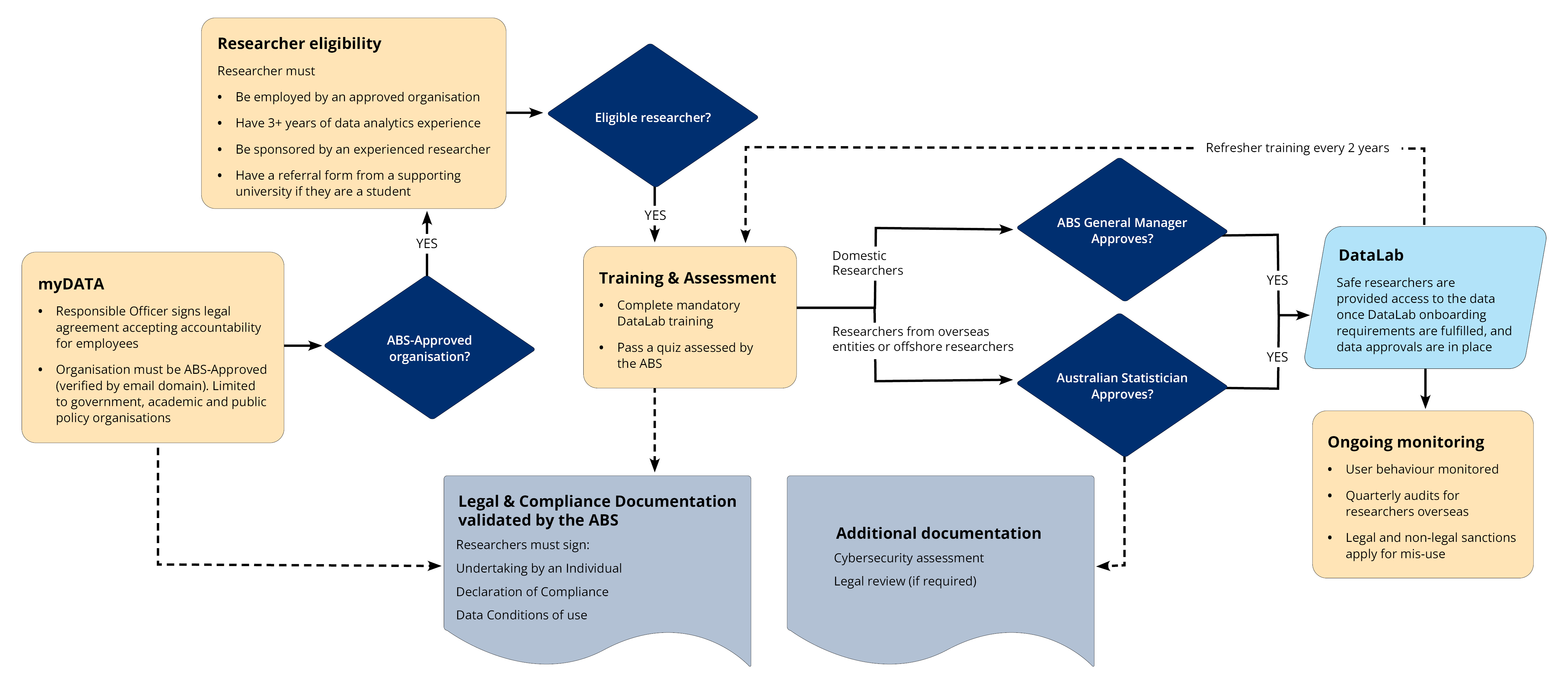
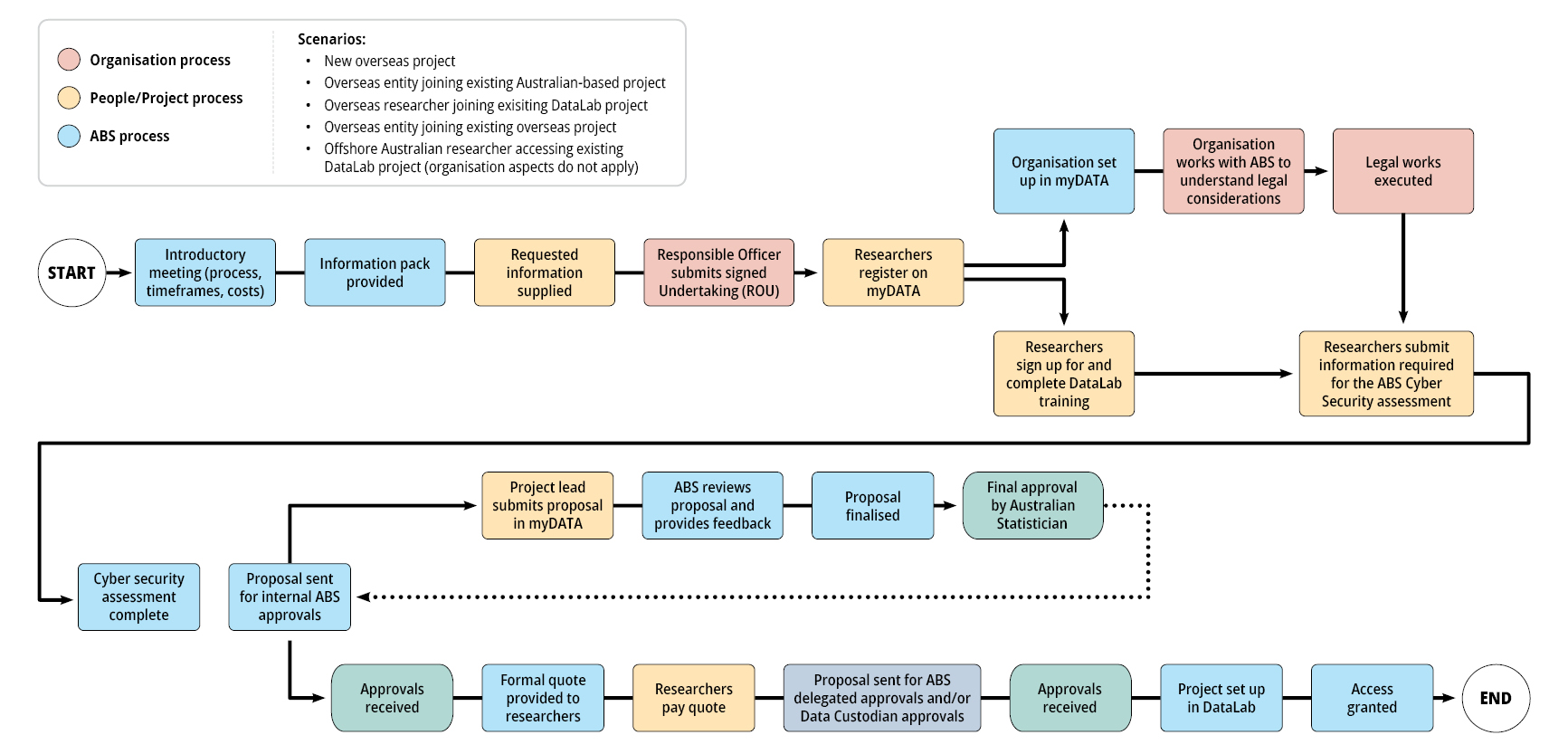
The onboarding process for ABS DataLab access requires researchers to meet eligibility criteria, including employment with an approved organisation, relevant experience, and sponsorship. Organisations must sign legal agreements and be ABS-approved. Researchers complete mandatory training and pass an assessment, then submit compliance documentation and, if needed, additional cybersecurity or legal reviews. Approvals from the Australian Statistician are required for overseas researchers. Once onboarding and data approvals are complete, researchers gain DataLab access. Ongoing monitoring includes user behaviour checks, audits for overseas users, and sanctions for misuse.
The ABS is committed to keeping the ABS DataLab safe and secure. We have a strong data protection culture and extensive experience in keeping data secure as Australia’s national statistical organisation and as an Accredited Data Service Provider. The ABS DataLab is hosted in Microsoft Azure and meets PROTECTED level security standards as prescribed in the Australian Government Information Security Manual (ISM). It is subject to Independent Security Registered Assessors Program (IRAP) certification, ongoing security audits and robust IT security testing and patching delivering the Safe Settings aspect of the Five Safes Framework.
The technology underpinning the ABS DataLab includes:
The ABS employs the above with a focus on industry standard security posture management to provide a safe and secure platform for policy and program delivery work.
For criteria, refer to Who can access the DataLab
Organisation approval
Researcher approval
Project approval
Refer to What is DataLab and Using DataLab responsibly for more information.
Registration of an account will allow you to:
Register in the myDATA Portal and agree to the Conditions of use
You can complete your training while your project proposal is underway.
Access will not be granted until DataLab safe onboarding is completed. For the onboarding process, the following documents are required to be submitted:
For further information, please refer to the myDATA user guide.
| Create and complete a new project proposal in the myDATA user portal | Updates to an existing project proposal |
|---|---|
| For further information, please refer to Creating and Editing in the myDATA user guide | For existing projects, please refer to Change Requests in the myDATA user guide |
DataLab is enabled by cloud infrastructure, which may be blocked by some organisations’ firewall settings.
ABS cannot make changes to external organisations' infrastructure. Project Leads need to supply the information below to each organisation participating on this project.
Network/IT Security sections in each organisation need to review and make changes to authenticate access. This only needs to be done once per organisation.
1. Enable authentication to the tenant
Users need to authenticate to one of ABS Azure Active tenants, which may be strictly controlled by government agencies and academic workplaces. Authentication must be enabled to the tenant:
This tenant is in the Azure Australia East and Azure Australia Central regions.
2. Allow user access to URLs
Users will need to access the following URLs:
3. Configure your organisation's network to allow outbound connections to the following addresses required for Azure Virtual Desktop (AVD):
These addresses all utilise the TCP protocol and outbound port 443 for communication.
Contact mydataportal@abs.gov.au for further assistance.
The ABS is actively working to comply with Web Content Accessibility Guidelines (WCAG) 2.1 at Level AA, which describe how to make web content more usable and accessible for everyone. Our goal is to provide information that is accessible to all, including people with disabilities.
Recent accessibility reviews confirm that the DataLab/SEAD cloud platform meets the necessary organisational standards as it:
Note: Any Windows accessibility features not enabled by default can be requested, and will be considered in line with relevant data sensitivities.
The ABS privacy policy and DataLab privacy notice outline how the ABS handles any personal information that you provide to us.
Access to the DataLab from outside Australia is available, subject to a formal application and assessment process
Applications for overseas access are open to:
All applications are subject to a comprehensive assessment, including:
Approval is not guaranteed. Each application is assessed on a case-by-case basis.
Researchers who are on multiple DataLab projects must be approved for each project.
Applications must demonstrate:
To begin an application or for further enquiries, please contact: mydataportal@abs.gov.au
DataLab and associated access and service charges for FY2025-26
DataLab access incurs an annual charge. This charge is based on the number of analysts with virtual machine access in a project.
The charge covers the typical annual costs of:
The ABS is committed to supporting the DataLab service and subsidising DataLab users. We currently use a partial cost recovery arrangement with charges being set to allow the ABS to maintain its service levels as well as deliver critical system and infrastructure enhancements.
Please note:
| Annual Charge FY2025-26 | Excluding GST |
|---|---|
| Tier 1 projects: 1 to 5 analysts | $5,500 |
| Tier 2 projects: 6 to 10 analysts | $13,200 |
| Tier 3 projects: 11 to 25 analysts | $33,000 |
| Tier 4 projects: Above 25 analysts | Custom |
Additional charges apply for customised data integration services.
| Annual DataLab fee by project tier $ | |||
|---|---|---|---|
| Financial Year | Tier 1 | Tier 2 | Tier 3 |
| 2022-23 – All projects | $2,000 | $4,000 | $10,000 |
| 2023-24 - Existing Projects established before July 1 2023* | $2,000 | $4,000 | $15,000 |
| 2023-24 - Projects established after July 1 2023 | $5,000 | $12,000 | $30,000 |
| 2024-25 - Existing Projects established before July 1 2023* | $2,000 | $4,000 | $30,000 |
| 2024-25 - Projects established after July 1 2023 | $5,000 | $12,000 | $30,000 |
| 2025-26 – All projects | $5,500 | $13,200 | $33,000 |
*Indicates grandfathered prices for projects established before 1st July 2023. These prices have since been phased out starting 1st July 2025.
Non-standard charges apply to all projects for services that are not within the scope of the annual charge.
| Quarterly charges per project |
|---|
Non-standard virtual machines are charged quarterly. Standard virtual machines are included in the annual charge and comprise machines up to and including the large size. Please refer to virtual machines for further information on size. Usage based charge set by Microsoft Azure - only the cost incurred by each project is charged quarterly. |
Databricks is charged quarterly. Please refer to Databricks for more information about this service. Usage based charge set by Microsoft Azure - only the cost incurred by each project is charged quarterly. |
| Quarter | Months | Quote Issued |
|---|---|---|
| Qtr 1 | July to September | Charge in October |
| Qtr 2 | October to December | Charge in January |
| Qtr 3 | January to March | Charge in April |
| Qtr 4 | April to June | Charge in July |
| Annual charges per project | Excluding GST |
|---|---|
Use of SAS (per user) Charge applicable per financial year. This charge is non-transferable and not pro-rated for the year for the user. | $500 |
Each additional terabyte of storage per project workspace. (One terabyte of storage is included in the annual charge.) | $850 |
| Annual charges per project - High output demand* | Excluding GST |
|---|---|
Tier 1 This charge is based on the number of output requests received by the Output clearance team. Tier 1 applies to projects with output requests that:
| $20,900 |
Tier 2 This charge is based on the number of output requests received by the Output clearance team. Tier 2 applies to projects with output requests that:
| $45,100 |
*A high output demand charge applies to projects that require a higher level of service, including high volumes, faster turnaround or the application of special rules. This charge will be applied when the project team requests this higher level of service, or when the ABS determines that a project is requiring resources exceeding cost recovery of the annual charge. High output demand charges are structured into two separate tiers.
| Annual charges per project - High service level** | Excluding GST |
|---|---|
This charge is levied on projects that have a high number of service requests. The following will be a factor in considering the application of the high service level charge:
| $22,000 |
**A high service level charge applies to projects that require resources exceeding the cost recovery of the annual charge. This charge will be applied when the project team requests this higher level of service, or when the ABS determines that a project is requiring resources exceeds the cost recovery of the annual charge.
For projects and data services covered by the current ABS/Universities Australia Agreement, students, staff and researchers are not individually invoiced for their use of the charged ABS data services.
For more information refer to the ABS/Universities Australia Agreement.
University projects that choose to progress their access requests outside of the ABS/Universities Australia Agreement will be subject to access charges as outlined above.
Academics looking to submit a grant application should note the following:
ABS International Merchandise Trade (IMT) statistics are subject to additional disclosure controls and consistency checks with published ABS data when releasing IMT data from the DataLab.
These additional activities incur additional costs. Projects requiring access to IMT data are subject to the following charges:
Access to the DataLab from outside Australia is open for applications, see Access outside of Australia for more information. There are additional charges associated with project and researcher applications to access DataLab from outside Australia. This includes domestic researchers seeking to access DataLab while travelling outside Australia, and researchers from overseas entities seeking to access DataLab for a new project.
Note, an assessment fee is payable even if the application does not proceed or is denied by the ABS. Paying this fee does not guarantee access.
These charges are in addition to the annual DataLab charges and cover costs for the ABS to administer access to DataLab from outside Australia while upholding high standards of security and service delivery.
| Charge | Fee (excl. GST) | Description | Charge Frequency |
|---|---|---|---|
| Assessment fee | $1,600 | Additional approvals, cyber security assessment, revised undertakings, whitelisting and monitoring set up. This fee is payable even if the application does not proceed or is denied by the ABS. Paying this fee does not guarantee access. | Per application and per researcher* |
| Annual fee (top-up) | $1,900 | Regular auditing and maintenance overseas access, query support, and corporate administration in maintaining overseas access. | Annually and one off per project with Annual Access Fee |
| Establishment fee | $4,100 | Assessment of organisation covering privacy and legal settings, review and customisation of undertakings, additional custodian approvals. | Per project |
| Legal fee (if required) | $7,600 | For new overseas entities. Negotiation of the form of legal documentation that will work with the governance and laws of that organisation. Review of treaty arrangements. Review of final documentation. | One-off per organisation (if required) |
*Note: If a researcher travels overseas at two separate times or changes their travel as approved, the assessment fee applies each time an assessment is required. Any subsequent travel requests will be subjected to similar charges.
Charging policy for DataLab
Charges apply when a project is formally established, and data access granted.
A project is established when:
This approach is similar to a subscription model, where billing begins when the service becomes available, even if all datasets are not yet fully delivered and not all researchers are onboarded and ready for access.
The rationale is that from the point of activation, resources are allocated, systems are engaged, and support is provided to enable access and use of the available data. This ensures timely delivery and allows users to begin working with what’s ready, while remaining aligned with the broader project timeline.
Note: Researchers must indicate if they would prefer to delay the establishment of their project until all data or all researchers are ready.
DataLab prices are reviewed annually. Communications will be sent out to project editors and project leads based on communication preferences. Please ensure project contacts are up to date in myDATA.
Prices advertised exclude GST. GST will be applied to charges unless the organisation is exempt.
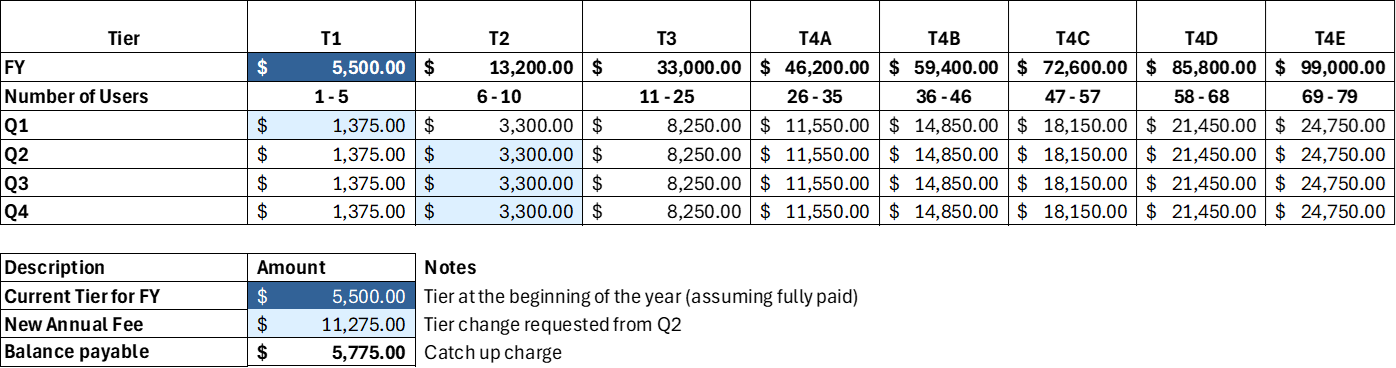
If a project increases its number of users during the year and moves to a higher pricing tier, a catch-up charge will be issued in the quarter additional user access is granted and tier change has occurred, following the initial annual charge.
If a project reduces their Tier during the year, there is no pro-rata refund for the decrease in tier.
The quarterly charge shown in the table below does not apply to projects that are looking to have half-year projects (e.g. start Q1, closure in Q2) as projects must be paid on an annual basis. The quarterly split is only to assist in calculating catch up charges during tier increases.
An example of tier change charges is highlighted below using 2025-26 DataLab Prices. Please check the Charges for up-to-date prices.
The image is a table showing a pricing structure for different tiers based on the number of users and quarterly payments.
DataLab standard access is renewed at the beginning of each financial year based on new prices.
All annual charges are due and payable at the beginning of the financial year and apply for the full year. These charges are fixed and cannot be prorated nor refunded.
During project establishment, charges are prorated based on the quarter in which the project commences. These projects will be subjected to the full year costs in the new financial year to renew DataLab access for their projects.
Annual charges are not adjusted or prorated when a project concludes or is planned to conclude. This approach ensures adequate cost recovery for the closure, storage, and archiving activities required at the end of a project.
| Quarter | Q1 | Q2 | Q3 | Q4 |
|---|---|---|---|---|
| Period Charged | July - September | October – December | January – March | April - June |
| Billing time | End October | End January | End April | End July |
| Service | Charging Basis |
|---|---|
| SAS | Per user* |
| Additional Storage | Per additional Terabyte |
| High Clearance Demand | Based on the resource demands of input, output and transfer requests |
| High Service Level | Based on service demands |
| Databricks | Based on usage* |
| Non-Standard Virtual Machines | Based on usage* |
*Notes:
Use the Access Outside Australia calculator below to calculate the estimated cost for your project. Final fees are determined by your ABS representative. The calculator must be downloaded.
Note: Fees calculated using this tool may not be accurate.
If you're an approved DataLab researcher based in Australia and plan to travel overseas while continuing to use DataLab, a one-off Assessment fee of $1,600 applies on the financial year.
This fee is charged per researcher and covers:
All other standard and non-standard DataLab fees apply per the current price catalogue on the Charges page.
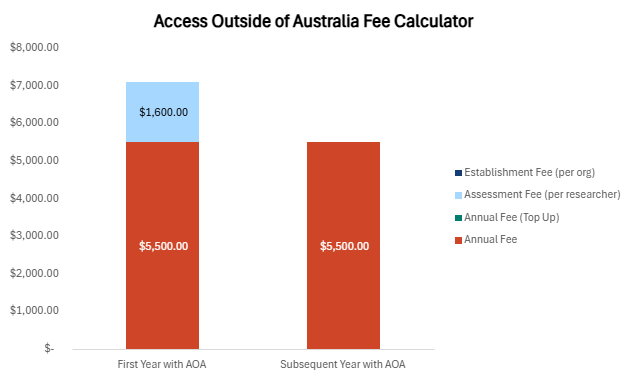
We are an Australian based project with five researchers and is charged an annual fee of $5,500 to access DataLab. If one of us plans to travel overseas for six months and wishes to continue using DataLab during that time, an additional $1,600 Assessment fee applies for that researcher.
In the year that travel occurs, our total annual fee will be $7,100. In all other years, the fee is $5,500, as per the standard DataLab pricing should there be no more travelling researchers.
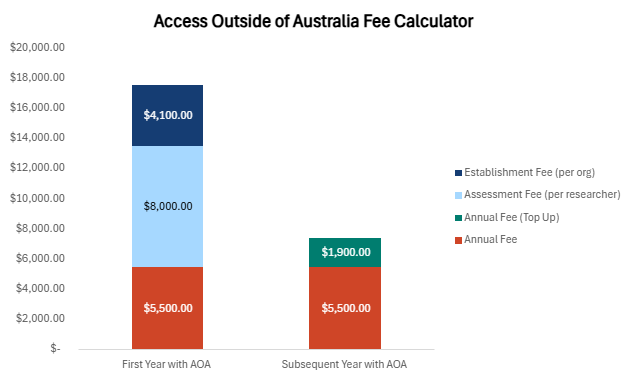
This chart illustrates the fee structure for Access Outside of Australia (AOA) if 1 researcher from an Australian-based project travels overseas and continues to use DataLab during that time. It compares costs for the first year with AOA and subsequent years with AOA.
The chart uses a vertical bar format with clear colour coding for different fee components:
The y-axis represents cost in Australian dollars, ranging from $0 to $8,000. The x-axis shows two categories: First Year with AOA and Subsequent Year with AOA.
Figure 1
Graphs made using fee calculator
If you are an Australian organisation with researchers located outside Australia OR an overseas entity with overseas researchers using DataLab, the charges that apply are:
We are an approved Australian research project with a small team of 1 to 5 researchers.
Recently we collaborated with a researcher from England. This overseas researcher has just been approved to access DataLab.
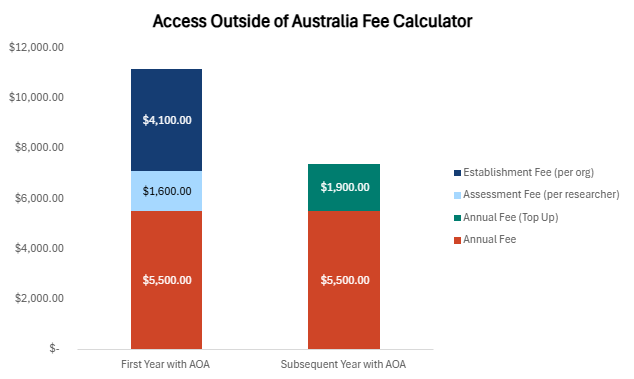
In the first year of this arrangement, we would expect to pay $11,200 for the researcher’s overseas access, which includes:
In subsequent years, the cost reduces to $7,400 annually, comprising:
This chart shows the cost breakdown for accessing services outside Australia, comparing first-year fees and subsequent-year fees under the AOA model. This example illustrates an Australian-based research organisation that has recently collaborated with one researcher from overseas. This overseas researcher has just been approved to access DataLab.
It compares first-year costs and subsequent-year costs for AOA access.
First Year with AOA
Subsequent Year with AOA
The chart uses colour-coded bars for different fee components:
The y-axis represents cost in Australian dollars, ranging from $0 to $12,000. The x-axis shows two categories: First Year with AOA and Subsequent Year with AOA.
Figure 2
Graphs made using fee calculator
We are a small Australian-based research organisation that has recently formed a new partnership with an overseas entity. Our overseas partner has two active researchers who will be contributing to the joint DataLab project.
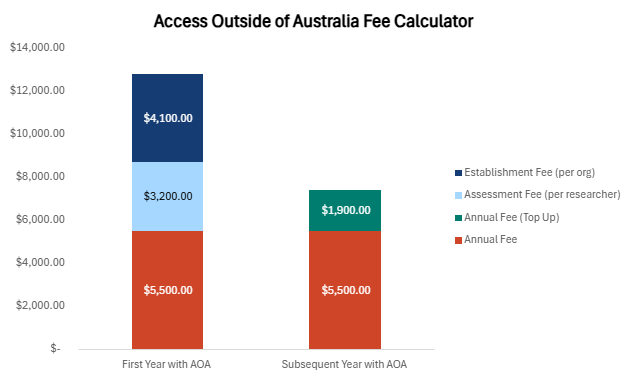
In the first year of this collaboration, we would expect to pay $12,800 for its overseas access, which includes:
In subsequent years, assuming no major changes to the partnership, the cost is estimated to be $7,400 annually, which includes:
This chart shows the cost breakdown for accessing services outside Australia, comparing first-year fees and subsequent-year fees under the AOA model.
In this example, there is a small Australian-based research organisation that has recently formed a new partnership with an overseas entity. The overseas partner has two active researchers who will be contributing to the joint DataLab project.
First Year with AOA
Subsequent Year with AOA
The chart uses colour-coded bars for different fee components:
The y-axis represents cost in Australian dollars, ranging from $0 to $14,000. The x-axis shows two categories: First Year with AOA and Subsequent Year with AOA.
Figure 3
Graphs made using fee calculator
As an overseas entity, we have five researchers who need access to the DataLab. we should expect to pay $17,600 in the first year, which includes:
In subsequent years, assuming no changes in project agreements, annual cost would be approximately $7,400, which covers:
This chart provides a detailed breakdown of costs for accessing services outside Australia, comparing first-year fees and subsequent-year fees under the AOA model.
In this example, an overseas entity has five researchers who need access to the DataLab.
First Year with AOA
Subsequent Year with AOA
The chart uses colour-coded bars for different fee components:
The y-axis represents cost in Australian dollars, ranging from $0 to $20,000. The x-axis shows two categories: First Year with AOA and Subsequent Year with AOA.
Figure 4
Graphs made using fee calculator
At present, ABS do not have the system capability to support prepayment arrangements as part of our standard charging processes. However, for projects with anticipated charges exceeding $5,500, prepayment discussions can be initiated on a case-by-case basis. These arrangements must be agreed upon in advance and are subject to internal approval and operational feasibility.
Historical DataLab and associated access and service charges for previous financial years
The charges listed on this page are no longer current and are provided for transparency and historical reference only.
To view charges for the 2025-26 financial year, please visit the Charges page.
If you have any questions, please contact mydataportal@abs.gov.au
| Annual charge (per project) | Excluding GST |
|---|---|
| Tier 1 - 1 to 5 analysts | $2,000 |
| Tier 2 - 6 to 10 analysts | $4,000 |
| Tier 3 - 11 to 25 analysts | $5,000 - 1 Jul 2023 to 31 Dec 2023 $15,000 - 1 Jan 2024 to 30 Jun 2024 |
| Tier 4 - Over 25 analysts | Custom |
| Annual charge (per project) | Excluding GST |
|---|---|
| Tier 1 - 1 to 5 analysts | $5,000 |
| Tier 2 - 6 to 10 analysts | $12,000 |
| Tier 3 - 11 to 25 analysts | $30,000 |
| Tier 4 - Over 25 analysts | Custom |
ABS International Merchandise Trade (IMT) statistics were subject to additional disclosure controls and consistency checks. In 2024-25 projects requiring access to IMT data were subject to the following charges:
Non-standard charges applied to all projects for services not within the scope of the annual charge. Non-standard charges included access to SAS, Databricks, non-standard virtual machines and storage above one terabyte. Non-standard charges also applied to increased service levels, such as priority clearance and high service level. More information on non-standard access and services are in the tables below.
| Annual charges per project | Excluding GST |
|---|---|
| Use of SAS (per user) | $500 |
Each additional terabyte of storage (One terabyte of storage was included in the annual charge.) | $850
|
| Quarterly charges per project |
|---|
Standard virtual machines were included in the annual charge and comprise machines up to and including the large size. Non-standard virtual machines were charged quarterly. Please refer to virtual machines for further information on size. |
| Please refer to Databricks for more information on this service. |
| Annual charges per project | Excluding GST |
|---|---|
High output demand - Tier 1 High output demand - Tier 2 A high output demand charge applied to projects that required a higher level of service, including high volumes, faster turnaround or the application of special rules. This charge was applied when the project team requested this higher level of service, or when the ABS determined that a project required resources exceeding cost recovery of the annual charge. High output demand charges were structured into two separate tiers. Tier 1 applied to projects with output requests that:
Tier 2 applied to projects with output requests that:
| $19,000 (Tier 1) $41,000 (Tier 2) |
High service level A high service level charge applied to projects that required resources exceeding the cost recovery of the annual fee. This charge was applied when the project team requested this higher level of service, or when the ABS determined that a project required resources exceeding cost recovery of the annual charge. The following was a factor in considering the application of the high service level charge:
| $20,000 |
| Annual DataLab fee by project tier $ | |||
|---|---|---|---|
| Financial Year | Tier 1 | Tier 2 | Tier 3 |
| 2022-23 – All projects | $2,000 | $4,000 | $10,000 |
| 2023-24 - Existing Projects established before July 1 2023* | $2,000 | $4,000 | $15,000 |
| 2023-24 - Projects established after July 1 2023 | $5,000 | $12,000 | $30,000 |
| 2024-25 - Existing Projects established before July 1 2023* | $2,000 | $4,000 | $30,000 |
| 2024-25 - Projects established after July 1 2023 | $5,000 | $12,000 | $30,000 |
| 2025-26 – All projects | $5,500 | $13,200 | $33,000 |
*Indicates grandfathered prices for projects established before 1st July 2023. These prices have since been phased out starting 1st July 2025.
List of detailed microdata files available in DataLab, links to publications and data item lists
Detailed microdata files and reference periods in DataLab are listed below. For datasets in other systems see MicrodataDownload and TableBuilder, or all topics in Available microdata and TableBuilder.
You need to apply for access by submitting a DataLab project proposal before you can access these files.
Australian Health Survey, Core Content - Risk Factors and Selected Health Conditions, 2011-12
Disability, Ageing and Carers, 2015
Disability, Ageing and Carers, 2018, 2022
Mental Health and Wellbeing, 2007, 2020-21, 2020-2022, 2020-2022 Follow Up, 2021-2022
Mortality, Enhanced Characteristics, 2011-12
National Aboriginal and Torres Strait Islander Health Measures Survey 2022–24
National Aboriginal and Torres Strait Islander Health Survey, 2004-05
National Aboriginal and Torres Strait Islander Social Survey, 2002
National Aboriginal and Torres Strait Islander Social Survey, 2008
National Aboriginal and Torres Strait Islander Social Survey, 2014-15
National Aboriginal and Torres Strait Islander Health Survey, 2018-19
National Aboriginal and Torres Strait Islander Health Survey 2022-23
National Aboriginal and Torres Strait Islander Survey, 1994
National Health Indigenous, 2001
National Health Measures Survey 2022–24
National Health Survey, 2004-05
National Health Survey, 2007-08
National Health Survey, 2011-12
National Health Survey, 2014-15
National Health Survey, 2017-18, 2020-21, 2022
Nutrition and Physical Activity, 2011-12
Patient Experiences, 2018-19, 2019-20, 2020-21, 2021-22, 2022-23, 2023-24, 2024-25
Australians' Employment and Unemployment Patterns, 1994-97
Employee Earnings and Hours, 2006, 2010, 2012, 2014, 2016, 2018, 2021 and 2023
Employee Earnings and Jobs, 2011-12
Employment Arrangements and Superannuation, 2000
Employment Arrangements, Retirement and Superannuation, April to July 2007
Labour Force Survey and Employee Earnings Benefits and Trade Union Membership, 2006
Labour Force Survey and Employee Earnings Benefits and Trade Union Membership, 2008
Labour Force Survey and Employee Earnings Benefits and Trade Union Membership, 2010
Labour Force Survey and Labour Mobility, 2008
Labour Force Survey and Labour Mobility, 2010
Labour Force Survey and Labour Mobility, 2012
Longitudinal Labour Force, monthly data from 1982, includes the following supplementary survey data:
- Barriers and Incentives to Labour Force Participation, Australia
- Characteristics of Employment, Australia
- Labour Force Status of Families
- Participation, Job search and Mobility, 2015-2022
- Work-Related Injuries, 2009-10
Adult Literacy and Life Skills, 2006
Australian Census and Migrants, 2011, 2016, 2021
Australian Census and Temporary Entrants, 2016, 2021
Australian Census Longitudinal Dataset, 2006-2011, 2006-2021, 2011-2021, 2016-2021
Census of Population and Housing, 2001
Census of Population and Housing, 2006
Census of Population and Housing, 2011
Census of Population and Housing, 2016, 2021
Characteristics of Recent Migrants, 2007 and 2010
Childhood Education and Care, 2008
Childhood Education and Care, 2011
Education and Work, 2012, 2013, 2014, 2015, 2016, 2017, 2018, 2019, 2020, 2022, 2023, 2024, 2025
Family Characteristics and Transitions, 2006-07
Family Characteristics, 2009-10
Household Expenditure, Income and Housing, 2003-04 including Fiscal Incidence Study
Household Expenditure, Income and Housing, 2009-10 including Fiscal Incidence Study
Household Expenditure, Income and Housing, 2015-16 including Fiscal Incidence Study
Person Level Integrated Data Asset previously known as Multi-Agency Data Integration Project (MADIP), 2011-2016
Multipurpose Household Survey, 2004-05, includes the following:
- Household Use of Information Technology
- Barriers and Incentives to Labour Force Participation
- Retirement and Retirement Intentions
Multipurpose Household Survey, 2005-06, includes the following:
- Household Use of Information Technology
- Participation in Sports and Physical Recreation
- Attendance at Selected Cultural and Leisure Venues and Events
- Sports Attendance
- Work-Related Injuries
Multipurpose Household Survey, 2006-07, includes the following:
- Adult Learning
- Barriers and Incentives to Labour Force Participation
- Retirement and Retirement Intentions
- Household Use of Information Technology
- Family Characteristics and Transitions
Multipurpose Household Survey, 2007-08, includes the following:
- Environmental Views and Behaviour
- Household Use of Information Technology
- Personal Fraud
Multipurpose Household Survey, 2008-09, includes the following:
- Crime Victimisation
- Barriers and Incentives to Labour Force Participation
- Retirement and Retirement Intentions
- Household Use of Information Technology
Outcomes from Vocational Education and Training in Schools, 2006-2011
Participation in Sport and Physical Recreation, 2009-10
Participation in Sport and Physical Recreation, 2011-12
Preschool Education, 2013, 2014, 2015, 2016, 2017, 2018, 2019, 2020, 2021, 2022, 2023, 2024
Programme for the International Assessment of Adult Competencies, 2011-12
Registering your interest to attend DataLab training, and training resources
DataLab safe researcher training is mandatory for all researchers looking to access the DataLab as an analyst or discussant.
You can seek approval to join a project prior to completing training and onboarding.
Final approval and access will not be granted by ABS until your training and onboarding is complete.
Training is run virtually and covers:
The training does not include:
Safe researcher training and DataLab access are only available to researchers located in Australia in Australian organisations. International researchers and organisations will be considered on a case by case basis.
Note: If you have previously completed DataLab training, please register your account and reach out to Data Services at mydataportal@abs.gov.au to have your training information added to your profile.
Register for DataLab safe researcher training via the myDATA portal. The myDATA portal is your one-stop shop for all aspects of DataLab training, onboarding and project management.
Once you have created your myDATA portal user account, click on the ‘My onboarding’ tile. You will find an ‘Enrol in training’ button. Click on the magnifying glass to select the training session that best suits you and click ‘Select’. Should there not be a suitable session, click on the 'No session suitable' and we will contact you directly.
Detailed registration steps are listed in the User Guide here.
Email mydataportal@abs.gov.au if you have issues with registering in the portal.
The successful and safe operation of the ABS DataLab relies upon researchers understanding their responsibilities and obligations when accessing the ABS DataLab.
All researchers seeking access to the ABS DataLab, including discussants, must complete the DataLab Safe Researcher training and satisfactorily complete a quiz before they will be granted access to the DataLab.
To retain access to the DataLab researchers must:
If you think you might be due for refresher training please email mydataportal@abs.gov.au
Changing organisations does not invalidate a researcher's training status and the usual refresher training requirements apply.
Refresher training policy:
Researchers need to undertake refresher training because:
The refresher training policy requires:
The slides linked below are presented during the DataLab Safe Researcher Training.
Part 1 - Working together to enable microdata access
Part 2 - Maintaining data confidentiality
Part 3 - Statistical disclosure control
\(\Huge 🗎\) DataLab safe researcher training Parts 1 and 2 (PDF)
\(\Huge 🗎\) DataLab safe researcher training Part 3 (PDF)
You should also read Using DataLab Responsibly to understand your responsibilities as a safe researcher.
DataLab and myDATA conditions of use
By accessing and using DataLab, you agree to abide by the Australian Bureau of Statistics (ABS) requirements and obligations, including the conditions outlined below. If you cannot abide by these conditions, your use of the system is to cease immediately.
By using DataLab, I agree:
I acknowledge that:
Expected behaviours:
Remote access:
Remote access within Australia is permitted under the following conditions:
Please refer to the conditions here for myDATA which are applicable to all users registered in My Data Approvals to Access (myDATA) for access to DataLab projects.
The ABS privacy policy and DataLab user privacy notice outline how the ABS handles any personal information that you provide to us.
The ABS Privacy Policy for Managing and Operating Our Business outlines how we handle personal information that is collected for managing and operating within the ABS.
Roles and expected behaviours for being a safe researcher in the ABS DataLab
As an approved project team analyst, you have access to the DataLab and may discuss uncleared data with other approved analysts or discussants on your project team. You must:
Discussants have the same approval as analysts and undertake the same onboarding requirements.
As an approved discussant by default you do not have access to the DataLab to undertake analysis but may discuss the raw uncleared project data with other approved analysts or discussants in your project team. You can also request a DataLab account to screen share using DataLab LabLink with other approved users on the same project. LabLink is available to all analysts and discussants with a DataLab account.
Discussants must:
Discussants can:
We encourage you to communicate as much as possible within the DataLab environment.
If you need to communicate via other means, consider what is to be communicated and how the communication will take place to ensure that you do not inadvertently remove uncleared data from the DataLab.
Where you may need to seek advice from ABS DataLab support areas, remember that any details regarding uncleared data and analysis can be stored in a file within your Output drive and only the location of this file should be shared in any communication with the ABS.
ABS trusts and supports approved researchers who remotely access the DataLab.
Remote access is permitted under the following conditions:
To be an approved DataLab researcher, you must have the analytical research experience to be able to carry out quantitative data research or analysis in the DataLab. This includes the ability to use at least one of the statistical analytical languages supported in the DataLab. This may have been acquired through working on research, analytical or statistical projects. For example, a person who was employed for three years in a relevant field, such as a university researcher, research assistant or a government or non-government employee working in research or statistics. If they had worked for around half of their time on quantitative research projects, then they would have spent a significant component of their time working with quantitative data.
You may also have qualifications (either an undergraduate or higher degree) with a significant proportion of mathematics or statistics. A significant proportion of the degree should cover research method components and analytical fields, including:
Other relevant undergraduate degrees may include psychology, demography, social policy, sociology, political science, geography, economics, and social statistics. If you have postgraduate qualifications, you may combine multiple degrees to ensure you meet this requirement. This is a cumulative requirement.
If you do not meet the above criteria but still want to access the DataLab, you may request a referral by an authorised researcher who is on the same research team as you. The referring researcher must meet all of the following requirements:
Download the undertaking, declaration and referral forms.
The ABS does not provide support to researchers relating to statistical analytical languages or coding issues.
🗎 Individual Undertaking (U15I)
You need to sign an Individual Undertaking before accessing microdata in the DataLab. The ABS will let you know if an Individual undertaking or other documentation is required under any other circumstances.
The obligations are detailed in full in the Individual undertaking. In summary, you are agreeing that you will:
🗎 DataLab Declaration of Compliance (U15S1)
A DataLab declaration of compliance is required to be signed by each user prior to accessing the DataLab. By signing the Declaration of compliance you agree to comply with the requirements for accessing microdata through the DataLab, including the requirements of the Responsible Officer undertaking and the Individual undertaking.
You may also need a DataLab referral (please email mydataportal@abs.gov.au for this form). Less experienced researchers must be supervised by another researcher on the same project.
We may request that you also sign other forms for accessing particular datasets, which we will send to you if they are required.
Preparing outputs to be published
When do I need to inform the ABS I am publishing?
Information and research using ABS data must be acknowledged.
When citing the ABS DataLab the preferred citation structure is as follows:
If you are using data from ATO, DSS or Home Affairs you must also include the following disclaimer:
“The results of these studies are based, in part, on data supplied to the ABS under the Taxation Administration Act 1953, A New Tax System (Australian Business Number) Act 1999, Australian Border Force Act 2015, Social Security (Administration) Act 1999, A New Tax System (Family Assistance) (Administration) Act 1999, Paid Parental Leave Act 2010 and/or the Student Assistance Act 1973. Such data may only used for the purpose of administering the Census and Statistics Act 1905 or performance of functions of the ABS as set out in section 6 of the Australian Bureau of Statistics Act 1975. No individual information collected under the Census and Statistics Act 1905 is provided back to custodians for administrative or regulatory purposes. Any discussion of data limitations or weaknesses is in the context of using the data for statistical purposes and is not related to the ability of the data to support the Australian Taxation Office, Australian Business Register, Department of Social Services and/or Department of Home Affairs’ core operational requirements.
Legislative requirements to ensure privacy and secrecy of these data have been followed. For access to PLIDA and/or BLADE data under Section 16A of the ABS Act 1975 or enabled by section 15 of the Census and Statistics (Information Release and Access) Determination 2018, source data are de-identified and so data about specific individuals has not been viewed in conducting this analysis. In accordance with the Census and Statistics Act 1905, results have been treated where necessary to ensure that they are not likely to enable identification of a particular person or organisation.”
Please refer to these examples:
Example 1
Person Level Integrated Data Asset (PLIDA), 2021, Census of Population and Housing, ABS DataLab. Findings based on use of PLIDA data.
Example 2
Australian Bureau of Statistics (2020) Microdata: Personal Income of Migrants, Australia, accessed 15 December 2020
A citation of your work will be added to the short online description of your project once your work is published, See also How to cite ABS sources
As an approved researcher, you have signed appropriate documentation agreeing to comply with data access provisions under relevant legislation, whenever you access detailed microdata in the DataLab.
If you suspect that you or others in your team may have failed to comply with a microdata undertaking, immediately cease the behaviour, notify the lead researcher and email mydataportal@abs.gov.au as soon as possible.
Where a person is suspected to have breached a microdata undertaking the ABS will investigate and may:
Following the investigation and depending on the nature of the breach, the ABS may require the development and implementation of strategies to:
Depending on the success of these strategies and the severity of the breach, the ABS may:
The ABS may also invoke Subsection 19 (3) of the Census and Statistics Act 1905 which provides that a person who fails to comply with an undertaking given by that person in respect of microdata is guilty of an indictable offence, punishable on conviction by a fine of 120 penalty units ($39,600 as at 7 November 2024) or imprisonment for two years, or both.
While ABS must treat breaches of the microdata undertakings very seriously we would much rather help you and your organisation avoid the possibility of a breach. If at any time, you are unsure about your compliance with a microdata undertaking contact mydataportal@abs.gov.au so we can discuss the circumstances.
Request and enquire about DataLab input, output and transfer clearance.
Apply the output rules to your analysis.
To request output clearance, use the clearance request tile in the myDATA portal.
The ABS must approve and clear all DataLab outputs before you can access them outside the DataLab. Do not copy or remove anything (e.g. data, code, notes) from DataLab yourself. Output requests can take up to 2 weeks to complete.
Clearance Request best practice:
See myDATA for more information.
To request input clearance, use the clearance request tile in the myDATA portal.
Users can request the addition of aggregate data, concordances, supporting material or statistical code to an existing DataLab project.
We will not add the following to the DataLab:
See myDATA for more information.
To request transfer clearance, use the clearance request tile in the myDATA portal.
Users can move code and files that do not contain data between DataLab projects. Ensure there is no counts or IDs in the files, and all associated log or comment files.
For data files, provide context, the names of the data products used, and a description for each clearance file requested, including the population scope and definitions of variables. Follow all output rules and provide supporting evidence if required.
See myDATA for more information.
To enquire about the DataLab clearance process, or how to apply output rules, use the clearance request tile in the myDATA portal.
See myDATA for more information.
The most common types of analysis are listed below along with the applicable rules for output. Other output types will be assessed based on similar principles.
| Output type | Applicable rules |
|---|---|
| Frequency tables (counts, percentages) | Rule of 10 Group disclosure |
| Magnitude statistics (means, sums, ratios) | Rule of 10 Group disclosure Dominance |
| Quantiles (percentiles, medians) | Minimum contributors for quantiles |
| Minimums, maximums, ranges | Minimum contributors for quantiles |
| Models including regressions | Degrees of freedom Model-specific rules |
| Charts (graphs, plots and histograms) | Chart clearance |
| Microdata | Not appropriate for output |
| Synthetic microdata | Not appropriate for output |
The rule of 10 refers to the minimum number of contributors required for each cell or statistic. The underlying (unweighted) count of observations must meet this threshold, and evidence must be provided.
If multiple tables are produced, differences of less than ten should not be able to be calculated through combining the tables.
The rule of 10 applies to most outputs including counts, percentages (both numerator and denominator), means, sums, ratios, and other statistics.
Options for making output safe include suppression of small counts, aggregation of categories or perturbation. If a cell is suppressed but it can be derived or estimated from other outputs, one or more additional values should be suppressed to protect the values of the the primary suppressed cell from being worked out.
See Data downloads for examples and options for treatment.
The dominance rule is designed to prevent the re-identification of units that contribute a large percentage of a cell's total value, which could in turn reveal information about individuals, households or businesses.
DataLab has a (1,50) and a (2,67) rule. This means that for any cell, the largest contributor cannot account for more than 50% of the total value and the largest two contributors cannot account for more than 67% of the total value.
Where a variable can take both positive and negative values, the negative values should be replaced with absolute values before determining the largest contributors and the total. The largest absolute value is then divided by the sum of absolute values to determine if the (1,50) rule is met, and the sum of the two largest absolute values are divided by the sum of absolute values to check the (2,67) rule.
Similar to the rule of 10, in the case of the dominance rule failing and if a cell is suppressed but it can be derived or estimated from other outputs, one or more additional values should be suppressed to protect the values of the primary suppressed cell from being worked out.
Dominance must be checked if any mean, total or similar statistic is calculated for continuous or magnitude variables. It does not apply to counts.
See Data downloads for examples and options for treatment.
Group (or attribute) disclosure occurs when all or nearly all units that have one feature also have some other feature. This means that even when the individual units may appear protected based on other rules, a previously unknown attribute of a unit may be disclosed based on the attributes of the group. Group disclosure risk should be assessed when any cell contains more than 90% of total number of units in the row or column.
This rule applies to frequency tables. Whether group disclosure requires treatment depends on the sensitivity and nature of the output.
See Data downloads for examples and options for treatment.
Quantiles and other relative ranks must be based on a minimum number of contributors depending on the precision. Underlying unweighted counts should be provided when reporting quantiles in the outputs. For information on required contributors for quantiles, see the table below:
| Quantile | Minimum contributors |
|---|---|
| Medians ( 0.50 ) | 10 |
| Quartiles ( 0.25, 0.5, 0.75 ) | 20 |
| Quintiles ( 0.2, 0.4, 0.6, 0.8 ) | 25 |
| Deciles ( 0.1, 0.2, 0.3 ... 0.9 ) | 50 |
| Vigintiles ( 0.05, 0.1, 0.15 ... 0.95 ) | 100 |
| Percentiles ( 0.01, 0.02 ... 0.99 ) | 500 |
Minimums and maximums are generally unsafe to output. The following percentiles are safe options if the minimum contributors rule is satisfied:
See Data downloads for examples and options for treatment.
Models and regressions are generally safe to output. However, overfitted models can pose a disclosure risk. All models and regressions must have a minimum of 10 degrees of freedom and evidence that this has been met should be provided.
The degrees of freedom are calculated by subtracting the number of parameters and other model restrictions from the total number of observations that contribute to the model.
See Data downloads for examples and options for treatment.
There are additional rules for specific model types.
For ordinary least squares regressions, the R-squared should be lower than 0.9. If the R-squared is higher than this, the constant may need to be suppressed to prevent predictions. This requirement does not apply to other models such as fixed effects or two-stage regressions.
Additionally, for ordinary least squares regressions with a continuous dependent variable and only categorical independent variables, the regression will approximate the tabular means. The addition of a continuous independent variable, or suppression of the intercept reduces the disclosure risk. Otherwise, apply the rule of 10 and dominance rules.
For survival curves, each step change in the survival curve should represent at least 10 data subjects.
Correlation coefficients should be calculated based on a minimum of 10 contributors.
Gini coefficients are usually safe to output, and must be based on a minimum of 10 contributors.
For classification and regression trees, any underlying unweighted counts must meet the rule of 10.
For other models, please provide evidence that no estimates or parameters are derived from fewer than 10 underlying contributors and explain why the output is non-disclosive.
See Data downloads for examples and options for treatment.
All graphs, plots and other charts are subject to the output rules that apply to the underlying output type. The data used in the chart must be provided, accompanied by any relevant supporting evidence that it meets output rules.
Charts that plot characteristics of individual units or groups of fewer than 10 units will not be cleared.
See Data downloads for examples and options for treatment.
Logging in, launching your VM, first time use/new phone steps, resetting your password
Instructions for logging into DataLab:
Note: For security reasons, user accounts will be automatically disabled after 45 days of inactivity and access to your virtual machine(s) will be suspended. The project and all associated data remain unaffected. Notifications are sent by email 14 days and 3 days prior to the account being suspended. You will need to log into the DataLab portal within the 45 days to avoid automated suspension. To reactivate a suspended account, contact mydataportal@abs.gov.au.
Enter your account details into the DataLab log in page.
If you are logging in for the first time, for system security you will need to authenticate your log in using the Microsoft Authenticator app on your mobile phone. To set this up, see First time use/new phone steps.
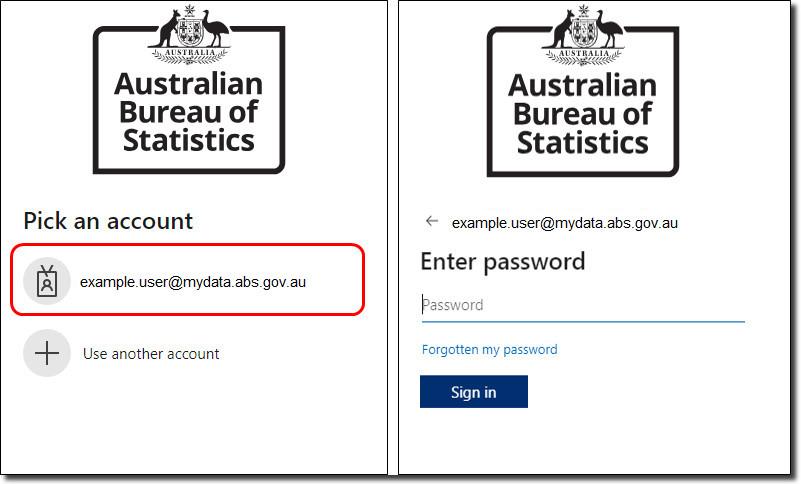
For returning users, click on your account (firstname.lastname@mydata.abs.gov.au) or use another account and enter your account name. All DataLab accounts use the @mydata.abs.gov.au domain format. Enter your password and Sign in.
By logging in you agree to these conditions:
If you are not authorised to access this system, exit immediately. Unauthorised users may be subject to criminal and civil penalties.
This is an Australian Government computer system. Part 10.7 of the Criminal Code Act 1995 outlines the penalties that may apply for unlawful use of Government systems including unauthorised access, modification or impairment of computer systems, data or electronic communications. The Act provides penalties of up to 10 years imprisonment for such offences. By proceeding, you are representing yourself as an authorised user and acknowledge you have read and agree to comply with the Responsible Use of ABS Microdata User Guide. Your activity will be logged, monitored and investigated should any misuse be suspected.
Sanctions ranging from a reprimand to revocation of access or termination of employment may be imposed if misuse is determined.
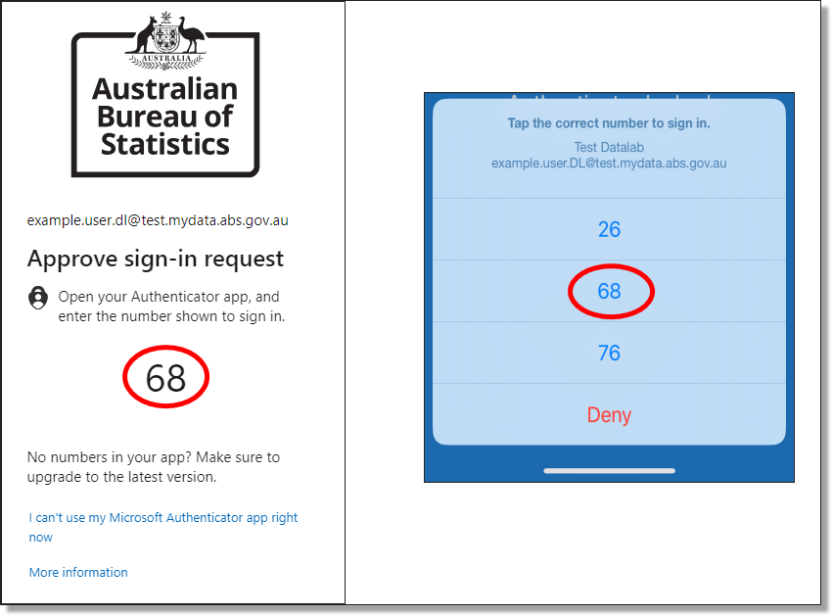
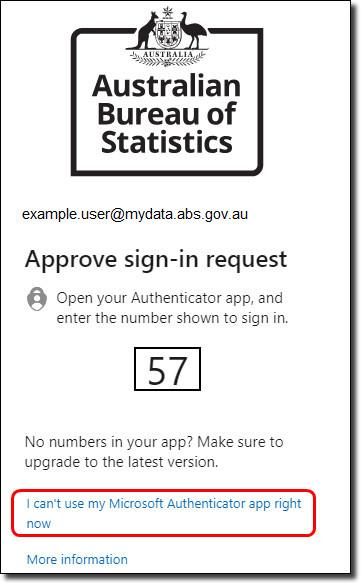
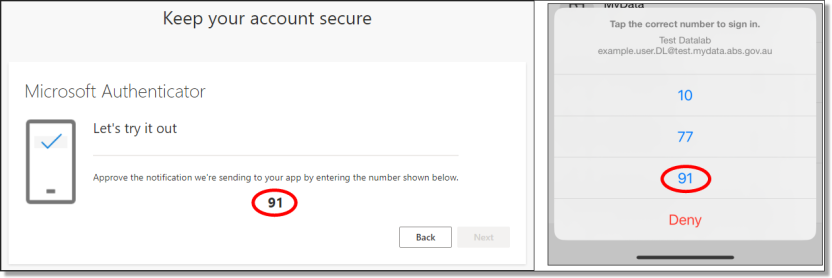
Once you have entered your credentials and hit ‘Sign in’, a notification from the Microsoft Authenticator app is sent to your phone and asks you to perform a “number match”. Enter the numbers shown on your browser screen into the authenticator app on your phone to proceed.
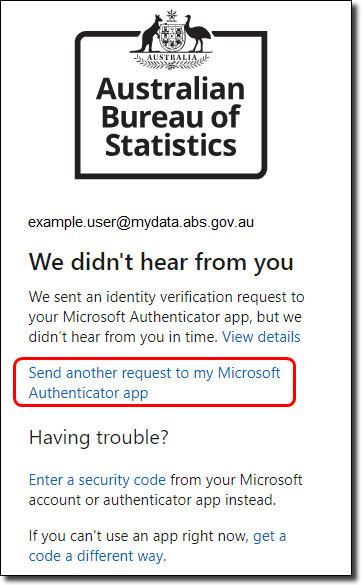
If you don't approve within the time limit, click ‘Send another request to my Microsoft Authenticator app’. If the request expires, re-enter your account and password in the DataLab log in screen.
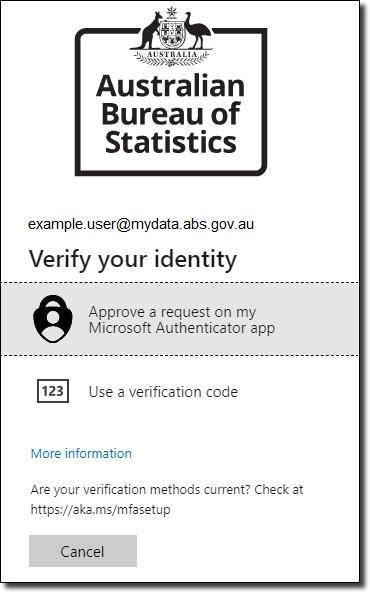
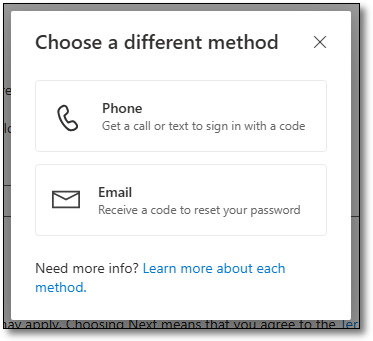
You can also change the way you approve the sign in request by selecting "I can’t use my Microsoft Authenticator app right now".
You then have two options:
After you approve the login in the Microsoft Authenticator application, you are logged into the DataLab portal.
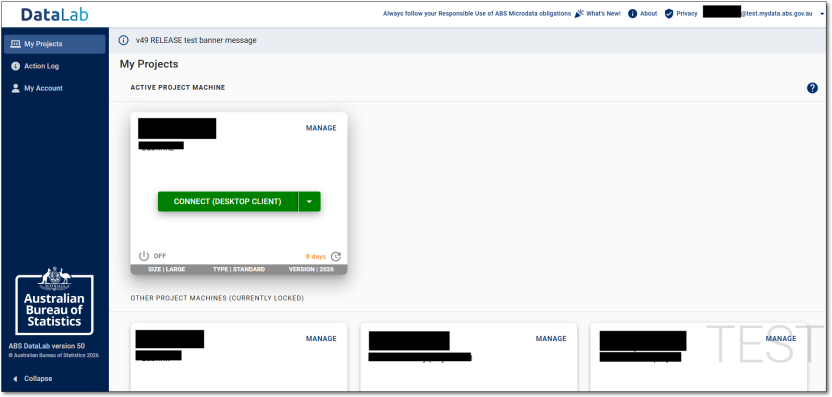
To enter your DataLab project workspace you need to:
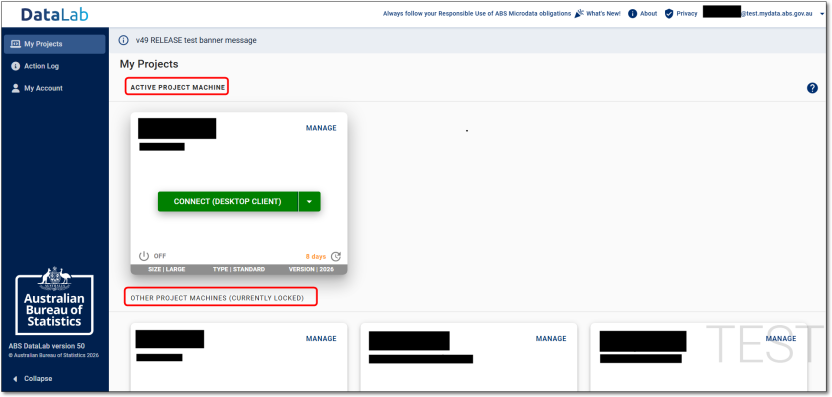
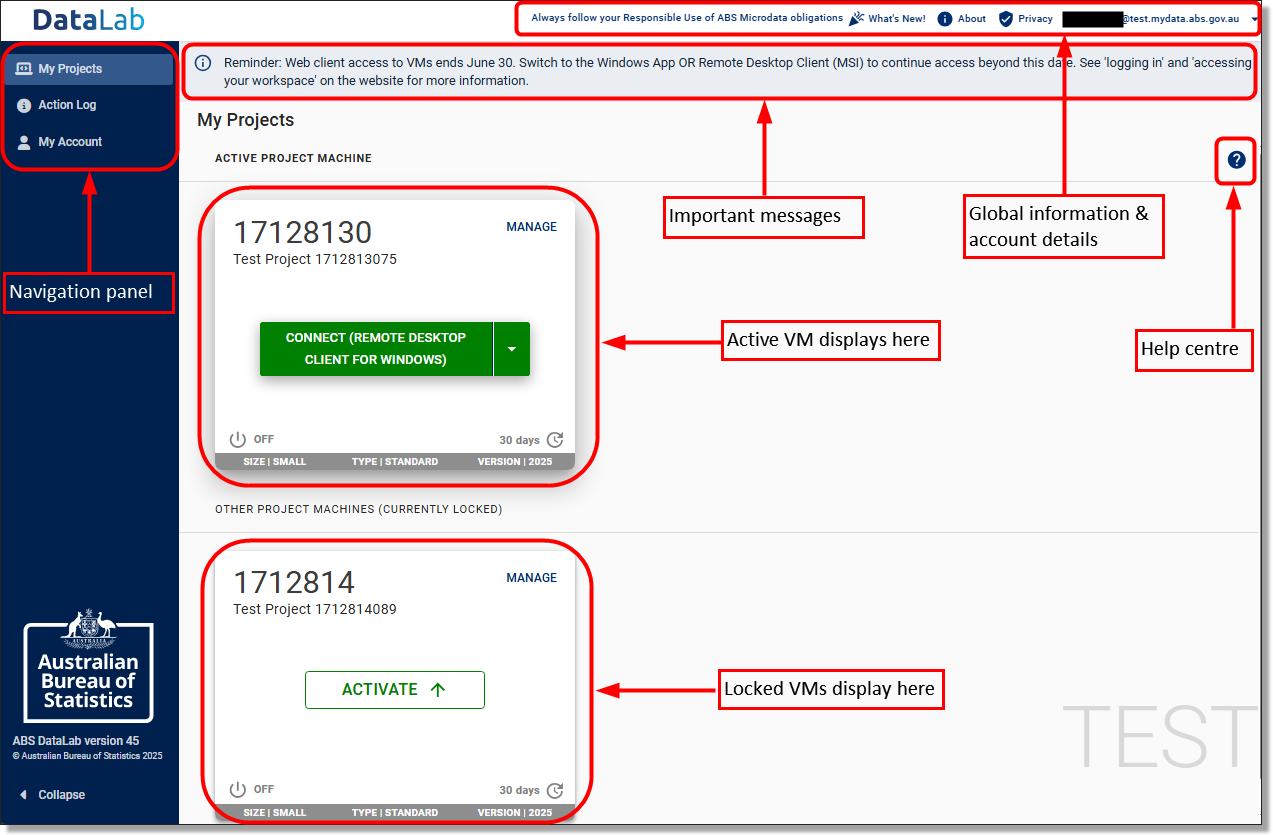
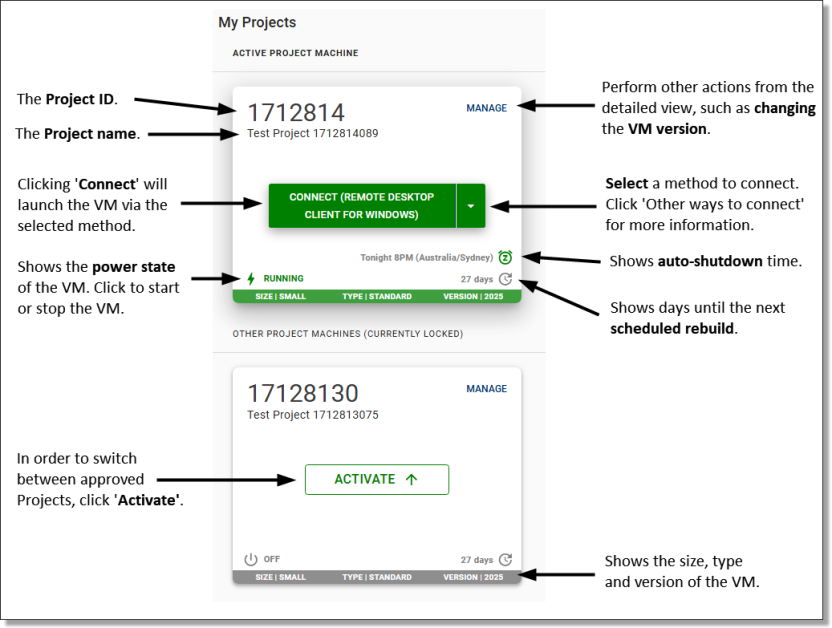
Each project VM is displayed on individual tiles, with your “active” VM appearing at the top above those that are “locked”. For more information about your VMs, see Functions in My Projects.
Each project has a separate VM and you can only access one project VM at a time. If your machine is already available to launch, skip to Launch your desktop.
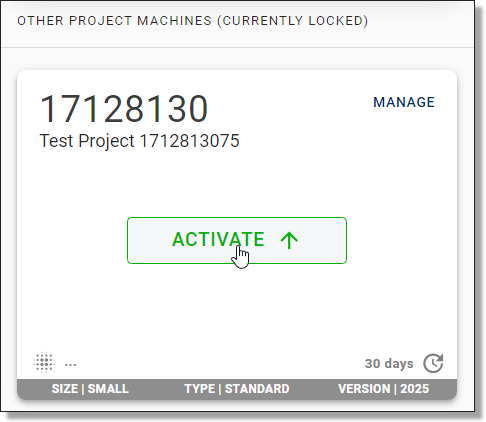
Click on the ‘Activate’ button of the VM you want to launch.
If you have a VM for another project that is currently active, this logs you out of your other session. If you have a program running in your Workspace using another VM, this will stop the program. You can only run multiple VMs if you have requested and are using offline local disk space.
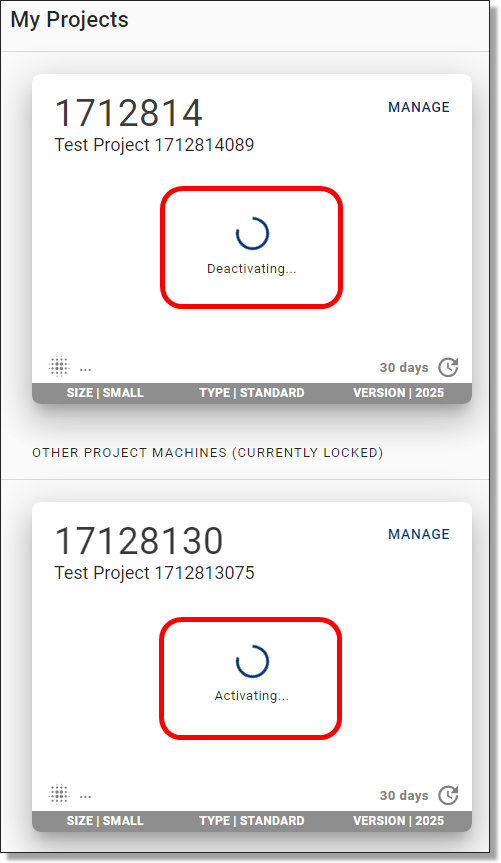
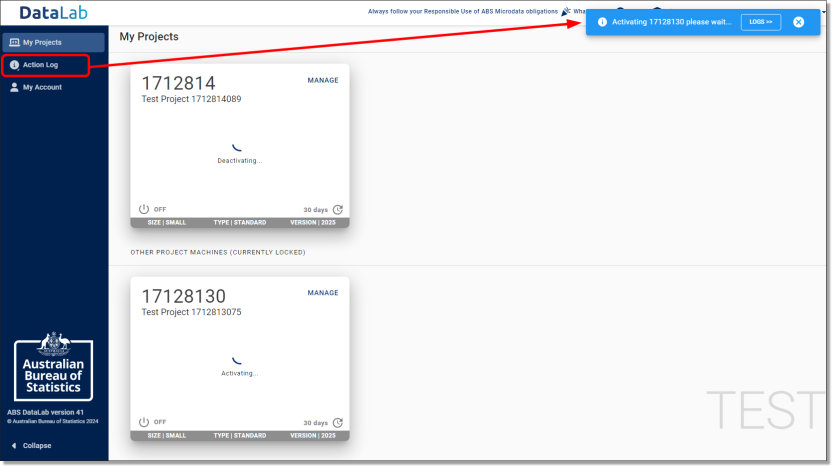
As shown below, you can track the VM activation progress by either selecting 'Track' from the pop up notification or from the action log icon on the left navigator.
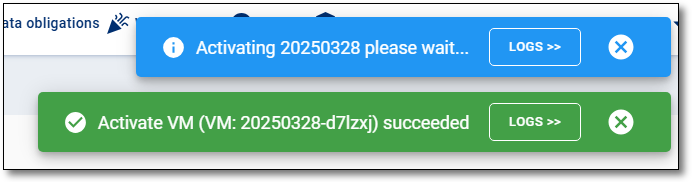
When the VM activation completes, an additional pop up notification confirms that the action was successful. If the action fails, repeat the above steps to activate.
If you navigated to the Action Log page, select the laptop icon named 'My Projects' in the left navigator to return to the 'My Projects' page.
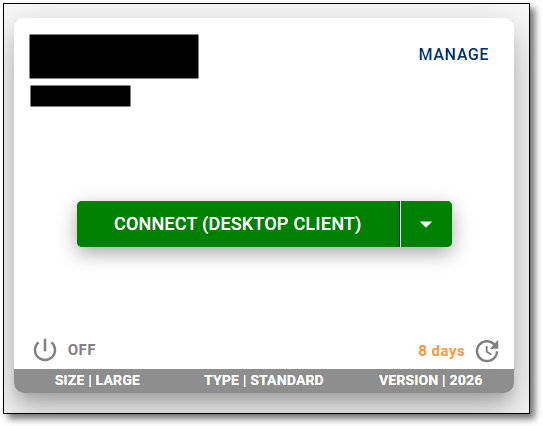
Before launching your VM, you can choose your preferred connection. You are required to install the Windows App (for Windows) or Remote Desktop client (Windows users only), or have your organisation do so to be able to connect to your VM. All browser-based applications, including Azure Virtual Desktop web client and the Windows App web client are disabled and no longer available for connecting to your virtual machine.
Note: Temporary access to the web client is available for MacOS users, however we recommended using a Windows device if available. MacOS users can contact mydataportal@abs.gov.au for assistance.
This image shows three options from the drop-down menu when selecting ‘connect’ to launch your VM. The default option is to “Connect (Remote Desktop Client for Window)”, however you can also choose “Other ways to connect”, which will bring up another menu to show other launch options.
If you are connecting to the 'Remote Desktop client' version of AVD, ensure that your IT department has enabled the correct networking addresses. Your IT department can refer to Enabling access to the Datalab under 'Azure Virtual Desktop configuration' for more information on the required networking addresses.
Note: If you intend to use the 'Remote Desktop client' on your organisation's workspace, you will need to contact your internal IT department to make it available to you.
The latest version of 'Remote Desktop client (MSI)' for Windows, is available here. Ensure you download and install the correct version for your device.
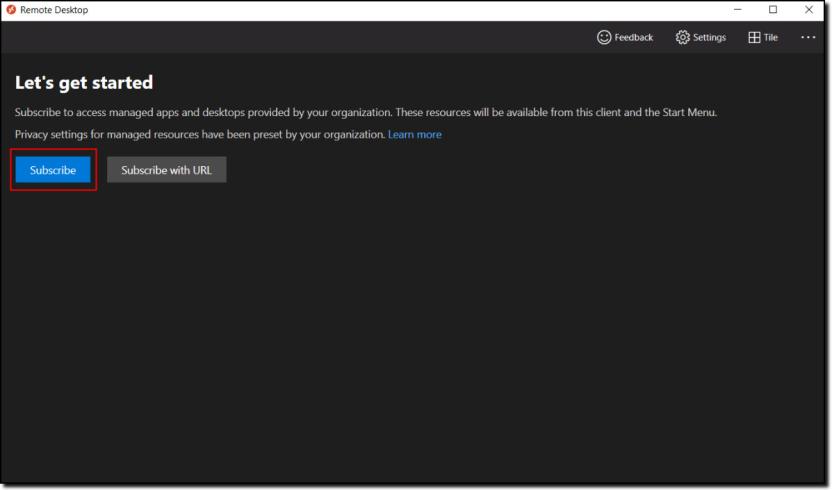
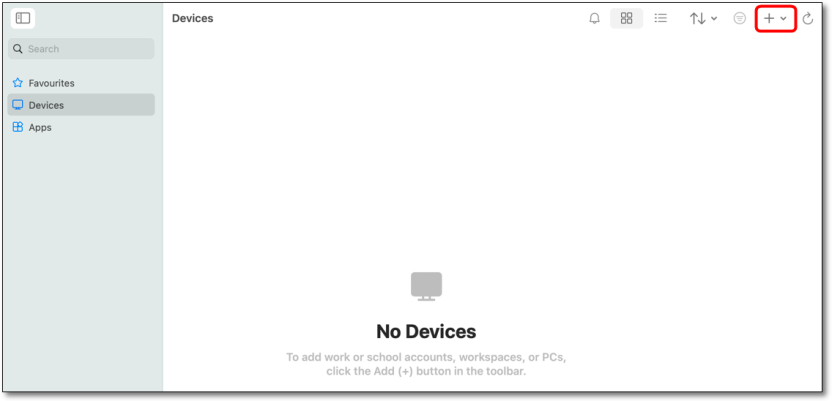
Once you have been provided access by your organisations IT department, or have downloaded, installed and opened the application, click ‘Subscribe’ as shown below.
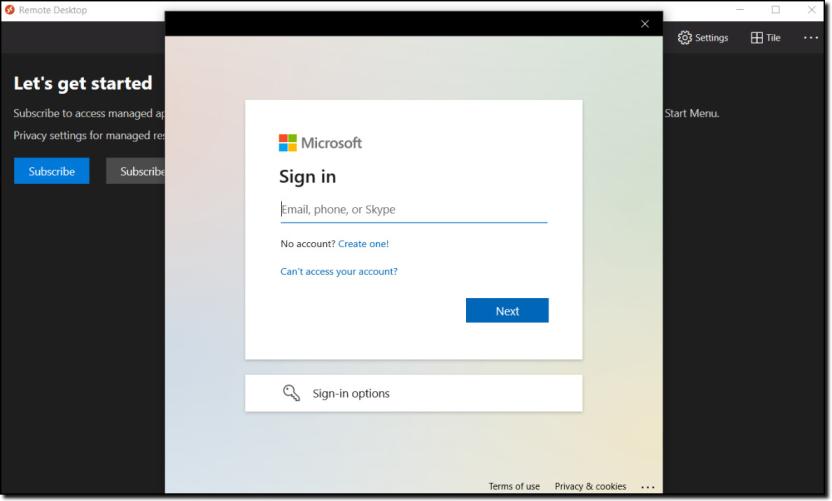
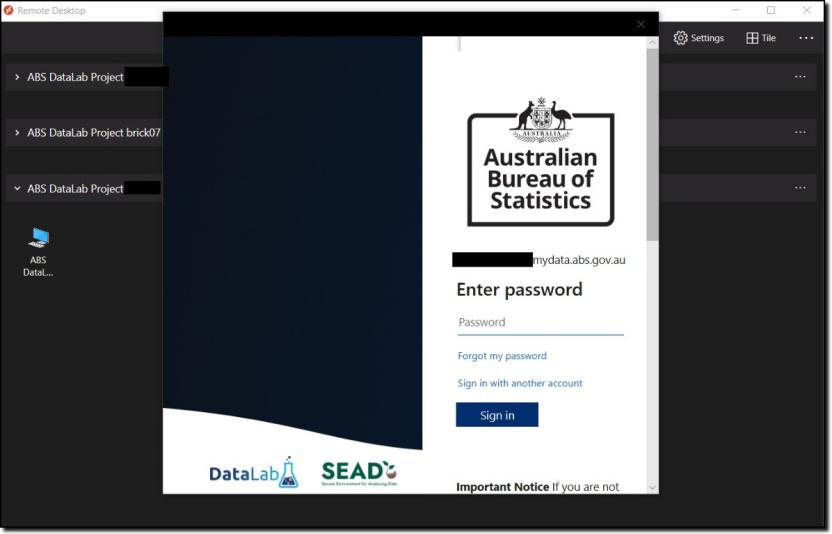
You will then be shown a new window that allows you to log into your DataLab account using your DataLab credentials.
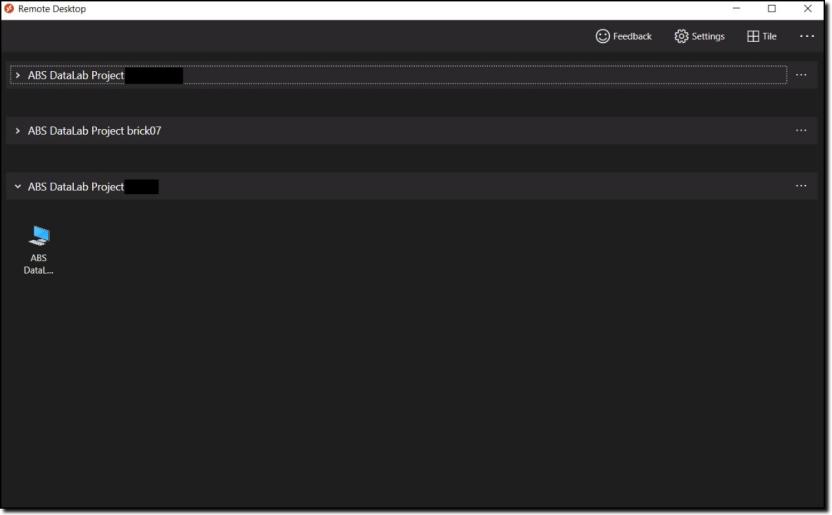
Upon a successful login, you will be shown all your available VMs. If you can’t see the VM that you want, it may be dormant and would require a rebuild. Rebuilds need to be completed through the DataLab web portal.
If you have access to multiple projects you may be shown multiple tabs, one for each project as shown in the image below.
Note: If you wish to use multi-display, right click on your VM icon, click ‘Settings’, and turn off ‘Use default settings’. You should now see options for how you would like to display your VM.
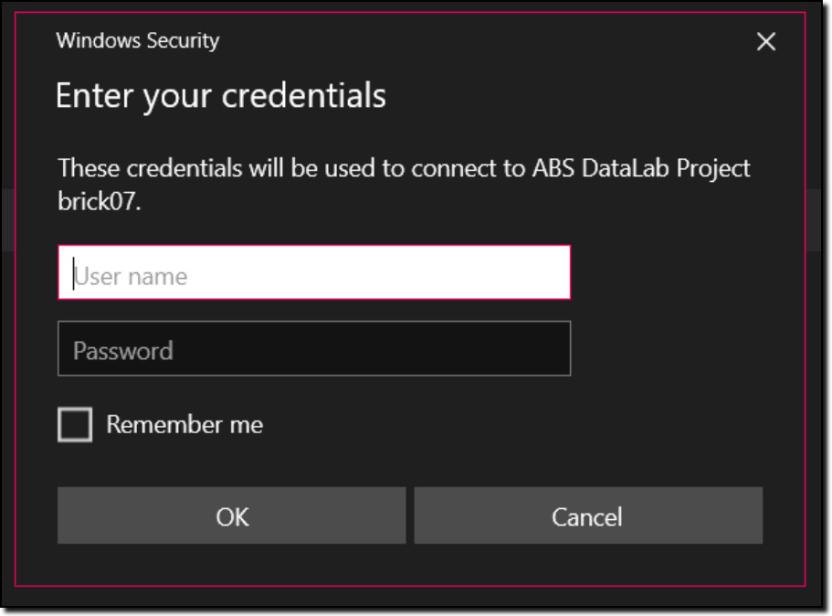
Click into one of the computer icons and you will be taken to a login screen to reconfirm your identity, before access is granted to enter your VM. This may not appear if you have recently logged in, through a similar window.
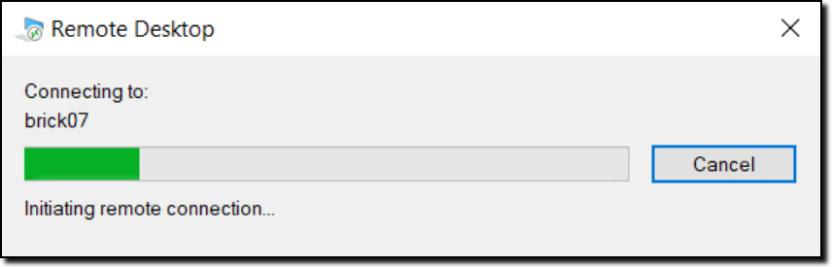
The below loading bar should briefly appear.
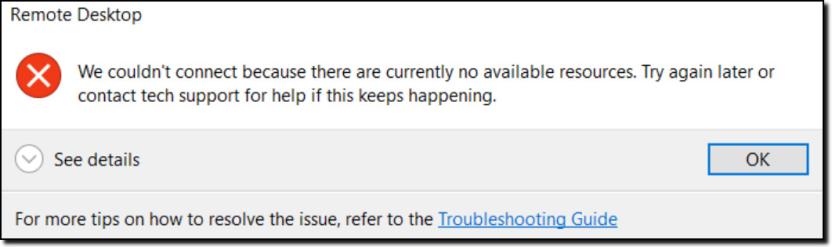
If, instead of the second login prompt, you receive a message as shown in the below image, then either your machine is not the active machine or it is not using the AVD version ‘2025’ or similar. If your desktop session does not start, repeat Step 1 Activate your VM and check that the version at the bottom of your VM says ‘2025’ or similar.
You will then be presented with another login screen for the VM itself.
A new window will then open on your computer displaying your VM workspace. Note: you will also receive a pop up reminder that your activities within your DataLab VM are being monitored and recorded.
For more information on using the workspace see Using your workspace.
Download the Microsoft Windows App from the Microsoft Windows App Store.
Note: If you intend to use the Windows App on your organisation's workspace, you will need to contact your local IT department to make it available to you.
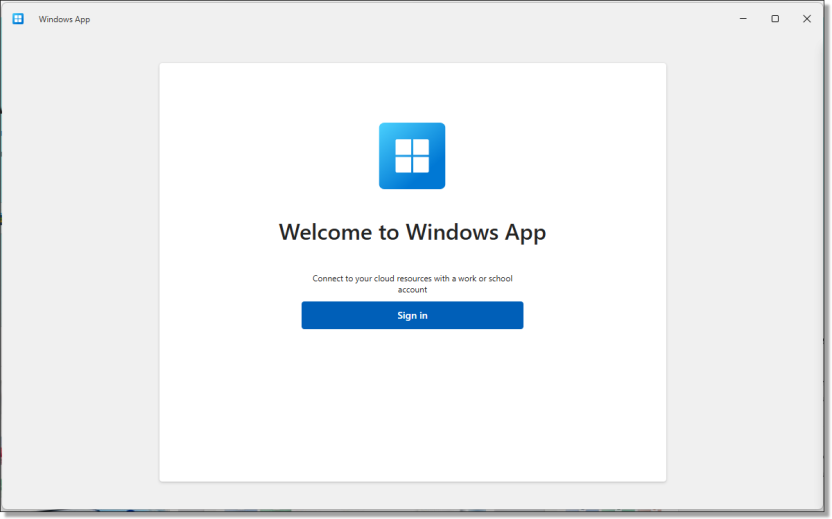
Once you have been provided access by your organisations IT department, or have downloaded, installed and opened the application, select sign in.
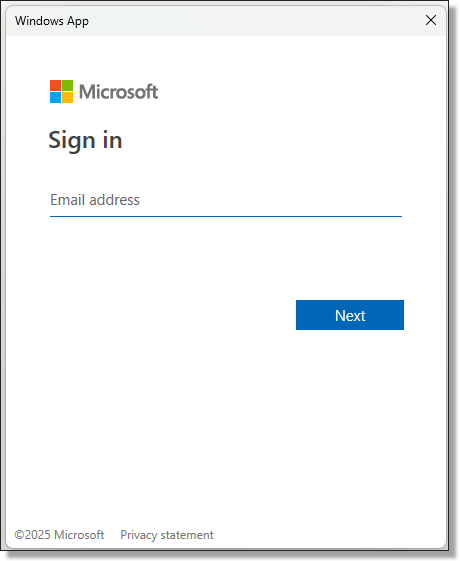
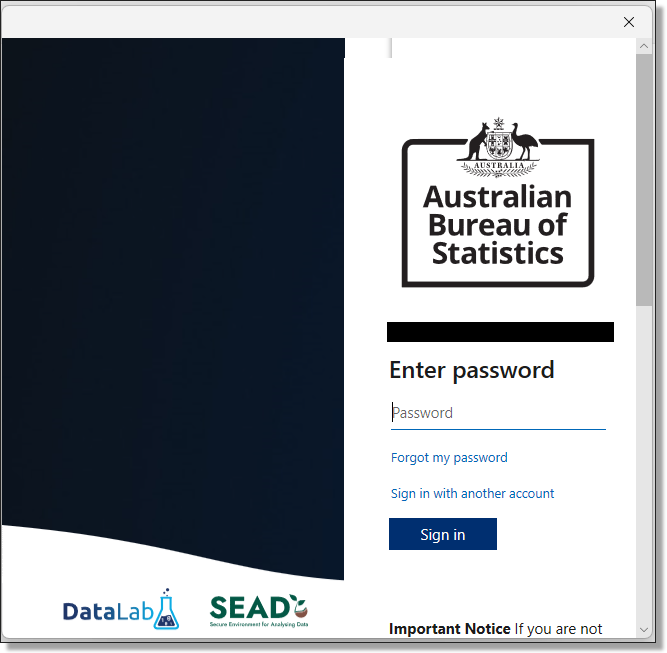
Sign in using your DataLab username. Once your Username has been entered, you will be navigated to the ABS DataLab branded log in screen to enter your password.
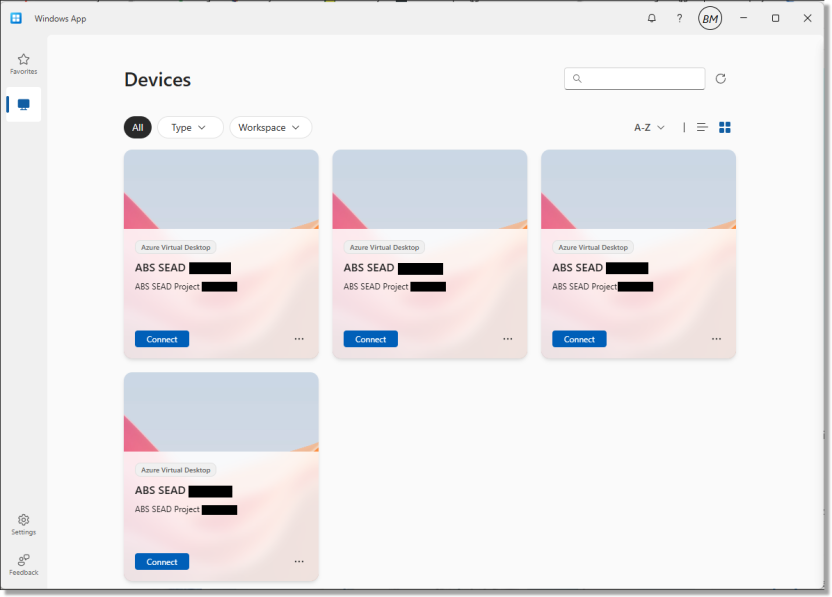
Once you've successfully logged in, you will be able to see all of your available VM's. If you can’t see the VM that you want, it may be dormant and would require a rebuild. You will be required to connect to the DataLab web portal to activate or rebuild your VM.
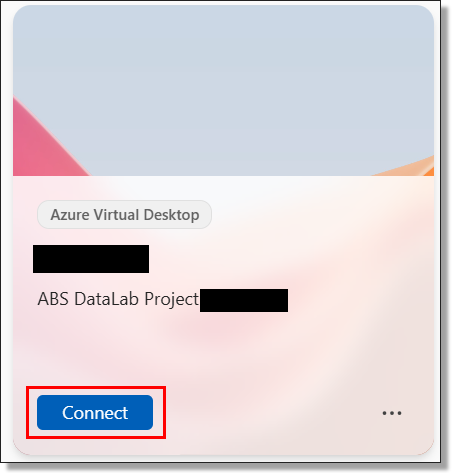
Select 'Connect' on the device tile you want to access, noting only the 'active' VM as displayed in the DataLab web portal will allow you to progress into your workspace.
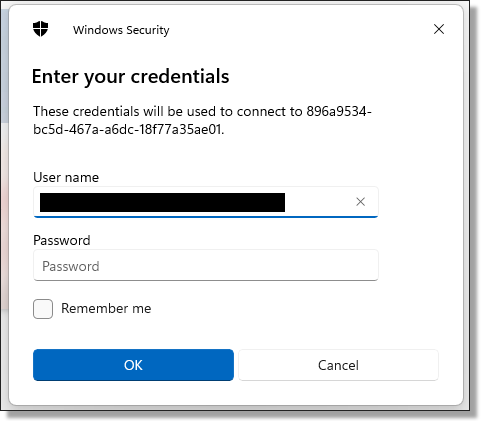
At this point, you may be required to enter your DataLab credentials again to launch the VM, if you have not logged in recently.
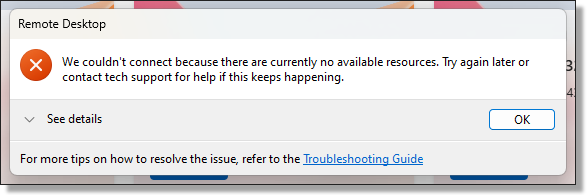
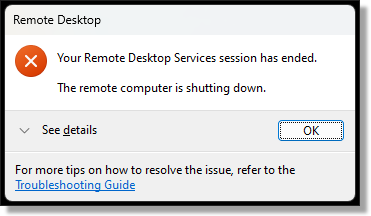
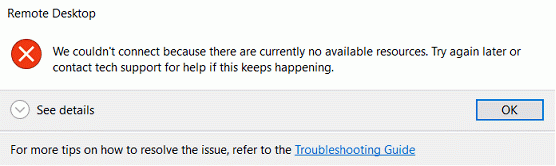
When attempting to connect to your VM you may encounter the following error. Note: Check the DataLab web portal to ensure that the VM you are trying to launch is active and does not require a rebuild.
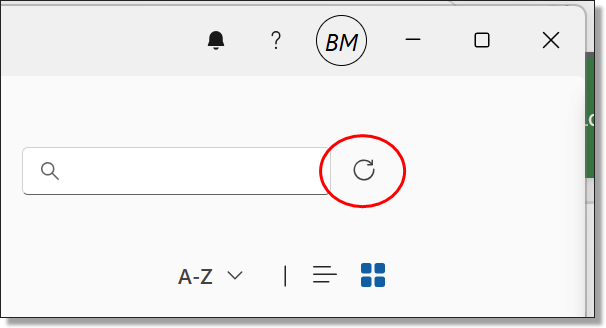
If changes have been made to the VM in the DataLab web portal, you may need to refresh the available resources in the Windows App for changes to take effect.
After successfully Connecting to the VM you will then be presented with another login screen for the VM itself. Again, you will be required to enter your DataLab credentials.
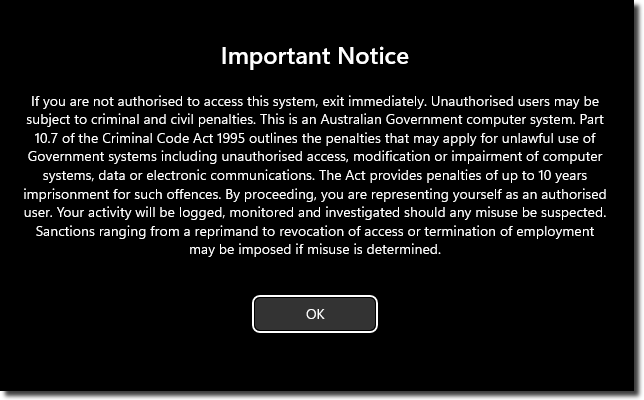
By logging in to DataLab you agree to these conditions outlined on the important notice:
Important Notice
If you are not authorised to access this system, exit immediately. Unauthorised users may be subject to criminal and civil penalties.
This is an Australian Government computer system. Part 10.7 of the Criminal Code Act 1995 outlines the penalties that may apply for unlawful use of Government systems including unauthorised access, modification or impairment of computer systems, data or electronic communications. The Act provides penalties of up to 10 years imprisonment for such offences. By proceeding, you are representing yourself as an authorised user and acknowledge you have read and agree to comply with the Responsible Use of ABS Microdata User Guide. Your activity will be logged, monitored and investigated should any misuse be suspected.
Sanctions ranging from a reprimand to revocation of access or termination of employment may be imposed if misuse is determined.
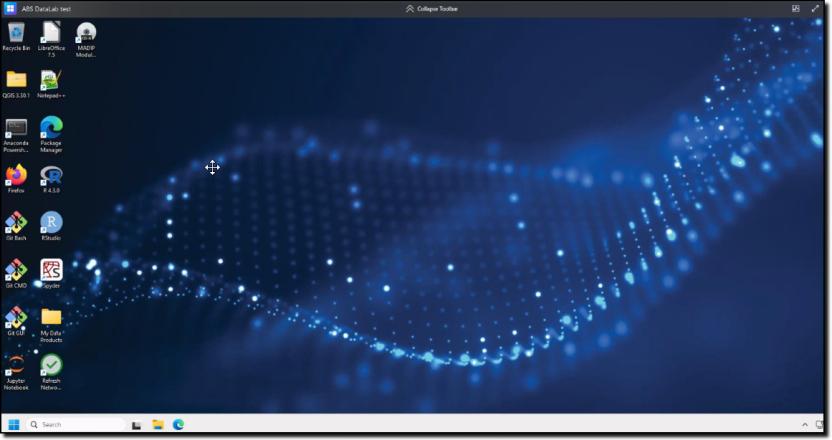
Your VM desktop will then open on your computer and you will be able to complete your work. You will then have a new window open on your computer displaying your VM workspace. Note: you will also receive a pop up reminder that your activities within your DataLab VM are being monitored and recorded.
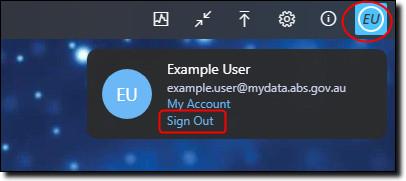
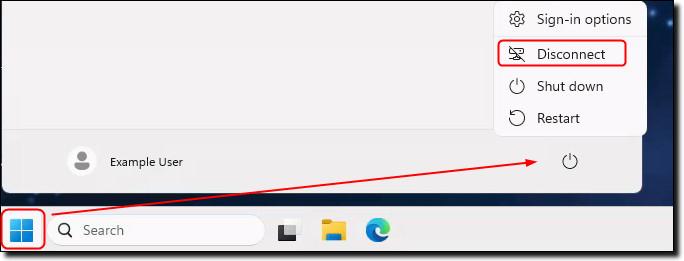
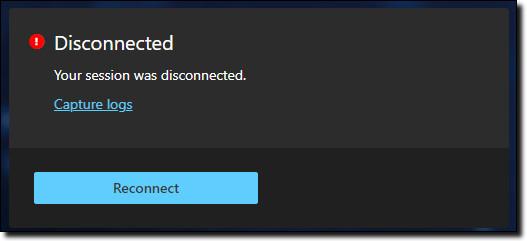
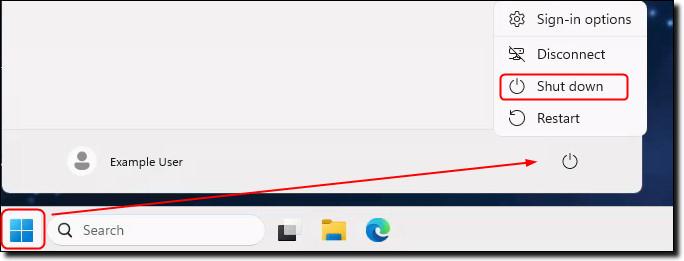
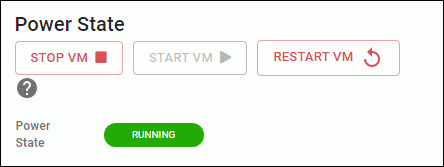
Upon shutting down your VM you will receive the following confirmation message. Ensure that you shut down your VM once your analysis is complete to avoid running costs.
For more information on using the workspace see Using your workspace.
It is recommended that, where possible, users access the DataLab using a Windows device.
While we work towards making the Windows App for MacOS viable for accessing the DataLab, users will need to connect via the web client, for new users please contact mydataportal@abs.gov.au for assistance. Windows users cannot access the web client as this method has been deprecated.
To access the DataLab on a MacOS device, click the drop down arrow next to the ‘Connect’ button on your active virtual machine and select the ‘Connect (web client)’ option. You may need to revisit this setting upon each VM shutdown or rebuild.
Select the 'Connect (web client)' button. Your virtual machine will launch in a new window on your browser.
The DataLab uses two factor authentication to provide a secure log in environment. You need to download the Microsoft Authenticator app to your smart phone to use the DataLab.
Open https://datalab.abs.gov.au and enter your credentials.
The first time you log in, enter the username and password provided to you by the ABS.
If you are using a new phone, refer to the Contact us page for system support. An ABS system administrator will need to reset your Authenticator.
Note: all DataLab accounts use the @mydata.abs.gov.au domain format.
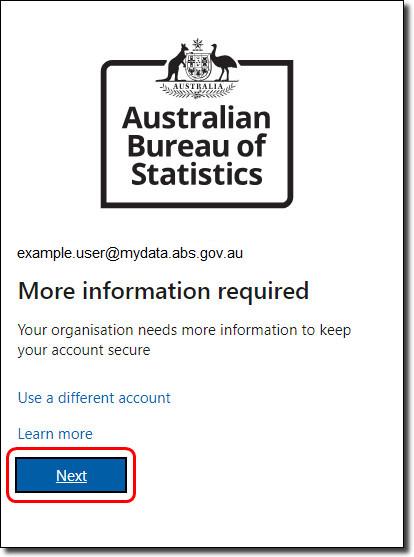
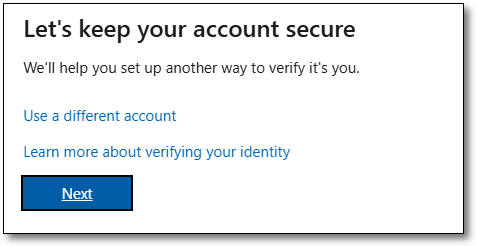
If you are switching to a new phone (not new account) you will be given the screen ‘More information required’, click ‘Next’.
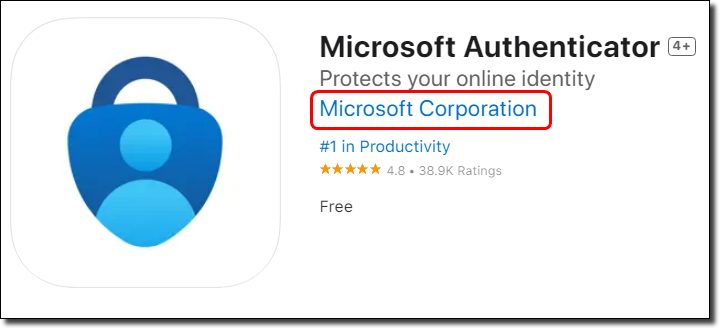
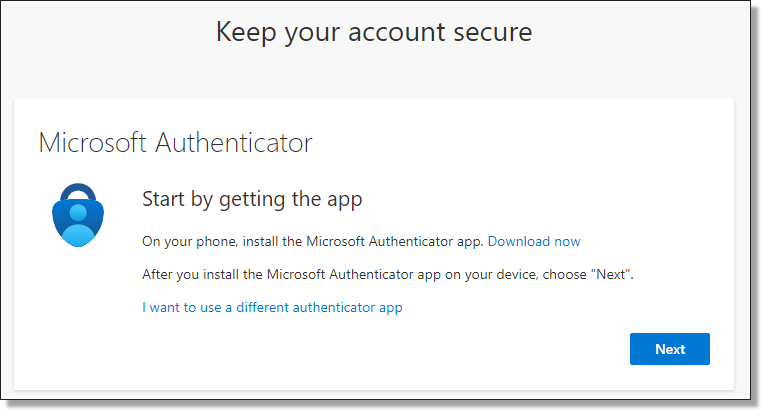
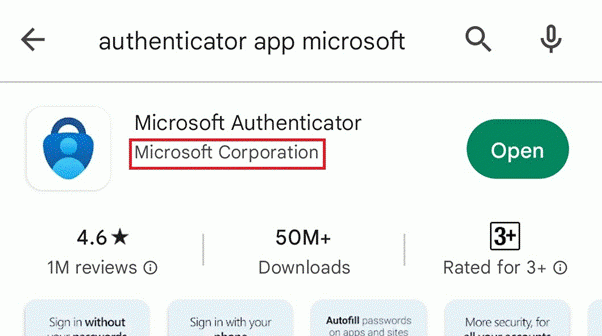
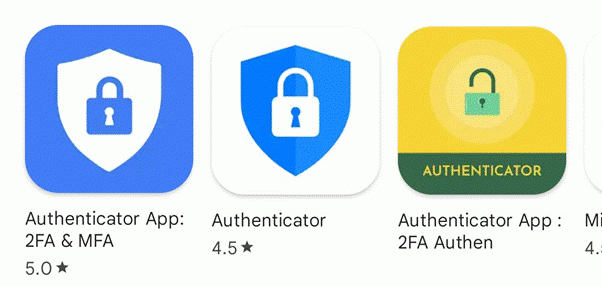
This will direct you to Step 1 of setting up your Microsoft Authenticator application. Download the Microsoft Authenticator app to your smart phone from the App Store (for iOS) or Google Play (for Android). Make sure that the authenticator is published by Microsoft, as the ABS DataLab only supports Microsoft Authenticator.
Once you have fulfilled the initial requirements noted for Step 1, proceed by clicking ‘Next’.
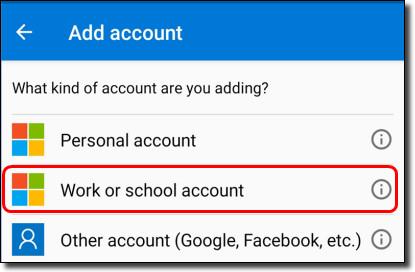
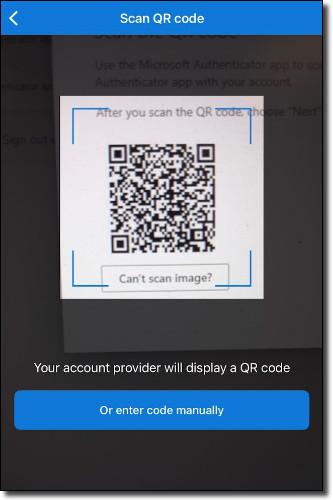
You will then be guided to open your downloaded Microsoft Authenticator app and add a ‘Work or school account’.
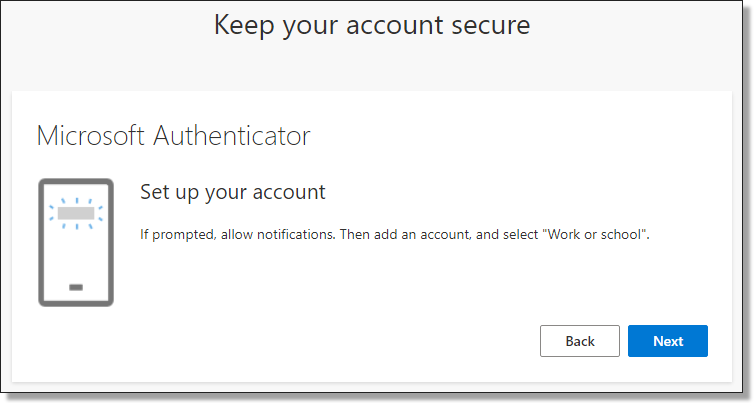
Once you have selected a 'Work or school account', click ‘Next’ from your browser.
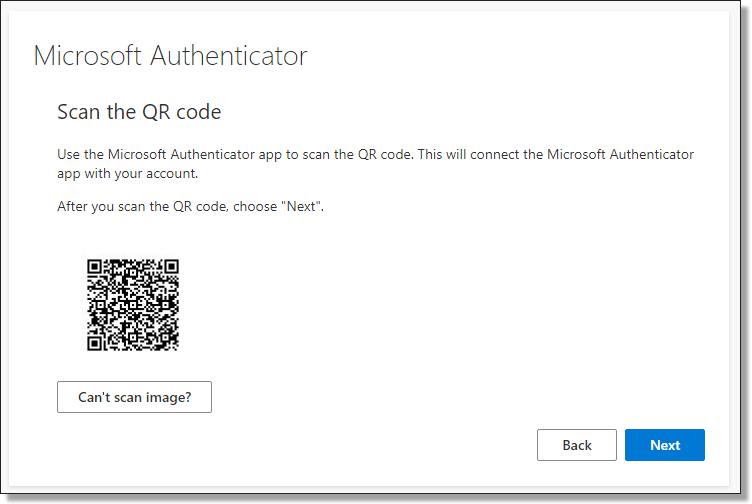
The following screen presents a QR code to scan using your Microsoft Authenticator app.
Initiate the scanning function on your phone, then hover your phone over the QR code shown on your browser screen.
Once scanning is complete, click ‘Next’ on your browser screen. You will be asked to enter the security number shown on your browser screen into your Microsoft Authenticator app, once complete, click ‘Next’.
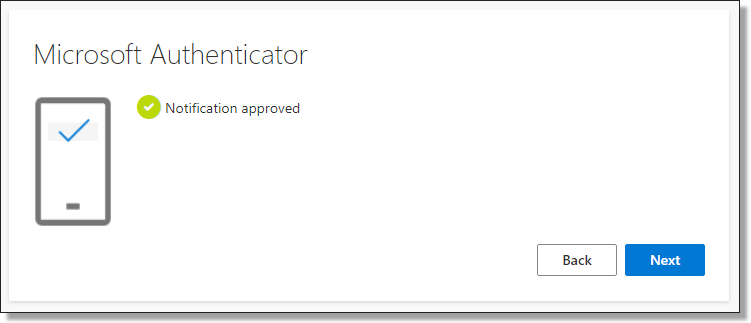
After entering the security number and receiving approval from your Microsoft Authenticator application, you will see a ‘Notification Approved’ confirmation on your browser. Click ‘Next’ to proceed to Method 2 of setting up your multi-factor authentication.
Once verified, select ‘Next’ and then ‘Done’ to return to the sign in page.
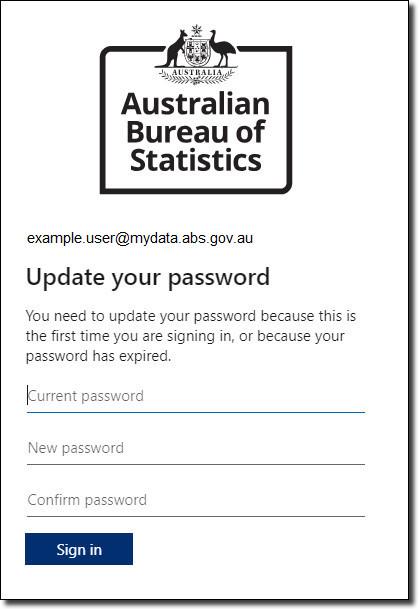
Set up a new password for your account. Your password cannot contain your user ID. It must be a minimum of 8 characters and contain at least three of the following:
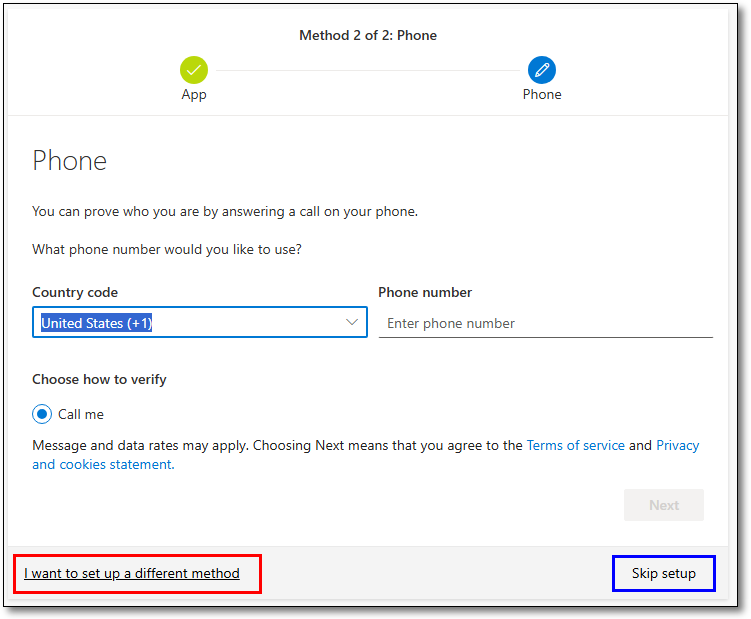
After updating your DataLab password when logging in for the first time, or having your authentication methods reset you will be prompted to add a second verification method.
The default method is a phone call with automated prompts for you to follow. If you prefer to use a different method, select ‘I want to set up a different method’. From here you can choose either a phone call or text message with a sign in code, or Email. You can skip the setup of a second verification method, however you will be prompted to complete it every time you log in to the DataLab portal.
To proceed with default method, enter your country code and phone number and select ‘Next’.
You will receive a phone call to your mobile device using the phone number entered. Answer the call and follow the prompts provided. Your browser will update with the status of the verification.
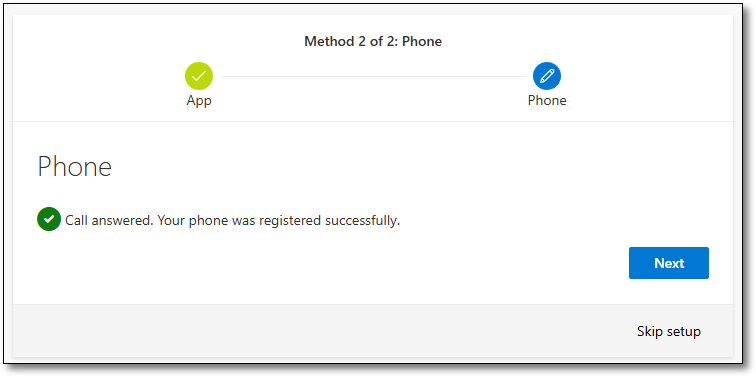
After successfully verifying your mobile device your browser will update with 'Call answered. Your phone was registered successfully'. Click 'Next' to proceed.
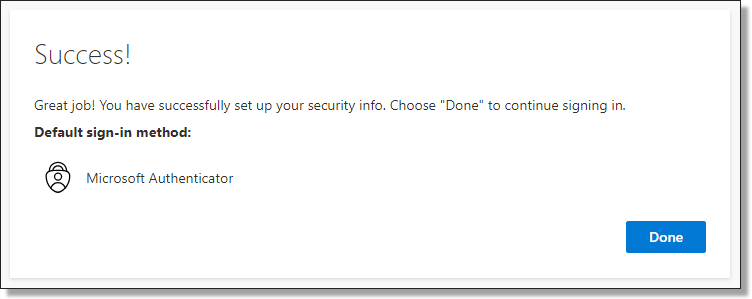
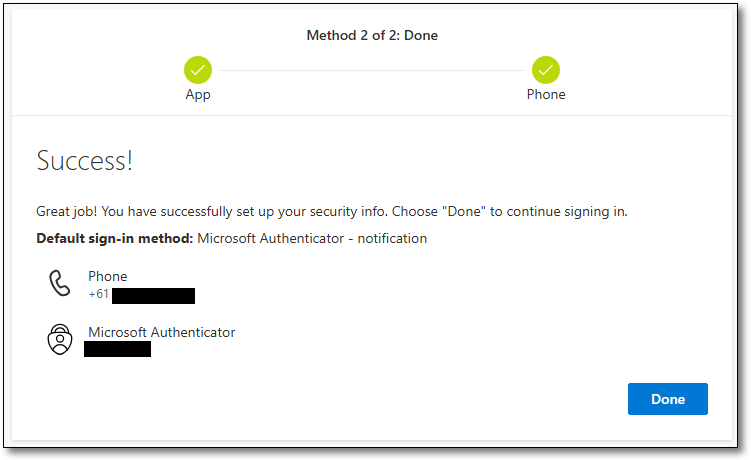
You will then receive a 'success' page, confirming the details were successfully registered. Select ‘Done’ to proceed to the DataLab portal.
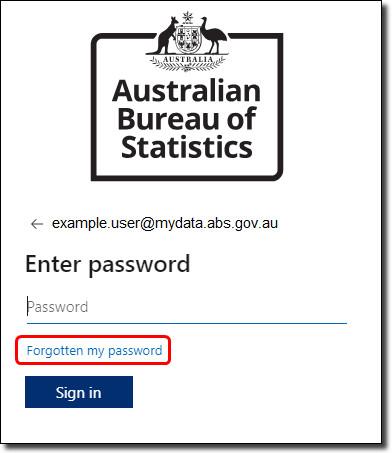
If you forget your password click on the ‘Forgotten my password' link. If you have received a notification to reset your password while in your VM, log out and then click on the ‘Forgotten my password' link.
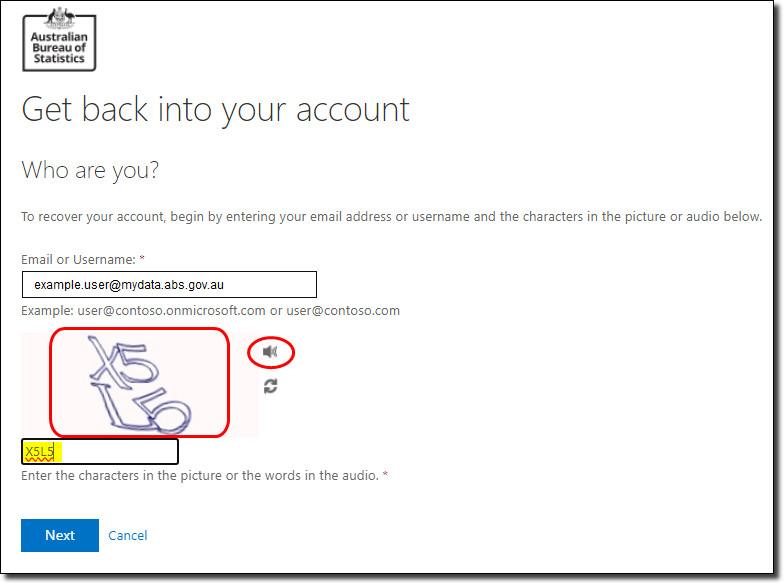
Your user ID is populated for you. Enter the characters in the picture, or words in the audio, then click 'Next'.
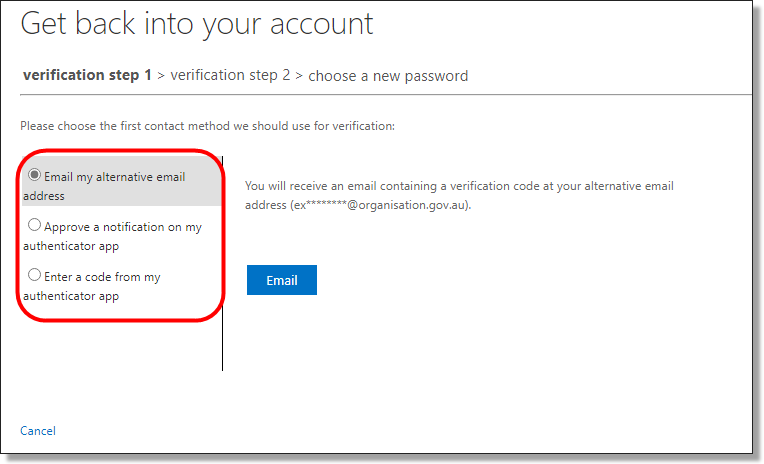
The next screen takes you to Step One of verifying your account. Choose from the options in the left-hand column.
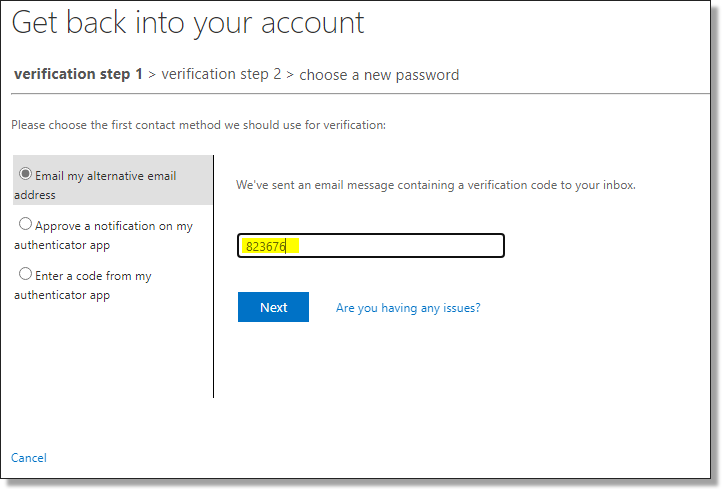
Enter the verification code you received via email, or the approval notification or code from the Microsoft Authenticator app.
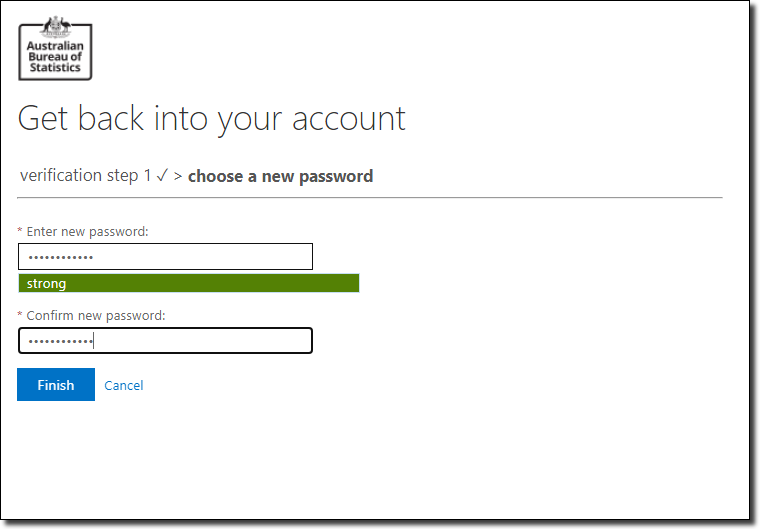
Enter your new password, ensuring it has a minimum of 8 characters and contains at least three of the following:
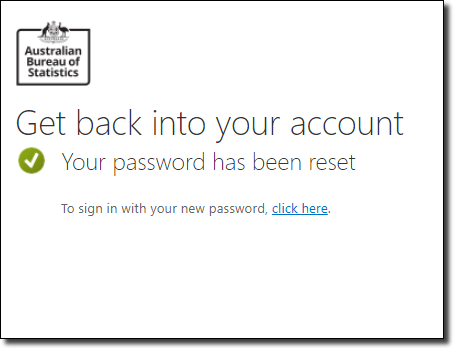
The following screen is displayed once your password has been reset. Select the ‘click here’ link to sign in with your new password.
Getting started, accessing your data files, available software, locking your workspace and signing out
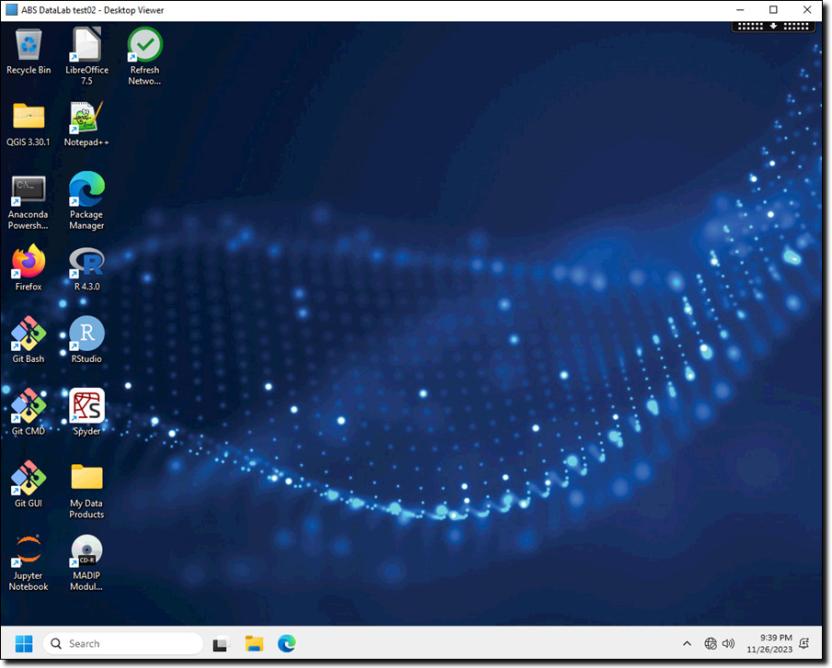
When you have successfully logged into your Virtual Machine (VM) instance, your DataLab workspace looks like this:
You can use DataLab in a similar way to using other secure networked systems, where you can securely see, use and share data files, analysis and output with the other members of your project team.
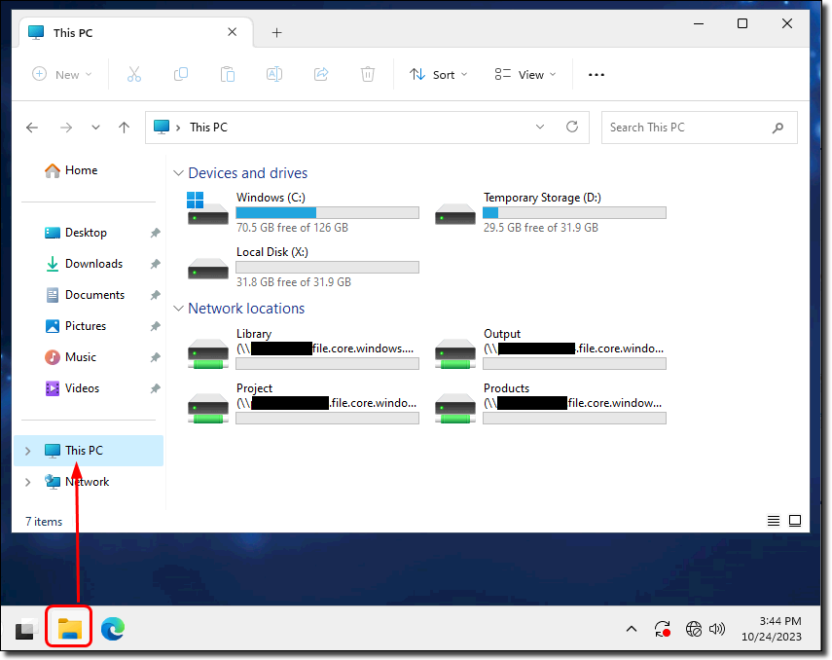
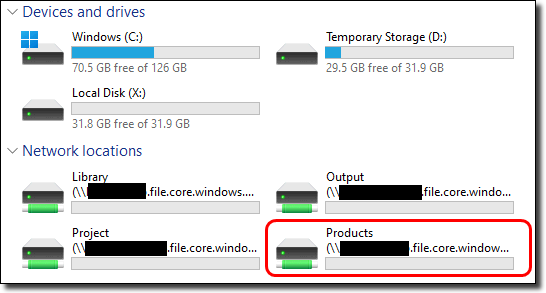
Open File Explorer and click on This PC to see the network drives you have access to:
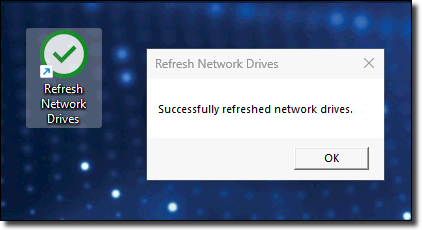
If your network drives do not appear in File Explorer, you can click the 'Refresh Network' shortcut on the desktop. A confirmation message appears when this has been successfully refreshed.
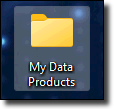
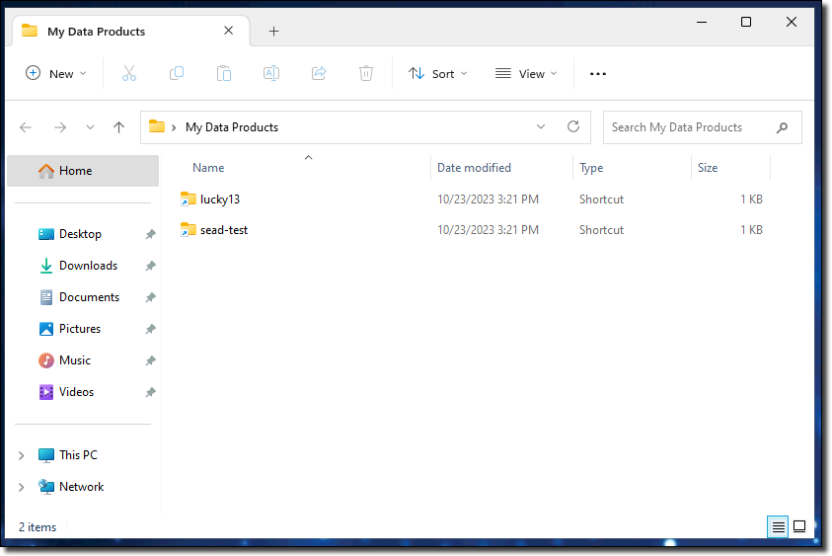
To access the data files for your project, use the 'My Data Products' shortcut on your desktop.
The My Data Products folder displays only the products approved for your project.
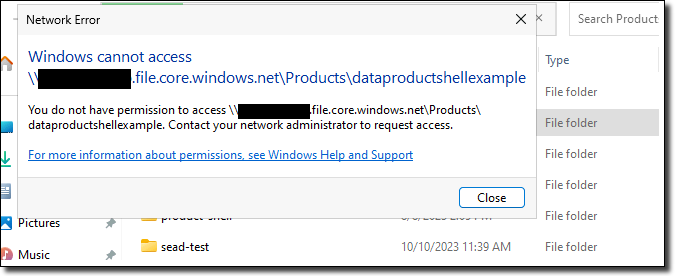
Selecting the 'Products' drive shows you the short name of all data loaded to the DataLab. However, if you try to open a file that is not approved for your project you are denied access and receive an error.
To access the latest version of each application in the DataLab, refer to the ‘Manage’ option in the portal to transition to the most recent VM version available. VM versions are updated annually, allowing for a suitable transition period for migration.
Software can be opened using the shortcuts on your desktop or by using search on the Taskbar.
All researchers have access to these applications in the DataLab:
| VM Version | ||
|---|---|---|
| 2025win24h2 | 2026 | |
| LibreOffice | 7.6.7.1 | 25.8.3.2 |
| Acrobat Reader | ||
| Azure Storage Explorer | 1.33.0 | 1.40.2 |
| Notepad ++ | 8.6.5 | 8.8.8 |
| QGIS | 3.36 | 3.44 |
| WinMerge | 2.16.40 | 2.16.52 |
| Git | 2.45.0 | 2.51.2 |
| Stata | MP18 | MP19 |
| CUDA | 12.1.1 | 12.1.1 |
| R. | 4.4.1 | 4.5.2 |
| Rstudio | 2024.04 | 2025.09 |
| Rtools | 44 | 45 |
| Python | 3.11 | 3.14 |
| Jupyter Notebook & JupyterLab | ||
| Spyder | ||
| PostgreSQL | 16 | 18 |
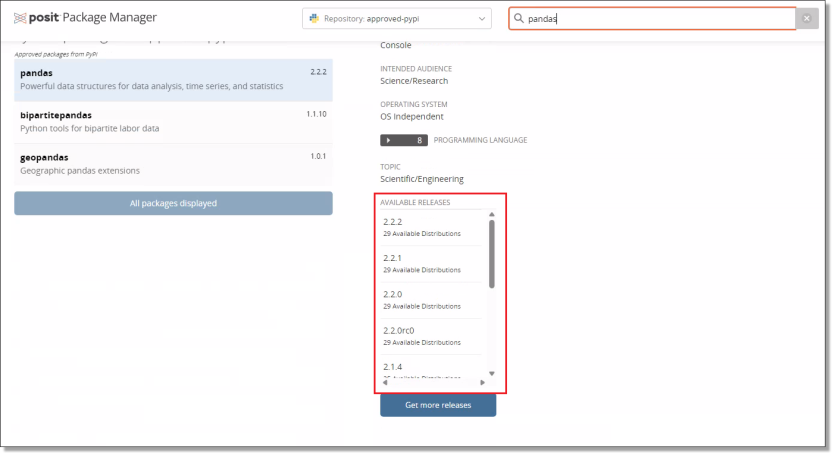
| Posit (package manager) *Approved CRAN and PyPI packages are available in DataLab | ||
| 7Zip | 23.01 | 25.01 |
| LabLink BETA (DataLab native screen sharing solution) |
If required, you can also request:
| SAS | 9.4 (EG 8.2) | 9.4 (EG 8.2) |
| Azure Databricks |
Windows 11 native accessibility features are available in the DataLab. These can be accessed from the Accessibility folder on the Applications list on the virtual machine or from the Windows lock screen. Any Windows accessibility features not enabled by default can be requested, and will be considered in line with relevant data sensitivities.
Microsoft Word and Excel are not currently available, as these applications require an internet connection, which is not supported in a secure system like DataLab. Libreoffice is the alternative offered in the system, with similar capabilities to Microsoft Office.
Firefox and Edge are available to support access for Databricks and for methods such as Jupyter notebooks in order to use Python/R. These browsers cannot be used to browse the internet.
If you require a specific statistical package not currently available, or have an enquiry regarding software versioning, submit a request using the Contact us page.
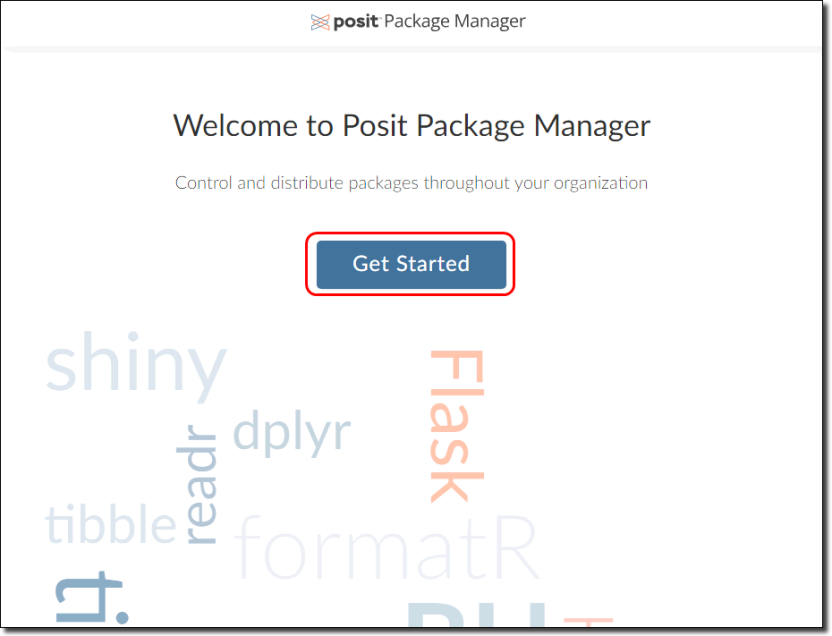
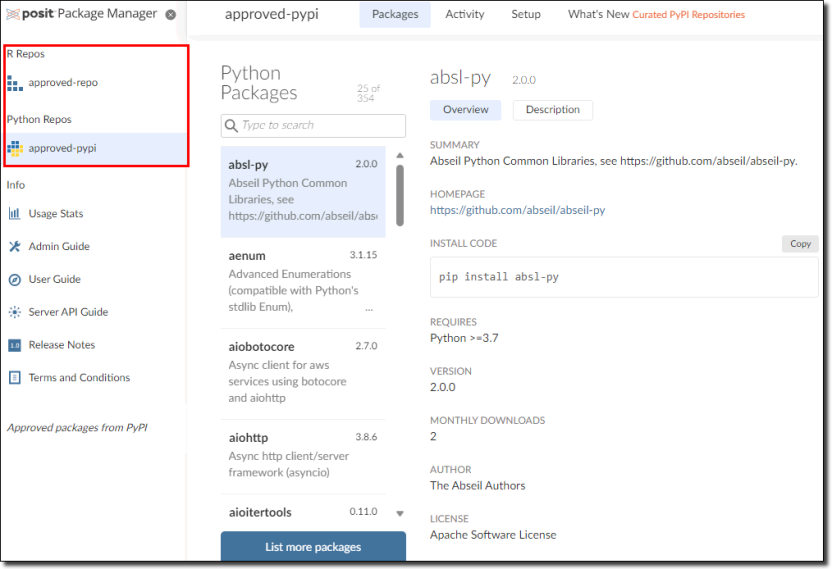
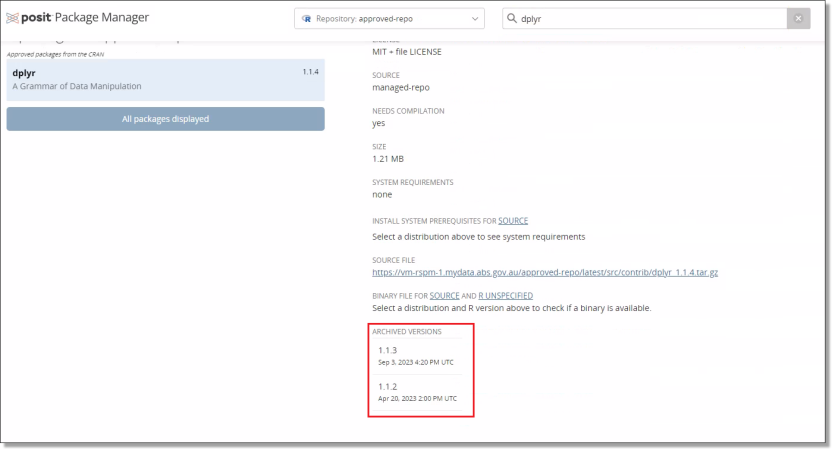
Managing your R & Python packages explains how you can manage R and Python packages using the Posit Package Manager shortcut on your desktop.
LabLink is a new video conferencing tool developed by the ABS for DataLab, now available in its trial (BETA) phase to all users. It is designed to help researchers collaborate securely within their Virtual Machines (VMs), even when working from different physical locations. There are no additional costs involved for projects using LabLink.
LabLink has the following key features:
Please note the following disabled features for data security:
Users can launch LabLink via the desktop icon or at meet.mydata.abs.gov.au in Microsoft Edge within their VM. Both options open the LabLink landing page to join and manage meetings. The page includes a “Help Info” button for common questions, and a LabLink User Guide is available in the Shared Library to support access and troubleshooting. Users will need to coordinate the details of their meetings outside of their VM as the sharing of meeting links has been disabled.
By using LabLink, end users agree to comply with DataLab security policies and conditions of use.
LabLink will remain in BETA while we continue to improve its performance. For feedback or support, contact: sead.support@abs.gov.au
Discussants will need to submit a change request in myDATA to opt in to a VM to access LabLink.
Currently, there are no costs associated with using discussant VMs, though charges may apply in the future.
Databricks is available to projects within the DataLab as a non-standard product.
Databricks is a cloud-based Big Data processing platform which provides users with an integrated environment to collaborate on projects and offers a range of tools for data exploration, visualisation and analysis. Within the Databricks environment, users can:
Project analysts will also have access to the Databricks Academy training subscription (an online library of Databricks training guides), in addition to instruction materials on how to setup the Databricks workspace provided in the ABS shared library.
NOTE: If you are using Azure Data Lake containers with Databricks, Azure Storage Explorer is available as an alternative to AzCopy to manage and transfer your files between your file share drives (output, project, etc) and blob storage. Refer to the 'Azure Storage Explorer User Guide' in the shared library drive.
NOTE: The project datalake storage does not currently have back up due to implementation restrictions, therefore we highly recommend regularly copying your files from the project datalake storage to your project file share storage (your P:/ drive).
To allocate a Databricks workspace to your project, you will need to submit a request to mydataportal@abs.gov.au. Once your project is allocated a Databricks workspace, it can be accessed from within your VM using the installed Edge or Firefox browsers.
Access to Databricks will be per project and charged quarterly based on usage. Projects will have the flexibility to select between a low or high usage profile. Selecting the appropriate usage profile is determined by how much compute resources project analysts are estimated to consume. The same level of service is applicable across both profiles.
As Databricks uses separate compute power, projects requesting access to Databricks should consider if they need to continue to maintain their existing VM sizes. The option of scaling down the size of existing VMs provides users the opportunity to save on project costs.
NOTE: The ABS provides information on appropriate Databricks cost management for end users within the shared library (L: Drive).
User analysts can be provisioned with the following cluster policy options:
| Instance | Server Purpose | Max Autoscale workers | vCPU(s) | RAM/ | Databricks Units |
|---|---|---|---|---|---|
| DS3 v2 | General Purpose | 5 | 4 | 14GB | 0.75 |
| D13 v2 | Memory optimised | 4 | 8 | 56GB | 2 |
| F16s v2 | Compute optimised | 4 | 16 | 32GB | 3 |
Databricks cluster policies will restrict the type and number of workers you can provision for a cluster. If an existing policy does not fit your requirements, you can request a new policy via the ABS. All information regarding this can be found in the ABS shared library.
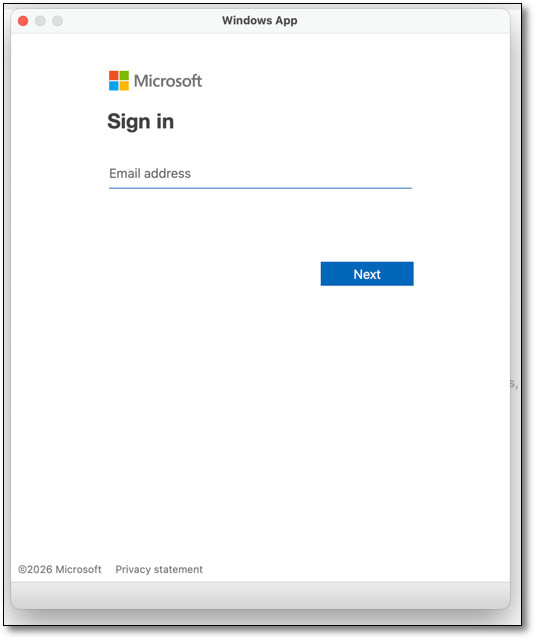
To ensure the security and integrity of the DataLab, clients will not have administrative access to the Databricks workspace and some usage restrictions may apply. Administration will be exclusively managed by the ABS, aligning with the specified usage restrictions of the DataLab.
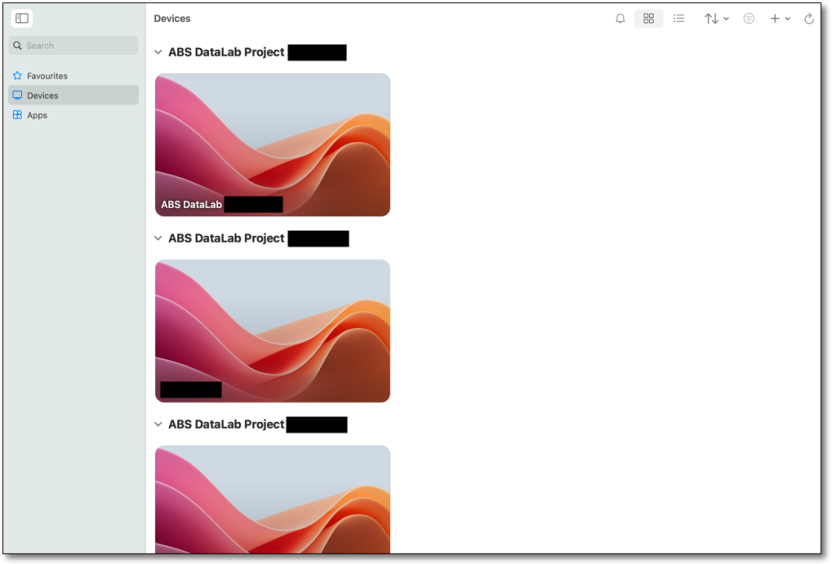
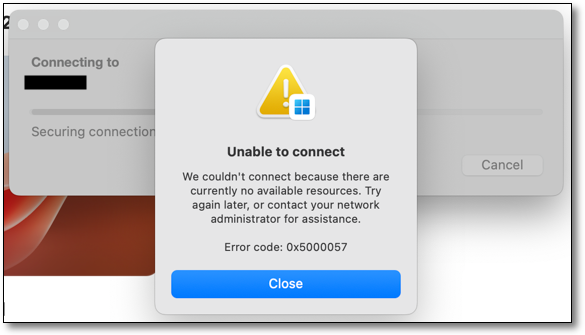
Please contact mydataportal@abs.gov.au with any questions.
If you are working with a specific set of R and/or Python packages, you can now manage these using the Package Manager shortcut on your desktop.
In the Package Manager, click 'Get Started' to navigate to the available packages. You can use this tool to search for packages (in the left column) and install the packages you want to use for your project. If the packages you need are not listed, you can request them using the Contact us page.
The following describes how to access different, older, versions of packages from Posit depending on the language. If you require a new package, newer or older version of a package from CRAN for R or PyPi for Python, then please go to Contact us (from the 'Request new Software or Software packages' form) and the package will be made available subject to availability and security checks. Packages not from CRAN or PyPi will not be available through Posit and these will be subject to a separate security screening processing before they are approved for access in the DataLab if the process is successful.
These files can be downloaded from Posit using your chosen R environment through the ‘devtools’ package e.g., ‘devtools::install_version(“your package”, version=“your package version”)’. You will be able to see the available package version for R at the bottom of the Posit page for that package. An example for the ‘dplyr’ package can be seen below.
Accessing older python package versions can be done when installing the package through ‘pip’ e.g., ‘pip install pandas==2.1.0’. The available versions of each of the python packages can also be seen at the bottom of the relevant Posit page. An example for the ‘pandas’ package can be seen below.
Virtual machines, or VMs, are the virtual workspaces you use to undertake your analysis in the DataLab. VMs are created by the ABS as part of the project establishment process, described in About DataLab.
You have one VM for each project. This is a design feature to prevent data from one project being accessed by another project. You can run analysis on multiple virtual machines at the same time, but only if you have been granted local disk space. See Run jobs on offline VMs (desktops). You may want to request this option if you have multiple projects that you are actively involved in.
The ABS offers standard and non-standard VM sizes. Standard VMs are included in the DataLab annual fee, whereas non-standard VMs are subject to additional charges as they are more expensive to run. For more information on charges, see DataLab charges.
Researchers may request access to a non-standard machine for performance or productivity purposes. If you require a non-standard machine, you will need to consult your project lead and your project editor will need to submit a change request in myDATA. Please refer to Change Requests in the myDATA user guide.
Currently offered VMs and approximate running costs are listed in the tables below.
Large VMs are provided as the default and most projects operate efficiently with this size.
If you have a small or medium machine, it can be upgraded to a large at no additional charge. Please contact mydataportal@abs.gov.au for further assistance.
| Name | CPU Cores | RAM | Approx cost per hour ($AUD) |
|---|---|---|---|
| Small | 2 | 8GB | Not applicable - these virtual machines are included in the DataLab annual fee. |
| Medium | 2 | 16GB | |
| Large | 8 | 64GB |
Non-standard machines are available on request and charged quarterly based on usage.
Note: VMs continue to incur running costs if the VM has not been stopped, even when not in use. The ABS recommends researchers shut down their machine during periods of inactivity to avoid unintended charges. Disconnecting, or closing your machine window, is insufficient. VMs are required to be shut down completely as per the VM Management Options to avoid continued running costs.
If you have any questions or require further assistance, please contact mydataportal@abs.gov.au.
| Name | CPU Cores | RAM | Approx cost per hour ($AUD) |
|---|---|---|---|
| X-Large | 16 | 128GB | $1.80 |
| XX-Large | 32 | 256GB | $3.80 |
| XXX-Large | 64 | 504GB | $6.40 |
The following specialised VMs (also non-standard) capable of supporting machine learning and high-performance computing can also be requested, however these are assessed on a case by case basis with the appropriate justification, and are subject to quote. If the required VM is not listed, the ABS may be able to provide a customised option at an additional charge, please be sure to describe why the available machines do not meet your needs in any justification provided. A list of virtual machines by region can be viewed via the Azure website.
Assigned names of VMs are unrelated to Azure naming conventions. ABS review our provided VM options periodically, please revisit this page for any updates.
| Name | CPU Cores | RAM | GPU | Approx per hour cost ($AUD) |
|---|---|---|---|---|
| Large GPU | 8 | 56GB | Tesla T4 16GB | $1.50 |
| X-Large GPU | 16 | 110GB | Tesla T4 16GB | $2.40 |
If you need to close your DataLab session but want to keep your analysis running, you can sign out or disconnect from the VM. Your programs will keep running until 8pm local time. If you have extended the shutdown time with the ‘Bypass shutdown’ option the scheduled shutdown will occur up to three days later, at the same time.
To sign out of your workspace, click on the button at the top right of your window that shows your initials, then select ‘Sign Out’.
To disconnect from your session, first click on the Start menu and then select the power symbol. An option to ‘Disconnect’ will appear. Selecting this will immediately disconnect you from the session.
Please note that the session window will remain visible until you close the tab.
If you want to close your session and end all programs you have running, simply shut down your DataLab session.
To shutdown your session, first click on the Start menu and then select the power symbol. An option to ‘Shut down’ will appear. Selecting this will immediately shutdown your session.
My Virtual Machines, My Accounts and My Projects
The DataLab portal is where you will find information about your DataLab account, projects and virtual machines (VMs).
The DataLab portal contains a 'Navigation panel', used for viewing the projects, action log, and account details.
The Important messages displays any global or DataLab specific messaging that users should be aware of. This contains information on planned and unplanned outages or system updates/changes.
'Active VM' displays the accessible VM, only one VM can be active at any given time.
'Locked VMs' shows all other available VMs which can be activated.
'Global information & account details' contains accessible links to the Responsible use information, DataLab website, privacy notice. The section also contains the 'What's New' which contains updated system changes following each system releases.
The 'Help centre' contains information on connecting to your VM through the web portal.
The DataLab portal displays information across three tabs:
From this tab you can activate, start and launch the VM associated with your project.
Use this tab to view your personal contact information and basic account settings.
Keeps a record of your portal actions. This can help you manage your sessions and provides useful information if you encounter problems with the system. It includes:
The left navigator menu contains shortcuts that can be used to navigate between pages. Click the arrow to collapse or expand the navigator menu.
The links at the top right are available from all pages of the portal:
The Using DataLab responsibly pages will help you understand your obligations and management responsibilities to handle microdata safely. Read through these pages or Contact Us if you would like any help understanding your responsibilities.
This banner appears at the top of your DataLab portal window when we have an important message for your consideration or action. Banner messages are only visible in the DataLab portal and will not appear in the Windows Remote Desktop client or Windows App.
You must connect to your Virtual Machine (VM) using Azure Virtual Desktop (AVD).
In the 'Manage' menu you will be able to switch your VM version to a new version if there is one available.
Users require the Windows App for Windows or MacOS, or the Remote Desktop Client for Windows (MSI) to access their VM. Connecting via the Windows App web client or the Remote desktop web client are disabled and no longer available for connecting to your VM.
If your VM is dormant, no management options are available.
The contents of each pane on this screen are outlined as follows:
Power State: You can start, stop, or restart the VM. please consider stopping your VM when you have finished work, this may save on costs if you are using a non-standard machine.
Scheduled Shutdown: VMs are automatically shutdown every night at 8pm local time. If you have a program running that you expect to run past 8pm, you can choose to extend your session for up to 3 days by selecting 'Bypass shutdown'.
Scheduled Rebuild: VMs are automatically destroyed and rebuilt every 14 days for security and maintenance purposes:
If you are an analyst who works across multiple projects, you can request local disk space. This will enable your VM to run jobs offline, noting the 14 day rebuild still applies.
Datasets are stored on a remote file share. Only the 'active machine' has network access to this location. Your 'locked' virtual machines do not. To run offline jobs, you need to request local disk space to be attached to your machine. There may be a cost associated with this.
When running jobs offline, the inactive machine can continue to run your program as it still has access to the data since it is no longer using the remote file share. However, working like this does not allow your project team to see your analysis or output. You should always move your output back to your Project or Output drives where your project team can access and review the output. See Using your workspace for more on the available drives in DataLab.
Pending request to your administrator, Local disks are SSD’s that are attached to the VM as a non-standard product. These drives provide local fast storage for more compute capacity. When attached, these can be identified as the X: drive in the VM. The performance of these drives is comparable to that of the C: drive and are more efficient than the Project or Outputs drives, offering higher input/operations per second (IOPS). Please note the important functionality of this drive for intermediate compute and storage purposes, rather than ongoing file storage.
To use local disk space:
Note: The X: drive is temporary storage and any data stored will be deleted on rebuild, deletion of the VM, or project closure whichever comes first. X: drives are not backed up outside of the VM, and data cannot be recovered from the drive if lost. Due to this, the ABS still recommends saving all data in the project and output drives.
Select the ‘My Account’ tab from the navigation panel to see details about your account.
Basic attributes displays your name, email, phone etc. If your personal details are incorrect, please Contact Us with the correct information.
Account settings allows you to opt in or out of receiving email reminders. These reminders let you know when your virtual machine will shut down. Notifications are sent at 4pm AEST/AEDT, prior to the 8pm local time scheduled shut down if you have started your VM that day. It will also remind you before your 14 day VM rebuild. You can change this option at any time by clicking ‘Edit’.
DataLab portal is accessed via a web browser, DataLab virtual machines are accessible via Windows App or AVD Remote Desktop Client. It is recommended the latest version of either of the following are used:
Internet Explorer is not recommended.
Refer to Logging into the portal and workspace for more information on accessing the DataLab portal and connecting to your VM through the Remote Desktop Client (MSI) or Windows App.
Note: Mobile devices are not supported/enabled for the DataLab.
Help with logging in, virtual machines, errors and running out of space, code and software
For help with myDATA, see myDATA troubleshooting.
If your DataLab account name is not recognised by your authenticator application, it may be because you have downloaded an authenticator not published by Microsoft. The ABS DataLab only supports Microsoft Authenticator.
You will need to download the Microsoft Authenticator application to your smart phone from the App Store (for iOS) or Google Play (for Android) to fulfil the login sequence.
The following authenticator applications (similar in appearance to the Microsoft Authenticator) will not function with the ABS DataLab:
If you have verified you are utilising the correct application, but are not receiving prompts to authenticate on your mobile device, check your battery optimisation is turned OFF by following these steps.
Other troubleshooting steps you can follow if you are having issues authenticating are:
DataLab is enabled by cloud infrastructure, which may be blocked by some organisations’ firewall settings.
ABS cannot make changes to external organisations' infrastructure. Project Leads need to supply the information below to each organisation participating on this project.
Network/IT Security sections in each organisation need to review and make changes to authenticate access.
1. Enable authentication to the tenant
Users need to authenticate to one of ABS Azure Active tenants, which may be strictly controlled by government agencies and academic workplaces. Authentication must be enabled to the tenants:
2. Allow user access to URLs
Users will need to access the following URLs:
3. Configure your organisation's network to allow outbound connections to the following addresses required for Azure Virtual Desktop (AVD):
These addresses all utilise the TCP protocol and outbound port 443 for communication. Contact mydataportal@abs.gov.au for further assistance.
The DataLab has more functionality and features available to you, so you can set options as well as undertake your research.
Your log in credentials for the DataLab portal are the same as for the DataLab workspace. You can reset your password by clicking on the Forgot my password link.
Your session will continue on until a shutdown is required (either nightly shutdown or 14 day rebuild). However, you can still reset your password while your session is running.
If you are a member of multiple projects in the DataLab, you will have more than one virtual machine. Your Active machine is the one that is connected to the remote file share, where the data files are stored. For security purposes, only one of your sessions can connect to the remote file share at a time (this is where data files are stored). You can activate your virtual machine by using the Change Active VM button.
If you receive the following error or similar to the image directly below when attempting to launch your VM from the Remote Desktop client. Check that your VM is using the latest VM version, that the machine you are trying to launch is ‘activated’, and that your machine is not currently being rebuilt.
To use multiple displays when using DataLab, on the Remote Desktop client (MSI) or the Windows App, you will need to adjust the display settings.
To access the display settings, on the Remote Desktop client right click on the machine you want to use multiple displays for and click ‘settings’, then turn off ‘Use default settings’ to see the display settings.
On the Windows App for Windows, select the three dots in the bottom right hand corner of the VM tile, select ‘Settings’, then turn ‘Use default settings’ off. You will be able to change the display settings under 'display configuration' to allow the use of multiple displays.
When launching your VM through the web portal using the 'Connect' button, the VM window may open but with issues relating to the screen resolution. You can try launching your VM directly from the Remote Desktop Client or Windows App. Refer to Logging into the portal and workspace, then connect ‘Remote Desktop for Windows’ section.
If required, you can modify the display settings for the VM you’re wanting to launch. From the Remote Desktop Client or windows App, open the display settings and turn ‘use default settings’ off. This will allow you to see what display settings are enabled. Ensure the option ‘Fit session to window’ is enabled.
Microsoft does not currently offer an AVD client for Linux users. Because of this, we are unable to provide support for Linux users looking to access DataLab. While other options for connecting to the DataLab using Linux may exist, for example setting up a Windows VM on your Linux computer, then connecting to your DataLab VM using the Windows App or Remote Desktop Client, we cannot guarantee its reliability.
Virtual machines are destroyed approximately every 14 days for security purposes. If the 14 day timing will interfere with the timing of your project, you can choose to destroy and rebuild earlier than 14 days at a time that suits you.
Virtual machine project and output drives are backed up every night and kept for 14 days. Files outside of these drives are not recoverable.
Save your work to your Project or Output drives to ensure that your analysis is not lost. Information saved outside of these drives is destroyed when your machine is rebuilt every 14 days.
Only if you have requested local disk space to be allocated to a machine. This allows you to run jobs on offline VMs.
Try logging out of and stopping your VM, then begin the Start VM process again. If that does not work, try the rebuild now from your VM management options.
The upload button that is present in your toolbar is intentionally non-functional. You may encounter a success message after uploading but you will not be able retrieve any files that you have uploaded. If you wish to upload data or packages to the DataLab, please contact the Data Services team or Input Clearance team.
When accessing the DataLab through your organisation's virtual machine it is expected that the access would be slow given the multiple levels of virtualisation and processing of inputs. We recommend accessing the DataLab on your base machine, which may make your VM more responsive.
System performance issues can occur for many different reasons, and every issue requires a unique approach to troubleshoot. Many issues can be resolved by attempting one of the following:
If issues persist, email mydataportal@abs.gov.au for further assistance.
If you cannot see the Library, Project, and Output network drives in File Explorer, go to the desktop and double-click the Refresh Network Drives icon.
Stata error example
This means you have exceeded the memory for your virtual machine.
1. Use an alternative method/program to manipulate or process the dataset. Some processes/programs/methods for working with large datasets are more memory-intensive than others. Try some alternative method to see if it is less system intensive.
2. To request a larger machine, please submit a change request in the myDATA portal. Larger machines incur higher running costs. With user charging, you may need to consult with your organisation to confirm incurring additional expenses for your project before applying for a larger machine.
Users with SAS installed now have the ability to edit the SAS configuration file located at “C:\Program Files\SASHome\SASFoundation\9.4\nls\en\sasv9.cfg”. This file governs various software settings and parameters, enhancing customisation options. Noting any changes will need to be repeated following machine rebuilds, as the C drive is destroyed on rebuild. To modify the SAS config file, follow these steps:
1. Access the file at the provided directory, using SAS or a text editor.
2. Proceed to make the necessary changes, in order to tailor the configuration.
3. Save the file (and a backup version on your P drive, to reinstate following machine rebuilds), then test the software for desired outcomes. Exercise caution, as improper edits may lead to unexpected behaviour.
DataLab users can access a pre-written SAS configuration script that enhances SAS efficiency within the DataLab. This includes the "VM_COMPLETE_SETUP.bat" script and supporting resources to streamline the setup process following machine rebuilds. Please refer to the resources located in the Shared Library Drive (L: Drive).
Clean up the drive contents, review and delete redundant files to free up space.
To request a storage increase, please submit a change request in the myDATA portal. There may be a cost associated with this.
You can request input clearance for data, code or files to be loaded to your project, from either another project, or other sources that you hold.
Yes, each virtual machine has R, STATA and Python as default software. SAS is not automatically provided on all machines but can be requested as it requires a licence to be assigned to your virtual machine. To request SAS, please submit a change request in the myDATA portal.
When launching Jupyter Notebook or JuypterLab from Powershell or command prompt may be looking in the incorrect directory resulting in an error message. To overcome this, enter the following command into Powershell or the Command prompt:
Python packages and their dependencies are regularly scanned for known vulnerabilities. Any package versions that exceed the vulnerability threshold will not be available in Posit. If this occurs, check if there are alternative versions of the packages available. In most cases other versions of the package will be available to address known vulnerabilities. If you require assistance, please contact your administrators.
Yes, it takes about 5 minutes to process the connection. You also need to log out of your virtual machine to allow the system to refresh your session with the new data.
You can extend your session to bypass the nightly shutdown, by one, two or three nights.
Use the R Studio Package Manager shortcut on the DataLab virtual machine desktop to check the range of R packages available to you. See Managing your R packages.
By default, packages are installed onto the C drive which gets wiped every time the VM rebuilds. To have packages which persist through rebuilds, we recommend changing the file path to have packages installed on either the Project drive (P:) or a local disk (if attached). Files saved to these drives are retained over rebuilds.
You can check for any background processes that can be turned off for RStudio. For example, turning off the “show diagnostics for R” may improve the performance. To do this, go to tools, then global options, and click on 'code'. Under diagnostics untick "show diagnostics for R", then select Apply and Okay.
If the project you opened was saved with SAS Datalab – [machine name] you are connecting to the local SAS server without a profile. When you try to run the project without selecting a profile the system may present an error message saying "The server "SASMain" is not defined in the current repository". Click though the messages and continue.
Due to a default setting in Microsoft, the system automatically uses Microsoft Edge to open any PDF file. You can open the PDF file by right-clicking on the file, selecting Open with > Adobe Reader. This launches the file using Adobe Acrobat Reader.
Following recent enhancements, PostgreSQL's data directory relocation is now automated to X:\psql\data when a local disk is attached, facilitating expanded storage capacity for data. This feature streamlines the process of accommodating larger datasets. To enable local disc please email mydataportal@abs.gov.au
When creating a new compute cluster in Databricks there is a known issue with the new ‘Simple’ compute creation form. Ensure that the Simple form setting is switched to ‘Simple form: OFF’ when creating a cluster. This will enable you to create a new cluster using the standard compute creation form.
Key contacts and template emails for ABS DataLab
If you do need to share unvetted data or counts with ABS staff, these should be saved in your output drive and only information about their location should be included in your email.
From 25 December 2025 until 2 January 2026 the teams responsible for administering DataLab, DataLab training, DataLab Clearance, and Data Integration services will be unavailable.
Further, during 5 December 2025 and 19 January 2026, these teams will be operating at reduced capacity. During this time, priority will be given to requests requiring urgent attention to support government policy and emergency response.
myDATA requests can be submitted at any time, but will only be actioned during this period if resources are available. Both myDATA and DataLab remain open for access during this period.
The new email address for all correspondence relating to DataLab and myDATA is mydataportal@abs.gov.au - we are progressively updating the website and other relevant materials to reflect the new address. Please refer to the Contact us page, all templates redirect to the new address.
To register interest in DataLab safe researcher training, please use the link on the Safe researcher training page.
\(\Large ✉\) New DataLab project query.
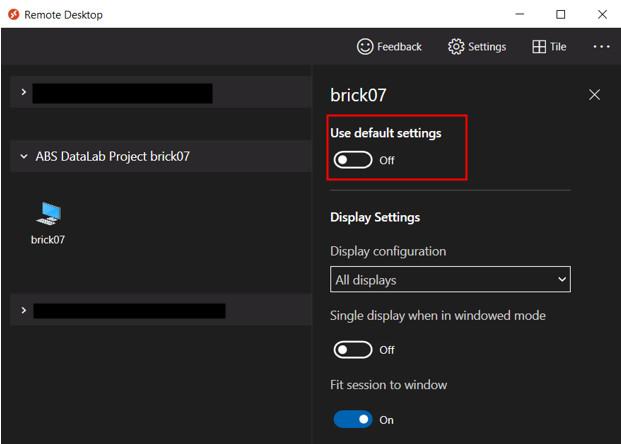
\(\Large ✉\) Request for new organisation in DataLab
\(\Large ✉\) Existing DataLab project query.
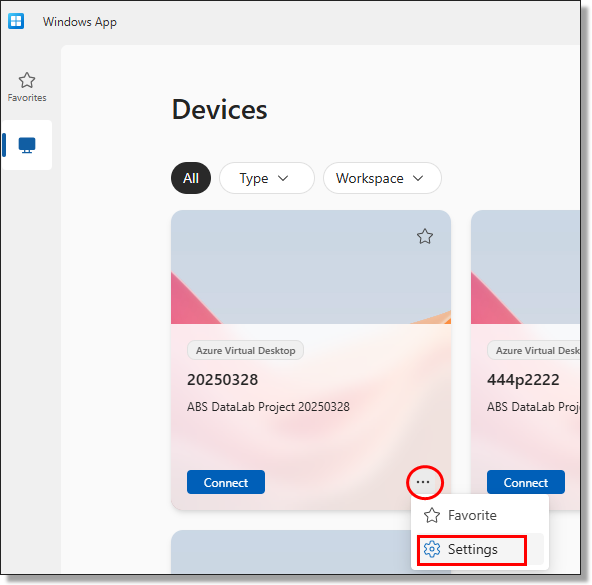
\(\Large ✉\) System support query (this includes requesting an MFA or password reset).
To request input or output clearance, please use the relevant links on the Input and output clearance page.
\(\Large ✉\) Request new software or software packages (this includes Python, R and stata packages or other software not currently supported in the DataLab).
\(\Large ✉\) Notification of upcoming publication
Important reminder: do not include unvetted data or counts in emails sent to the ABS
For all other queries, please contact us via email at mydataportal@abs.gov.au. This email account is monitored and we will respond to your query during standard business hours, Monday to Friday.