My onboarding
Managing safe people
If you believe you have previously completed DataLab training, contact Data Services and the team will look into your training history.
Enrol in training
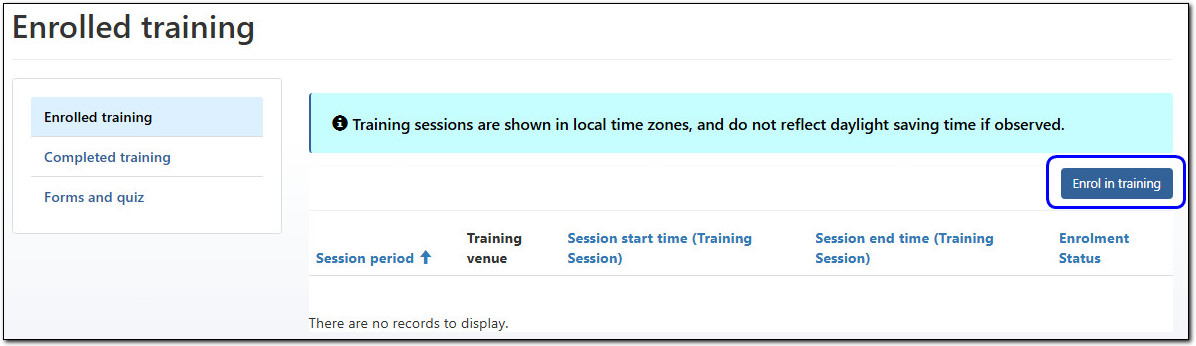
Click on the ‘My onboarding’ tile and select the ‘Enrol in training’ button.
Image
Description
Image shows the enrolled training view, with the page header "Enrolled training". A vertical navigation menu on the left hand side offers the following three options: Enrolled training (currently selected), Completed training, and Forms and quiz.
The main section of the page is a table with the columns: Session period, Training venue, Session date, and Enrolment Status. The table in this screenshot has no records to display.
The help banner above the table reads, "Training sessions are shown in local time zones, and do not reflect daylight saving time if observed." To the right of the help text above the table is a button labelled, "Enrol in training", which has been highlighted in the screenshot.
Select the magnifying glass to bring up the list of available sessions, and choose your preferred session by ticking the box on the left.
Confirm your action by clicking Select.
Image

Description
Image shows a pop-up box with the header "Lookup records". The pop-up contains a table with the following columns: Training Course, Session Date, Sessions start time, Session end time, and Training Venue. Each record in the table has a tick box to the right of it. The help text above the table reads "Choose one record and click Select to continue."
Beneath the table are four buttons, labelled as follows: No session suitable, Select, Cancel, Remove value.
In the screenshot, the tick box or the first record and the Select button have both been highlighted.
Session details are displayed. Click ‘Submit’ and then ‘Ok’ to confirm.
The ‘Enrolled training’ table will now be updated with your session date and time.
You will receive an email with the training session details, including a meeting link for a virtual session, and physical training address for face-to-face.
Pre-reading
After enrolling in a DataLab Safe Researcher training session, you will automatically have access to the pre-training reading material.
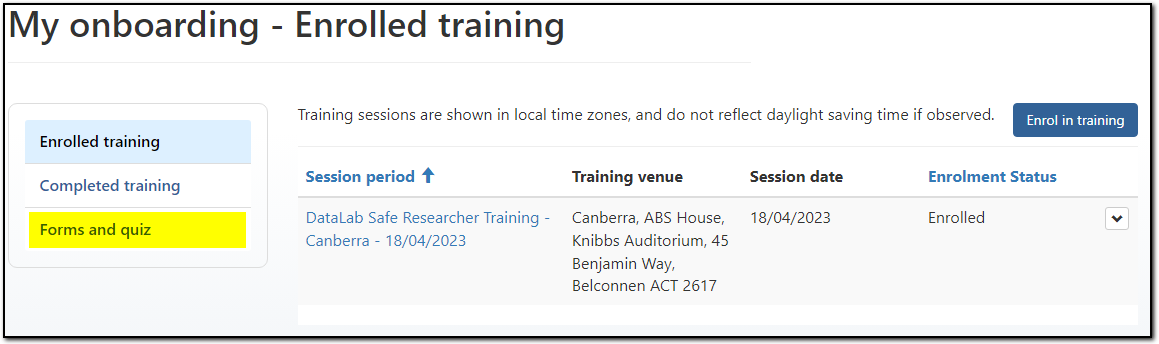
This is available from the ‘Forms and quiz’ view of the ‘My onboarding’ table.
Image
Description
Image shows the enrolled training view, with the page header "Enrolled training". A vertical navigation menu on the left hand side offers the following three options: Enrolled training (currently selected), Completed training, and Forms and quiz (highlighted in the screenshot).
The main section of the page is a table with the columns: Session period, Training venue, Session date, and Enrolment Status. The table in this screenshot has one record, with the Enrolment Status, "Enrolled".
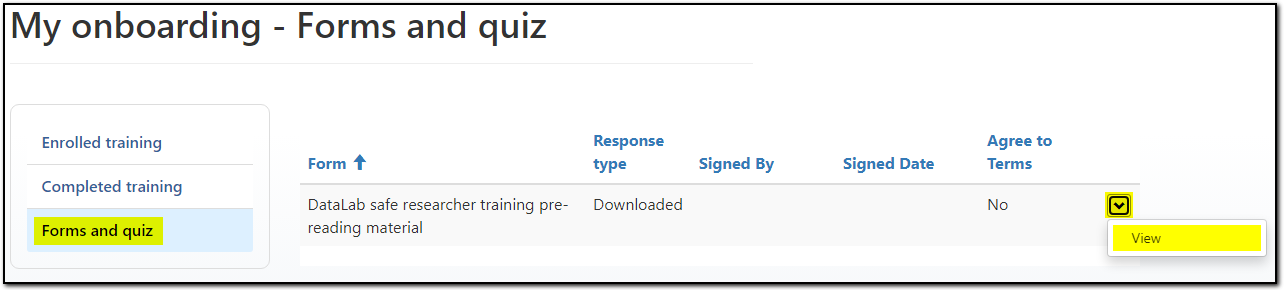
To download a document in the Forms and quiz section, click the arrow to the right of the row, and select ‘View’.
Image
Description
Image shows a page with the header, "My onboarding - Forms and quiz". A vertical navigation menu on the left hand side offers the following three options: Enrolled training, Completed training, and Forms and quiz (currently selected).
The main section of the page is a table with the columns: Form, Response type, Signed By, Signed Date, and Agree to Terms. The table in this screenshot has one record.
To the right of the record in the table is a drop down arrow. In the screenshot, the arrow has been clicked, showing a drop down menu with the option, "View".
Select the file and save it to your computer.
Completing training forms and quiz
Onboarding forms will be available upon completion of training.
You will be notified by email when your onboarding forms and quiz are available to download. You will find these in the same place as the pre-training reading material - the 'Forms and quiz' view of the ‘My onboarding’ table.
Completed forms and quiz are to be returned to mydataportal@abs.gov.au.
You will be notified when your onboarding is complete.
No sessions suitable
If the training sessions listed are not suitable, you can elect to be placed on a waitlist. Click ‘No session suitable’ button.
Image

Description
Image shows a pop-up box titled, "Lookup records". The box contains a table with the following columns: Training course, Session Date, Session start time, Session end time, and Training Venue. To the left of each record in the table is a tick box.
The help text above the table reads, "Choose one record and click Select to continue."
Beneath the table are four buttons, labelled: No session suitable (highlighted in the screenshot), Select, Cancel, and Remove value.
You will see the above message. ABS will contact you within two business days. If no response is received, please email mydataportal@abs.gov.au.
Cancelling or rescheduling a session
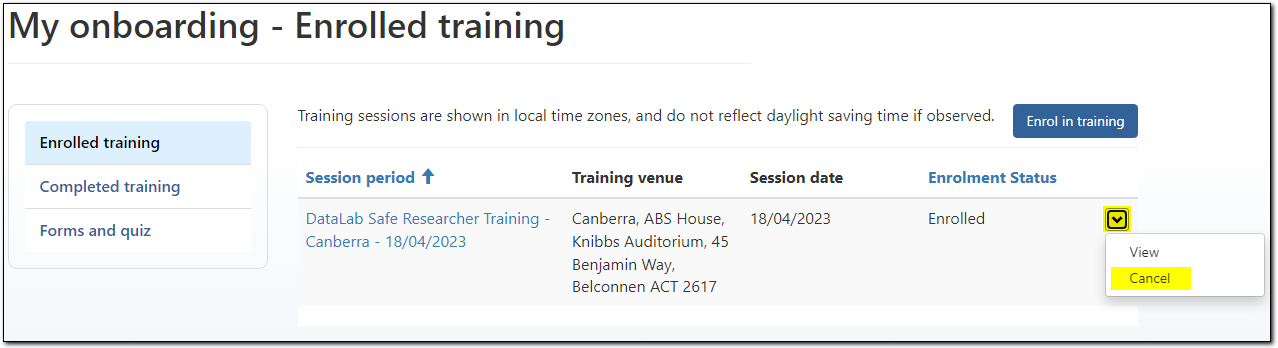
If you need to reschedule your training session, you will need to cancel your current enrolment. Select the drop-down arrow to the right of the table row and click ‘Cancel’ and then ‘Confirm’.
Image
Description
Image shows a page with the header, "My onboarding - Enrolled training". A vertical navigation menu on the left hand side offers the following three options: Enrolled training (currently selected), Completed training, and Forms and quiz.
The main section of the page is a table with the columns: Session period, Training venue, Session date, and Enrolment Status. The table in this screenshot has one record.
To the right of the record in the table is a drop down arrow. In the screenshot, the arrow has been clicked, showing a drop down menu with the options: View, and Cancel (highlighted in the screenshot).
Once you have cancelled a session, you can then enrol in another session.
Further information on DataLab onboarding
Safe researcher training outlines:
- what is safe researcher training
- refresher training, and
- safe researcher training resources.