Project Product Links
How to link or unlink projects and products
Linking products to projects
As a Project administrator, to link or unlink a product to a project, open the 'Projects Product Link' page by selecting the ‘Projects Product Link’ tab from the left side navigation panel.

Fig. 1. Projects Product Link navigation tab
From the 'Products Project Links' page, you will be able to view a list of products and the projects they are attached to. Select the hyperlinked Project that you are wanting to add products to. Type the project name into the search bar to filter the results.
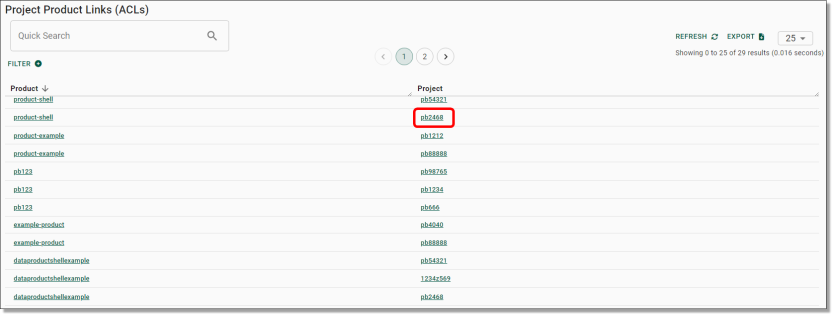
Fig. 2. Project hyperlink to add products
To link products you are also able to navigate to the Projects page by selecting the ‘Projects’ tab from the side navigation panel on your left.

Fig. 3. Projects navigation tab
Select the hyperlinked project ID to view the project you’re wanting to link or unlink your product to, then select the ‘Link/Unlink products’ button at the top of the page.

Fig. 4. ‘Link/Unlink products’ button
Both options will direct you to the linking page where you can view currently linked products, as well as unlinked products available to link. The list on the left is where you can search for and link the desired data product to the current project. To link a product, select the tick box next to the product name to select it (refer to the green tick box). Once you’ve ticked the product, press the ‘>’ symbol (circled blue) to move it across to the linked products list on the right. Once all desired products are linked, select the green ‘Update’ button at the top centre of the page (circled red). This will prompt a confirmation with a pop up, and a green confirmation message at the top right of the previous screen once confirmed.
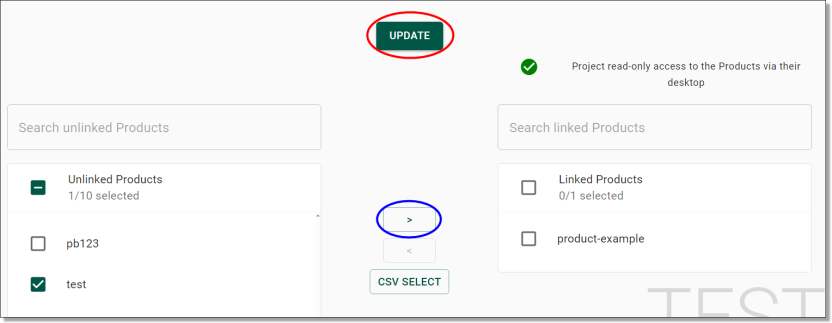
Fig. 5. Linking a product
To unlink a product, select the tick box beside the selected product from the product list on the right and select the ‘<’ symbol (circled blue). Next, select the green ‘Update’ button at the top centre of the page (circled red). This will prompt a confirmation window, select 'yes' to proceed.
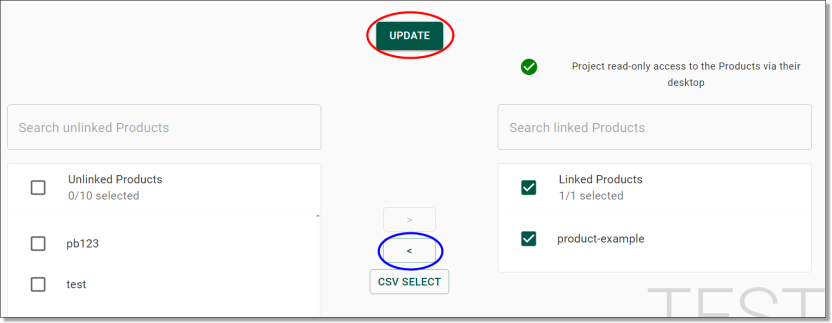
Fig. 6. Unlinking a product
Linking projects to products
To link or unlink a project from a product, you can navigate to the Projects Product Links page by selecting the ‘Projects Product Link’ tab from the side navigation panel on the left.

Fig. 1. Projects Product Link navigation tab
From the Products Project Links page, you will be able to see a list of products and the projects they are attached to. Select the hyperlinked product that you are wanting to link projects to. Type the project name into the search bar to filter the results.
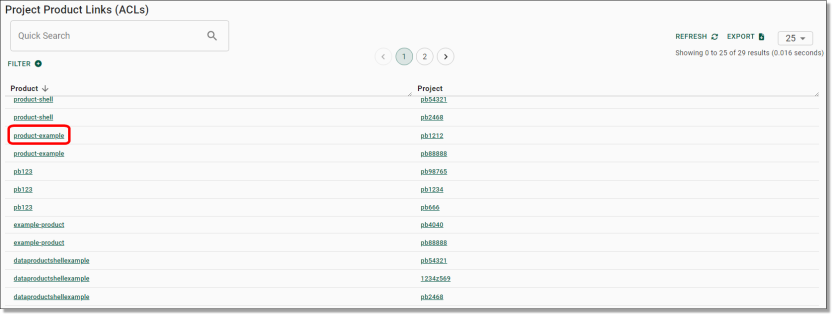
Fig. 2. product hyperlink to add projects
You are also able to navigate to the Products page by selecting the ‘Products’ tab from the left side navigation panel.

Fig. 3. Products navigation tab
To update the linked projects, locate the product from the 'Products' page then select the Actions icon (three dots) on the same row as the product you are wanting to edit and select 'Update linked projects'.

Fig. 4. Update Linked projects action button
This will direct you to the linking page where you can view currently linked projects, as well as unlinked projects available to link. The list on the left is where you can search for and link the desired project to the current product. To link a project, select the tick box next to the project name to select it (refer to the green tick box) Once you’ve ticked the project, press the ‘>’ symbol (circled blue) to move it across to the linked projects list on the right. Once all desired projects are linked, select the green ‘Update’ button at the top centre of the page (circled red). This will prompt a confirmation with a pop up, and a green confirmation message at the top right of the previous screen once confirmed.
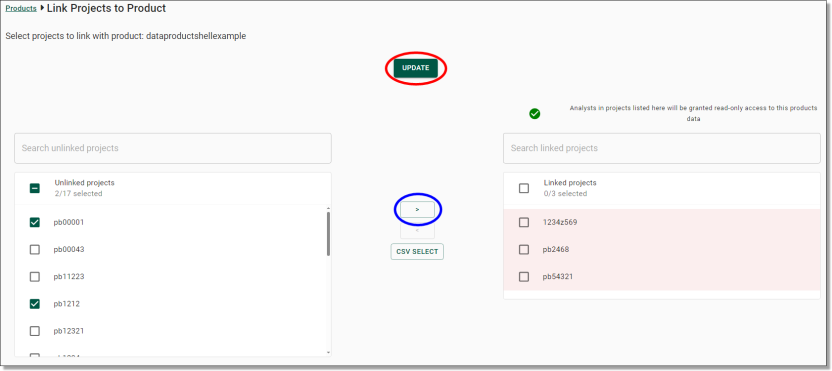
Fig. 5. Linking a project
To unlink a project, select the tick box beside the selected project from the Project list on the right and select the ‘<’ symbol (circled blue). Next, select the green ‘Update' button at the top centre of the page (circled red). This will prompt a confirmation window, select 'yes' to proceed.
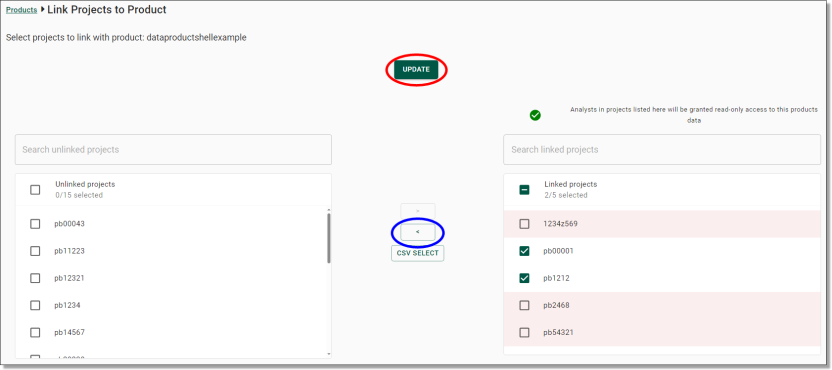
Fig. 6. Unlinking a project