Large tables
Large table features, creating, queuing and downloading large tables
When a table has more than 10,000 cells including totals, TableBuilder automatically enters Large table mode and displays a warning message.
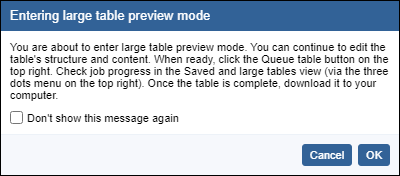
Totals are included in the table count, whether or not they are displayed. Hiding totals, by selecting Totals in the three vertical dots menu within the table headings, reduces the size of the displayed table only, not the actual table, and does not affect the cell count for Large table mode.
Zero suppression hides rows or columns where all cells are zeros. Using Zero suppression does not reduce the total cell count for Large table mode. This is because the data for the cells must be retrieved before TableBuilder can determine whether the row or columns contain only zeros.
Retrieve data is no longer available in large table mode. Instead, the structure of the large table is built in TableBuilder and can then be queued to retrieve the data. Large tables may complete straight away or may take 24 hours or longer to complete, depending on the size of the large tables and the queue. Once the table has processed, it can be downloaded. Downloaded large tables are available for download again for 28 days.
Building a large table
1. When building a large table, TableBuilder displays a summary version of the full table, with only two categories displaying for each variable. A message indicating that you are working in large table mode and the cell count of the large table displays above the table. This shows the number of rows, columns, wafers and the total cell count. The largest table that can be built in TableBuilder is 40 million cells, including row and column totals and wafers.
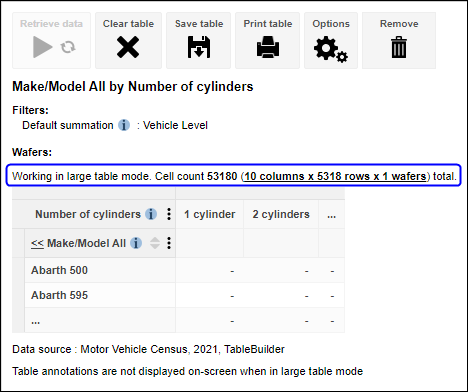
2. Although you can only see part of the table, you can continue using table functions, such as adding and removing variables or categories from the rows, columns and wafers. In large table mode, dragging variables with a large number of categories from one axis to another (such as large geographical classifications) may take some time.
3. Large table structures can also be saved using the Save table button. Saving the table structure allows you to modify the table in the future. Large table structures are not automatically saved by queuing the large table. Queuing a large table saves the output data only, which is available for download for 28 days. While the large table is still displayed in the Large tables list, the large table structure can also be reopened and saved by selecting view.

Using mesh blocks
Some Census TableBuilder Pro 2016 and 2021 databases include mesh block level detail, the smallest geographical unit used in TableBuilder. Mesh blocks to enable you to build your own custom geographic areas. If you want to display a geography in a table that is not already provided in TableBuilder, you can use mesh blocks to accurately approximate a large range of other statistical regions. See the Custom data section and Census mesh block counts for help in customising your own geographies and using mesh blocks.
Mesh blocks are ideal for building custom geographic areas. However, you may also want to add mesh blocks directly to your table. TableBuilder has a limit of adding 60,000 categories from any one variable to a table. As there are more than 60,000 mesh blocks in each of Australia, New South Wales, Victoria and Queensland you need to select a smaller geographic area when using mesh blocks. Because of the very detailed information, you may need to build a number of tables if you want to include mesh blocks as a variable in your table.
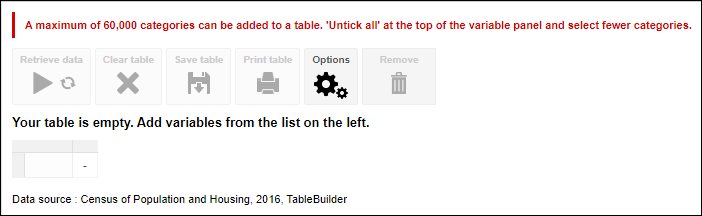
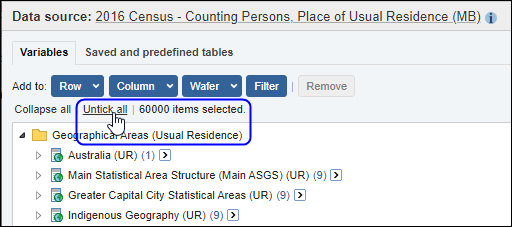
1. If you try to add all mesh blocks to your table, an error message is displayed indicating 'A maximum of 60,000 categories can be added to a table. 'Untick all' at the top of the variable panel and select fewer categories'.
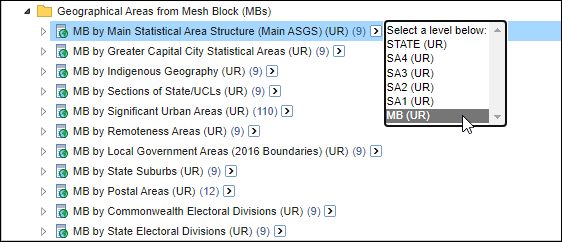
2. The number of items you currently have selected is displayed at the top of the left panel. TableBuilder stops selecting categories when it reaches the 60,000 limit. Before continuing, clear your current selection by clicking on Untick All.
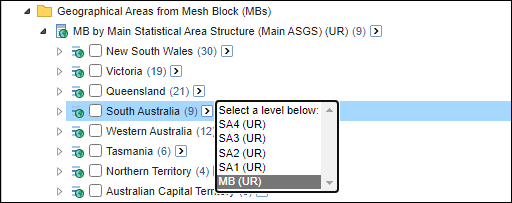
3. You can then select a smaller number of categories to build a table. This example shows all mesh blocks in South Australia being successfully selected.

Queued large tables
1. Once your large table structure is ready, select a download format at the top right of the window. Excel format can only be selected if the large table is within the Excel export limits.
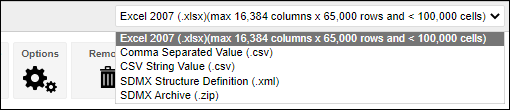
2. If a large table has too many rows, columns or cells, the Excel option is greyed out and cannot be selected. Excel 2007 downloads are limited to 16,384 columns x 65,000 rows and less than 100,000 cells. After selecting your preferred format, click the Queue table button.
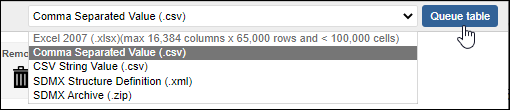
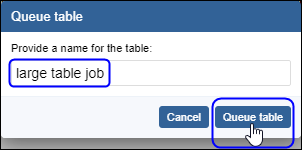
3. Enter a name for the large table, and click Queue table.
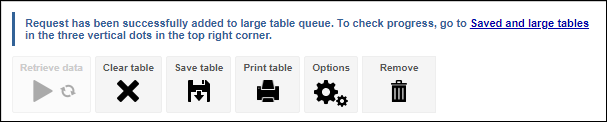
4. You are returned to the Table view. TableBuilder displays a message that the request has been successfully added to the large table queue. This message means that your large table output will be available for download once it has completed. While the large table output data is saved within TableBuilder, your large table structure has not yet been saved. If you also want to save your large table structure so that you can modify or queue it again it in the future, you also need to use the Save table button.
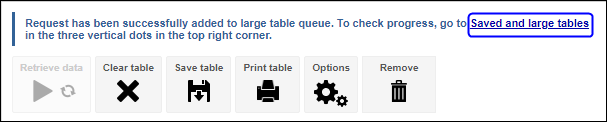
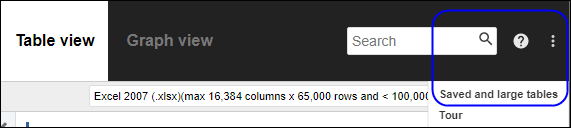
5. To check the status of your queued table, click on the Saved and large tables link in the confirmation message at the top of the screen. Alternatively, go to the three dots menu in the top right of the screen, and select Saved and large tables.
6. While a job is queued and processing, you can continue to work on other tables, or create other large tables for queuing. You can also log out of TableBuilder and come back later. Your table continues running in the background.
7. In the Saved and large tables view, you can check the status of your queued table. When the table has the status of Completed, click here to download, the table has finished processing and can be downloaded. Tables can be downloaded any number of times until they expire after 28 days.


8. The data for completed large tables is stored in TableBuilder for 28 days. The Expiry time is listed in the Saved and large tables view. After this date the large table will be deleted from TableBuilder and no longer be available for downloading. To use a large table again in TableBuilder, save the large table structure using the Save table button in the Table view. The large table can then be queued again.
