How to run jobs offline
Explore how utilising local disk space can benefit analysts working across multiple projects
Running jobs offline using local disk space
If you are an analyst who works across multiple projects, you can request local disk space. This will enable your virtual machine (VM) to run jobs offline, noting the 14-day rebuild still applies.
Datasets are stored on a remote file share. Only the 'active machine' has network access to this location. Your 'locked' VMs do not. To run offline jobs, you need to request local disk space via your administrators to be attached to your machine. There may be a cost associated with this.
When running jobs offline, the inactive machine is no longer using the remote file share so it can continue to run your program as it still has access to the data. However, your project team cannot see your analysis or output. You should always move your output back to your Project or Output drives where your project team can access and review the output. Refer to Navigating your project workspace for more information on the available drives in SEAD.
Pending request to your administrator, Local disks are SSD’s that are attached to the VM as a non-standard product. These drives provide local fast storage for more compute capacity. When attached, these can be identified as the X: drive in the VM. The performance of these drives is comparable to that of the C: drive and are more efficient than the Project or Outputs drives, offering higher input/operations per second (IOPS). Please note the important functionality of this drive for intermediate compute and storage purposes, rather than ongoing file storage.
To use local disk space:
- Request access to a local disk for your project through your SEAD administrator
- Copy the data products you need to the local disk
- Execute your script from the local disk and start the job
- In your program, save your output to the local disk
- Exit your VM and return to the SEAD portal to activate another machine
- After you have finished running your analysis offline (local disk) move your analysis and output back to your Project drive
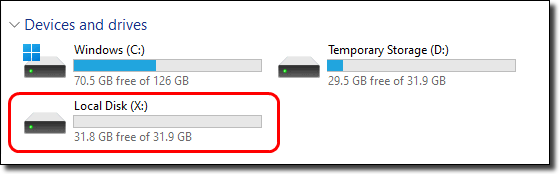
Note: The X: drive is temporary storage and any data stored will be lost on deletion of the VM, or project closure whichever comes first. X: drives are not backed up outside of the VM, and data cannot be recovered from the drive if lost. Due to this, the ABS still recommends saving all data in the Project and or Output drives.