Secure Environment for Analysing Data (SEAD)

Access the self-contained, scalable and secure cloud data analysis service. Find out about costs, features and how to register your interest

Released
10/11/2023

LabLink BETA is now available in SEAD!

LabLink is a video conferencing tool developed for SEAD, available in its trial (BETA) phase. It is designed to help researchers collaborate securely within their Virtual Machines (VMs) with other users on the same project. For more information on LabLink BETA, refer to LabLink (BETA). For instructions on how to use LabLink BETA, refer to the documentation available on the Shared Library (L: Drive) in your VM. If you wish to provide feedback on your experiences using LabLink BETA please email sead.support@abs.gov.au.

What is SEAD

The Australian Bureau of Statistics (ABS) developed SEAD to address the demand for secure cloud-based data access services across the Australian government. It aims to support government agencies in incorporating the Office of the National Data Commissioner (ONDC) Data Sharing Principles into regular operations, safely manage data sharing, and access modern data science tools by leveraging ABS investment and expertise.

The SEAD service introduces an innovative solution which provides a series of secure, self-contained environments known as “SEADpods” within the cloud-based infrastructure that also underpins the ABS DataLab. These SEADpods operate independently from the DataLab but adhere to the same Safe Settings risk management controls, in line with the Five Safes framework.

The SEAD service enables government agencies engaging this service, referred to as “SEAD partners”, to adopt a SEADpod and inherit exclusive administration of that self-contained environment through self-service features. This arrangement allows them to maintain full control and management of their data, users, projects, and outputs in accordance with their legislative, policy, and risk requirements, while the ABS continues to uphold the system's Safe Settings protections.

Features

The SEAD service: 

Note: The SEAD service does not permit SEAD partners to access ABS data held in the DataLab. To enquire about access to ABS data, please see our other data service offerings

Who can access SEAD

Distinguishing itself from the DataLab which services end-users from government and academic sectors, SEAD is designed for use by individual government departments. SEAD enables areas within departments to service their own end-users who may be internal or external to that department and have contemporary analysis requirements.  

SEAD is currently offered to:

  • federal agencies
  • state and territory departments
  • local government bodies

Why partners are choosing SEAD

The SEAD service can be applied to a variety of use cases. Some of our most common SEAD partner use cases include:

  • "we need contemporary analysis tools"
  • "our current solution is too expensive or unstable"
  • "we need a proven system setup soon"
  • "we need a secure platform for 3rd party users to engage with our data"
  • "we need an easy way to securely share data in-house"
  • "we don’t have resources to manage software licensing"
  • "we don’t have staff to setup and manage a new system"

Recognition

Since its release in June 2022, the growing demand and positive feedback from existing SEAD partners demonstrate its position as a valuable addition to the Australian data landscape. Notably, SEAD has received mentions in the:

  • 2023 United Nations Economic and Social Commission for Asia and the Pacific (UN ESCAP) Expert Meeting on Data Governance
  • 2023 Melbourne Institute Public Economics Forum
  • 2023 Life Course Centre Data for Policy Summit
  • 2023-24 ABS Corporate Plan
  • 2022-23 ABS Annual Report
  • 2021-22 Department of Finance Annual Report

System security and risk management

System security

The ABS has extensive experience in keeping data secure as Australia’s national statistical organisation and as an Accredited Data Service Provider (formally Accredited Integrating Authority). 

The SEAD system is hosted in Microsoft Azure and meets 'PROTECTED' level security standards as prescribed in the Australian Government Information Security Manual (ISM). It is subject to Independent Security Registered Assessors Program (IRAP) certification, ongoing security audits and robust IT security testing and patching. 

The technology underpinning the SEAD system includes:

  • data encryption at rest to mitigate against unauthorised access to microdata
  • Azure Storage accounts to securely hold individual research products and allow querying from authorised users
  • cloud servers (including backup servers) hosted exclusively onshore, with access only authorised for use in Australia unless approved by the ABS
  • closed network virtual machines to provide secure, isolated research spaces for the analysis of microdata
  • guarded access through multi-factor authentication and workspace segmentation inhibiting data sharing between projects
  • the SEAD Product Storage Account is protected with Microsoft Defender providing threat detection against malicious/unusual behaviour

The ABS employs the above with a focus on industry standard security posture management to provide a safe and secure platform for policy and program delivery work.

For more information about SEAD system security or compliance with IRAP, please Contact us.  

Managing risk using the Five Safes

The SEAD service enables partners to leverage the existing Safe Settings protections maintained by the ABS. 

Responsibility for upholding the remaining Five Safes controls moves to the SEAD partner, with each element in this context as follows:

Safe Data

Has appropriate and sufficient protection been applied to the data?

SEAD partners retain the responsibility for the security of their data within their SEADpod, by managing data ingress and egress within their data governance safeguards. SEAD partners must also ensure that appropriate confidentialisation and treatments are applied to any form of data, code or packages before being made accessible to their users.

Safe People 

Is the researcher authorised to access and use the data appropriately?

SEAD partners oversee user access to their SEADpod, ensuring that only authorised researchers can utilise and interact with their data. SEAD partners are responsible for providing the appropriate people vetting and onboarding processes for access to their SEADpod.

Safe Projects 

Is the data to be used for an appropriate purpose?

SEAD partners have the autonomy to approve and manage projects within their SEADpod, streamlining their workflow and data analysis. It is the SEAD partner's responsibility to ensure appropriate project governance. 

Safe Outputs 

Are the statistical results non-disclosive?

SEAD partners are responsible for ensuring all outputs are validated prior to release from the system against organisational tolerances, to ensure appropriate governance and legal obligations are adhered to (e.g., preventing the re-identification of an individual or organisation).

Note: ABS system administrators hold an overarching administrator role but will not view or interact with SEAD partner data or activities unless requested. 

Available features

SEAD leverages the underlying systems and resources that support the operation of the DataLab. This ensures that both SEAD and DataLab users have access to the same software and virtual machine offerings outlined below. 

Software

To access the latest version of each application in SEAD, refer to the ‘Manage’ option in the portal to transition to the most recent VM version available. VM versions are updated annually, allowing for a suitable transition period for migration.

SEAD runs on the Windows operating system and is equipped with the following standard tools:

 VM Version
 2025
LibreOffice 7.6.7.1
Acrobat Reader 
Azure Storage Explorer1.33.0
Notepad ++ 8.6.5
QGIS3.36
WinMerge2.16.40
Git 2.45.0
Stata MP18
CUDA 12.1.1
R.4.4.1
Rstudio2024.04
Rtools44
Python3.11
  • Jupyter Notebook & JupyterLab
 
  • Spyder
 
PostgreSQL16
Posit (package manager)
*Approved CRAN and PyPI packages are available
 
7Zip23.01
LabLink BETA (SEAD native screen sharing solution) 

SEAD can also accommodate the following non-standard tools upon request:

SAS9.4 (EG 8.2)
Azure Databricks                                                    

All software is licensed, maintained and administered by the ABS through the SEAD service. All data is hosted onshore by Microsoft Azure cloud computing services and accessed through a virtual desktop.   

If you have an enquiry regarding software and software versioning, please submit a request via the Contact us page.

Note: Microsoft Word and Excel are not currently available, as these applications require an internet connection which is not supported in a secure system like SEAD. Libreoffice is the alternative offered in the system, with similar capabilities to Microsoft Office. Firefox and Edge are available to support access for Databricks and for methods such as Jupyter notebooks in order to use Python/R. These browsers cannot be used to browse the internet.

Virtual machine sizes

Standard virtual machines
NameWindows serverCPURAM
SmallSmall Windows 10 DSVMCPU Cores 28GB
MediumStandard Windows 10 DSVMCPU Cores 216GB
LargeStandard Windows 10 DSVMCPU Cores 2-864GB


Above large virtual machines
NameWindows serverCPURAMApprox cost per hour ($AUD)
X-LargeStandard Windows 10 DSVMCPU Cores 16128GB$1.80
XX-LargeStandard Windows 10 DSVMCPU Cores 32256GB$3.80
XXX-LargeStandard Windows 10 DSVMCPU Cores 64504GB$6.40

Larger machines than those outlined above are available on request at an additional cost. 

Cost overview

Potential SEAD partners can request a quote to adopt a SEADpod based on the following cost recovered components charged up front:  

SEADpod delivery charges

Starting from approximately $65,000 per annum, these charges cover information technology and administration support, system development, maintenance and licensing involved in subscribing to the SEAD service.

These charges will vary based on marginal cost of service levels agreed to in a Memorandum of Understanding (MoU).  

Inclusions: 

  • business administration support (including ABS account management, training, reporting and code/package support)
  • Information and Communications Technology (ICT) support (including system security maintenance, feature design, testing, technical support and development)
  • licensing (including Microsoft Azure, Azure Active Directory and all relevant software), security monitoring and account provisioning
  • relevant infrastructure governance measures (Privacy Impact and Information Security Registered Assessor Program (IRAP) assessments)

Additional charges apply for customised SEAD services. These services may include additional administrative support, data confidentialisation and output clearance, all in accordance with SEAD partner tolerances and instructions. 

System usage charges

Starting from approximately $2,000 per annum, per active Virtual Machine (VM), inclusive of standard software licensing.

An annual cost projection is produced in negotiation with the SEAD partner, based on estimated use. All charges reflect actual data and system usage passed on from Microsoft Azure to the ABS.

Inclusions:  

  • initial account setup
  • standard cloud user/administrator account access
  • standard project workspace (1TB each) and VM (Large, E8-2s v3, 8 CPU & 64gb Memory)
  • standard software licensing (R, Python, STATA, LibreOffice etc)

Additional charges apply for non-standard software, such as SAS, Databricks, or other requested software. 

Note: The above charges apply to the SEAD service only; costs cannot be transferred or negotiated with the DataLab service. All charges adhere to the ABS user charging policy, exclude GST and may be subject to periodic review. Inactive VM (unused for over 30 days) and administrator accounts will incur minimal maintenance fees.  

Applying for the SEAD service

Step 1. Ensure you meet eligibility criteria

For criteria, refer to Who can access SEAD.

Potential SEAD partners should ensure that their use case aligns with the SEAD services provided. For more information and a summary on how the ABS handles privacy as part of the SEAD service, refer to the SEAD Privacy Impact Assessment.

Note: The ABS currently does not offer additional managed services, such as data confidentialisation, input validation, and output vetting.

Step 2. Register your interest for a suitability assessment

To register your interest and schedule an initial consultation, please Contact us to discuss your requirements. We encourage potential SEAD partners to have an initial discussion with the ABS to determine if SEAD is the right service for you. 

Step 3. Proceed with requirements gathering

Once the ABS receives confirmation to proceed following the initial consultation, potential SEAD partners are requested to complete a system usage and software requirements form. This form is used to provide a tailored quote. 

The drafting of the Memorandum of Understanding (MoU) and requirements gathering process will begin. The MoU will outline the terms, conditions, and responsibilities for both parties, providing a clear framework for the partnership.

Step 4. Setup and trial period

Following the potential SEAD partner's acceptance of the quote and completion of a networking specifications form, the ABS will facilitate setup of the partner SEADpod and initiate a complimentary 30-day trial period. Partner organisations will be required to setup Azure Storage Explorer, via their IT department.

The ABS will assist in initial account setup and provide instruction guides and relevant training on how to use the system. 

Note:  The ABS does not provide any training for users on conducting analysis or modelling within the system itself.

Step 5. Service commencement

If the SEAD partner's requirements are met following the completion of the trial, the MoU will be finalised. The SEAD partner's service will formally commence upon agreement by both parties, and invoicing is paid. 

The ABS will continue to provide ongoing account and system support, licensing and development services as outlined in the MoU. The SEAD partner takes on the responsibility of administering their SEADpod in accordance with their governance and legislative requirements.  

The ABS will provide a service usage report every 6 months to assist the SEAD partner in managing their costs and usage. 

Accessibility and inclusiveness

The ABS is actively working to comply with Web Content Accessibility Guidelines (WCAG) 2.1 at Level AA, which describe how to make web content more usable and accessible for everyone. Our goal is to provide information that is accessible to all, including people with disabilities.

Recent accessibility reviews confirm that the SEAD cloud platform meets the necessary organisational standards as it:

  • runs on Windows 11, which enables the utilisation of existing accessibility features and functions
  • utilises virtual machines that are subject to Microsoft compliance obligations
  • contains statistical tools that are either WCAG compliant or provide integration with Windows Accessibility features

Note: Any Windows accessibility features not enabled by default can be requested, and will be considered in line with relevant data sensitivities.

Privacy policy

The ABS privacy policy and SEAD privacy notice outline how the ABS handles any personal information that you provide to us.

The SEAD Privacy Impact Assessment considers the potential privacy impacts on people whose personal information may be used as part of the SEAD service.

Conditions of use

Understand the expected behaviours that govern your access and use of SEAD

Released
10/11/2023

Essential user and administrator information

SEAD can be administered by the Australian Bureau of Statistics (ABS) or another Australian government organisation engaging the ABS to provide the SEAD service.

By accessing and using SEAD, you agree to abide by the administering organisation's relevant requirements and obligations, including the conditions outlined below. If you cannot abide by these conditions, your use of the system is to cease immediately.

Unless specified, each condition pertains to either organisation administering SEAD. 

By using SEAD, I agree:  

  1. To adhere to all access, usage, security and other procedural guidelines within SEAD as directed by the administering organisation.   
  2. To take all necessary measures to protect the security of SEAD and the data held within, by safeguarding my access credentials and promptly notifying the administering organisation of any security incidents or procedural failures.     
  3. To adhere, where applicable, to the administering organisation's directions and ABS system constraints.    
  4. To the possibility that the ABS may discuss my registration and access with the administering organisation, who have the authority to remove my access.   
  5. To comply with the ABS conditions of sale.
  6. To use and operate SEAD in compliance with the relevant operating manuals and documentation.   
  7. To not remove or attempt to remove content from SEAD by any means, including extracting or copying material by screen capture, handwritten notes, or transcription, without obtaining written approval from the administering organisation.   
  8. To only virtually screen share using ABS LabLink and only with approved users on the same project.
  9. To uphold the integrity of ABS intellectual property by not removing, obscuring, or altering any ABS attributions, including logos, legal notices, or other labels visible in SEAD.   
  10. To not attempt to load code, software or applications without seeking the appropriate authorisation from the ABS.    
  11. To cooperate with any audit or investigation initiated by the ABS or administering organisation that pertains to any matter concerning SEAD.   

I acknowledge that: 

  1. My use of SEAD may be audited by the administering organisation and the ABS.    
  2. SEAD is authorised for use only within Australia unless prior written authorisation has been provided by the ABS.     
  3. A breach of these conditions may result in sanctions which may include, but are not limited to, the ABS revoking my access to SEAD permanently or for a set period.    
  4. The ABS will not provide guidance on how to conduct data analysis, modelling or how to utilise the statistical tools available.     
  5. Features and functionality of SEAD may undergo necessary changes or upgrades without user consultation.    
  6. The ABS does not guarantee, or accept any legal liability arising from, or connected to the use of material connected within, or derived from SEAD. 

Expected behaviours:  

  1. Comply with the protocols and instructions of the administering organisation for access and use of microdata in SEAD.     
  2. Access only the microdata I have been approved to access.     
  3. Not attempt to avoid, override, or bypass the system or procedures.    
  4. Request output clearance through the administering organisation’s authorised administrators in all instances.    
  5. Maintain data confidentiality when submitting outputs for review.    
  6. Notify the administering organisation of any suspected activities that may impact the security of SEAD.   

Remote access:

Remote access within Australia is permitted under the following conditions:       

  1. SEAD must only be accessed from a work or private location.    
  2. A secure internet connection must be used:    
    • A secure internet connection means any wired or Wi-Fi connection that is password protected (e.g., work, home, your hotel room, hotspotting from your phone). 
    • A non-secure internet connection means an open or public connection (e.g., a restaurant/cafe, airport, public transport, hotel lobby or shopping centre).   
  3. Overseas access to SEAD is not permitted unless approved by the ABS.    
  4. Do not use any type of internal messaging system which may have external server connections.    
  5. Do not screen share unless using ABS LabLink and do not transcribe data from SEAD prior to output clearance.

Privacy

The SEAD privacy notice and SEAD Privacy Impact Assessment  outline how the ABS handles any personal information that you provide to us.   

The ABS Privacy Policy for Managing and Operating Our Business outlines how we handle personal information that is collected for managing and operating within the ABS.   

Administrator functions

Understand the functions undertaken by SEAD partner administrators

Released
10/11/2023

Roles and access management

SEAD offers various roles within the system, each with its distinct set of functionalities as outlined below.

SEAD partner administrators will be provided with an extensive instruction guide, containing all the information provided here as well as additional content.

SEAD role hierarchy

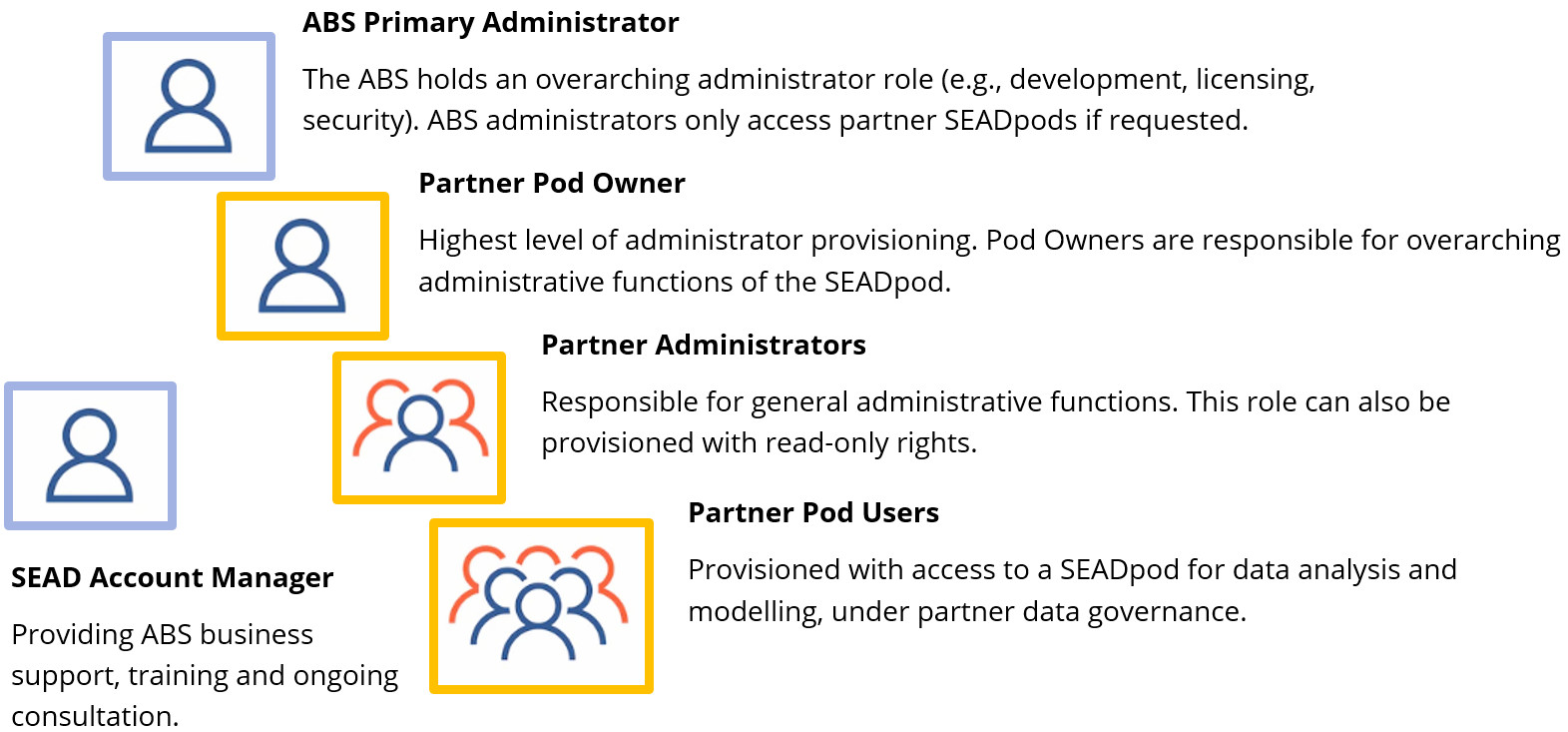
An overview of administrator roles and hierarchy of access provisioning

An overview of administrator roles and hierarchy of access provisioning:

  • ABS Primary Administrator - The ABS holds an overarching administrative role (e.g., development, licensing, security). ABS administrators only access partner SEADpods if requested. 
    • SEAD Account Manager - Providing ABS business support, training and ongoing consultation. 
  • Partner Pod Owner - Highest level of partner administrative provisioning. Pod Owners are responsible for overarching administrative functions of the SEADpod. 
  • Partner Administrators - Responsible for general administrative functions. This role can also be provisioned with read-only rights. 
  • Partner Pod Users - Provisioned with access to a SEADpod for data analysis and modelling, under partner data governance. 
Breakdown of SEAD partner roles and functionalities 
RoleAssociated tasks
Pod Owner
  • Create/remove Pod Administrators and Read-Only Administrators in the SEADpod.
  • Configure information banners.
  • Register, view and update User Analysts’ details.
  • Enable/disable and remove User Analysts from the SEADpod.
  • Create projects and project workspaces.
  • View and update details of projects.
  • Assign/unassign a registered Pod User to projects.
  • Create, update and delete a data product.
  • Link the data product to a project or remove a data product from an assigned project.
  • Reset user/administrator account passwords and Multi-Factor Authentication (MFA). 
  • Ingress/egress data and code to/from SEADpod, including data output vetting.
  • Activate project machines, change type and size of local disk configuration for a Pod User's Virtual Machine (VM) and allocate additional tools that are available.
  • View session metadata and other actions about projects and Pod Users.
  • Manage ingress of packages from ABS endorsed repositories on Pod User's behalf.
  • Coordinate the ingress of code and software from alternate repositories via software requests submitted to the ABS.

Pod Owners are also Pod Administrators and can perform any task in the Pod Administrator task list. 

Pod Administrator
  • Register, view and update Pod User details.
  • Enable/disable and remove Pod User's from the SEADpod.
  • Create projects and project workspaces.
  • View and update details of projects.
  • Assign/unassign a registered Pod User to projects.
  • Reset user account passwords and MFA.
  • Create, update and delete a data product.
  • Link the data product to a project or remove a data product from an assigned project.
  • Ingress/egress data and code to/from SEADpod, including data output vetting. 
  • Activate project machines, change type and size of local disk configuration for a Pod User's VM and allocate additional tools that are available. 
  • View session metadata, draw reports and other actions about projects and Pod Users.
Read-Only AdministratorThis is a type of administrator provisioning that enables viewing access to all administrator information (e.g., Cost Summary, Projects, Users) while disabling the ability to access edit functions.
Pod User
  • Run VMs, manage and connect to their assigned project workspace.
  • Access/use the data product assigned to their project.
  • Access the language/software packages to analyse the data.
  • Access the Shared Library.
  • Write/store data analysis for egress by the Pod Owner or Administrator.
  • Disconnect from the project workspace entirely.
  • Disconnect from the project workspace but leaving it running for large jobs.

Administrator portal

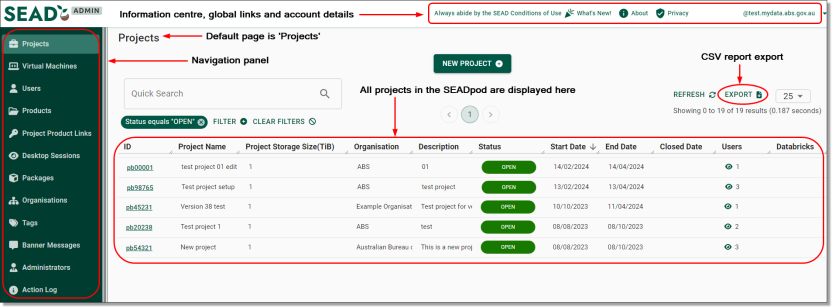
The administrator portal enables access to various operational objects (Users, Projects, Products etc,) in the SEADpod. 

Depending on the level of administrative access given to a person (i.e., Pod Owner, Pod Administrator, Read-Only Administrator), the number of operational objects available will be slightly different. 

The Pod Owner portal, immediately below, showcases the maximum number of operational objects available as it is the highest level of administrative provisioning. 

Pod Owner portal

Pod owner portal
Operational object functionalities
Operational objectFunctionality 
ProjectsShows a list of all projects ever created in the SEADpod. Clicking on a project ID enables administrators to view the information about it in more detail and make various amends, including close, reopen, clone, remove or add users to the project.
Virtual MachinesShows a list of all VMs in the SEADpod, both active and closed, as well as their power state, status, type, who they are assigned to and the name of the project they are associated with. Administrators can make various amends to the VMs, including updating the VM size, type and version.  
UsersShows all users ever registered in the SEADpod. From this page, administrators can register new users, as well as evict users, reset their password and MFA, or edit their basic attributes (i.e., name, organisation, contact number). 
ProductsShows a list of all products available for linking to projects in the SEADpod. 
Project Product LinksFrom this page multiple products can be linked to a single project, or multiple projects can be linked to a single product.
Desktop SessionsShows all VM desktop session occurring in the SEADpod by detailing the session start and end time, duration, user and the VM name. 
PackagesShows all R and Python packages available to users in the SEADpod. 
OrganisationsShows a list of all organisations created in the SEADpod. From this page, administrators can create new organisations or edit and delete existing organisations. 
TagsTagging allows administrators to create searchable tags and link them to objects from within each object interface (User, Project, Product, Organisation). This page showcases all tags ever created in the SEADpod and the number of objects they are attached to. 
Banner Messages (Pod Owners only)From this page, Pod Owners can publish a banner message displays across all user and administrator portals in the partner SEADpod. Banner messages are often used to communicate urgent or important messages and can be amended or published as frequently as necessary. 
Administrators (Pod Owners only)Like the Users page, Pod Owners can view all Administrators ever registered in the SEADpod. From this page, Pod Owners can register new Pod and Read-Only Administrators, as well as evict them, reset their password and MFA, or edit their basic attributes. 
Action LogThe Action Log keeps a real-time record of all administrative and user functions occurring in the SEADpod. 


Managing code and software

Users are not able to load code or packages themselves, this responsibility sits with partner administrators and the ABS. To ensure system security and integrity, SEAD partner administrators should refer to their SEAD Administrators Instruction Guide provided by the ABS for information on trusted sources. 

In addition, software is not to be provided, or attempted to be loaded to a SEADpod by partner administrators. Any request for new software must be submitted to the ABS, accompanied by a business justification.

For more information, please visit the Contact us page. 

Managing protected-level data

If your organisation intends to handle any data classified at the PROTECTED level within the system, it is essential that you notify the ABS. This notification ensures that appropriate data protections, such as mandatory baseline security clearances for all SEAD partner users and administrators, are being applied.

For further information about the security clearance process, please visit the Australian Government Security Vetting Agency

For specific enquiries around data classifications in SEAD, please Contact us

Overseas access

To ensure the security of our data and systems, access to our services from overseas locations is only permitted upon request and approval by the ABS.

Access will be considered on a case-by case basis and is limited to endorsed countries.

If you have any questions or require further assistance regarding overseas access, please Contact us

User guide

How to access SEAD, navigate the portal, launch your remote workspace and manage your account

Released
10/11/2023

Logging into the SEAD portal

SEAD conditions of use

By accessing SEAD, you are confirming you are authorised to do so, and acknowledge you have read and agree to comply with the conditions of use

Log into the SEAD portal to access information and settings related to your profile, project, and launch your virtual machine (VM).

Note: For security reasons, user accounts will be automatically disabled after 45 days of inactivity and access to your virtual machine(s) will be suspended. The project and all associated data remain unaffected. Notifications are sent by email 14 days and 3 days prior to the account being locked. You will need to log in to the SEAD portal within the 45 days to reset this timer. To reactivate a disabled account, contact your SEAD administrator. 

New users

Multi-factor authentication

SEAD uses multi-factor authentication to provide a secure login environment.

You will need to download the Microsoft Authenticator application to your smart phone from the App Store (for iOS) or Google Play (for Android) to fulfil the login sequence.

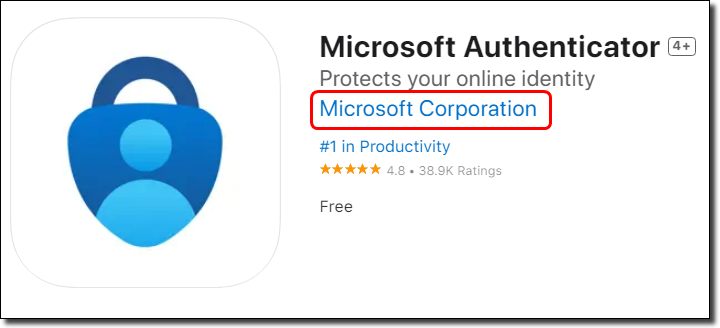
Make sure that the authenticator is published by Microsoft, as SEAD only supports Microsoft Authenticator.

Logging in

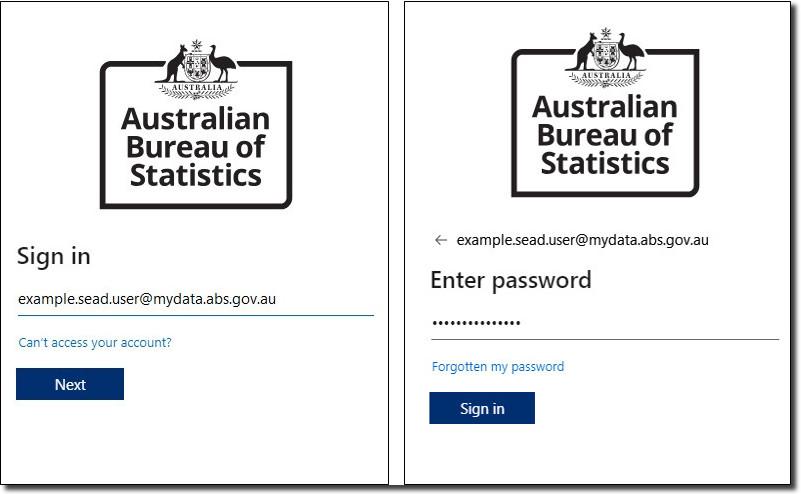
  1. To access the SEAD portal, go to https://sead.abs.gov.au 
  2. The first time you log in, you will be required to enter the username and password contained in the email delivered by the system when your account is created.

Note: All SEAD accounts use the @mydata.abs.gov.au domain format.

SEAD login page
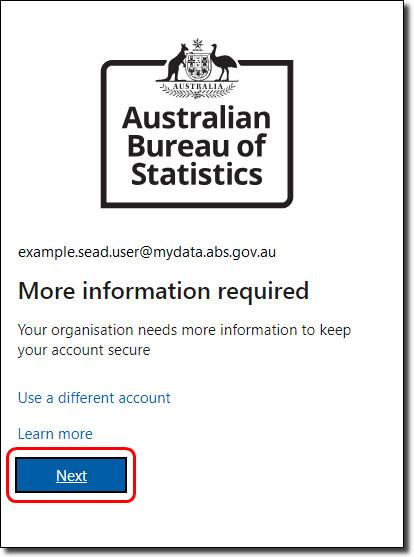
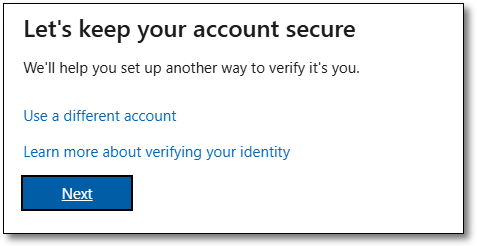
  1. You will be presented with a ‘More information required’ request, click ‘Next’.
More information required notification
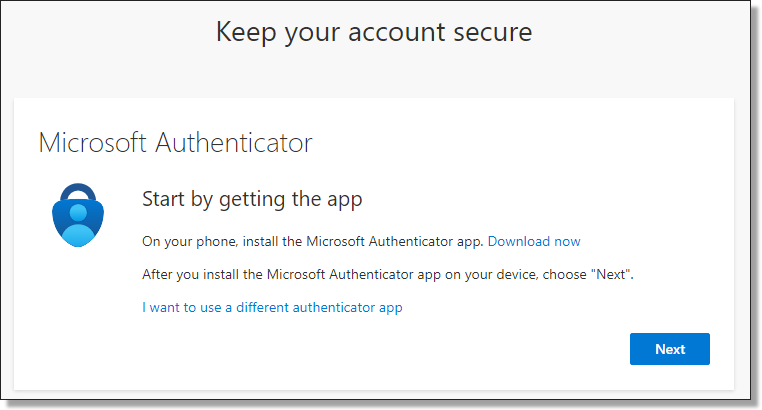
  1. The following screen will ask you to download the Microsoft Authenticator application. If you have already downloaded the application as advised above, proceed by clicking 'Next'. 
Setting up Microsoft Authenticator - Step 1 - download the app
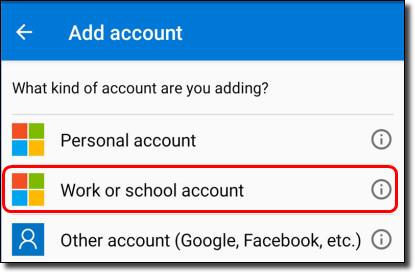
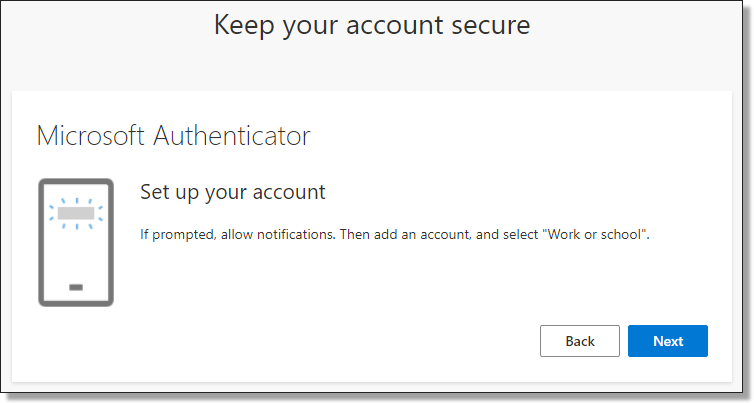
  1. You will then be guided to open your Microsoft Authenticator application and add a ‘Work or school account’.
adding a work or school account in the app
  1. Once you have selected a 'Work or school account', click ‘Next’ from your browser.
Setup your Microsoft Authenticator application
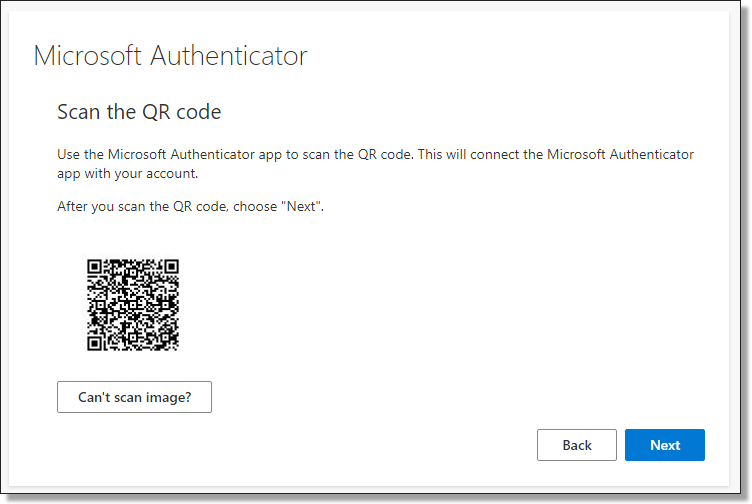
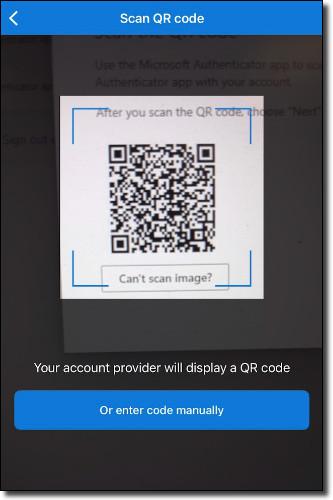
  1. The following screen presents a QR code to scan using your Microsoft Authenticator application. Initiate the scanning function by clicking 'Scan the QR code' from your application, then hover your phone camera over the QR code shown on your browser screen.
Scanning the QR code
Scanning in progress
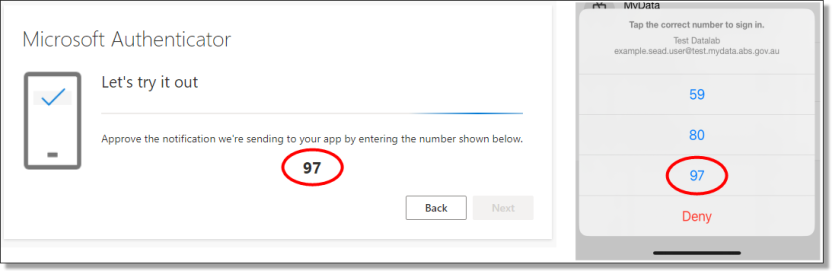
  1. Once scanning is complete, click ‘Next’ on your browser screen. You will be asked to select the security number shown on your browser screen into your Microsoft Authenticator application, once complete, click ‘Next’.
Microsoft Authenticator sign-in
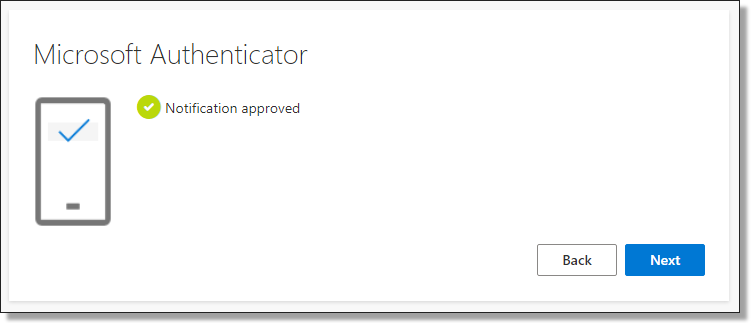
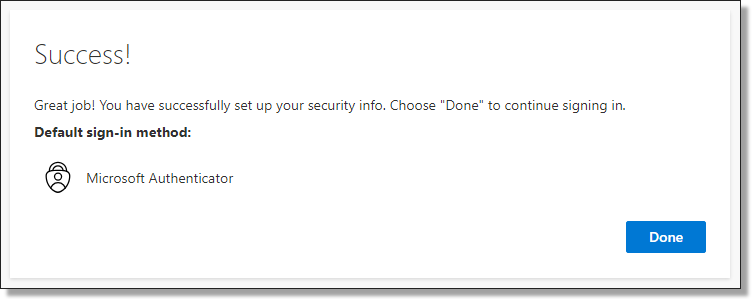
  1. After entering the security number and receiving approval from your Microsoft Authenticator application, you will see a ‘Notification Approved’ confirmation on your browser. Click ‘Next’ then 'Done' to proceed to updating your password
Microsoft authenticator approved notification
Successful Authenticator set up notification
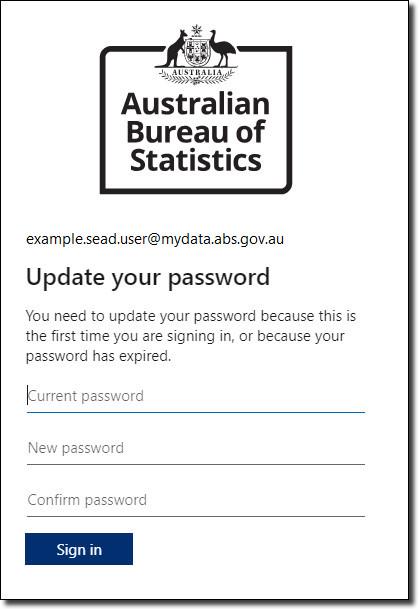
  1. Once you have returned to the sign in page, you will be asked to set up a new password for your account. Your password cannot contain your user ID. It must be a minimum of 8 characters and contain at least three of the following:
  • Upper-case letters A – Z,
  • Lower-case letters a - z,
  • Numbers,
  • Special characters @ # $ % ^ & * - _ ! + = [ ] { } | \ : ' , . ? / ` ~ " ( ) ;
Changing password
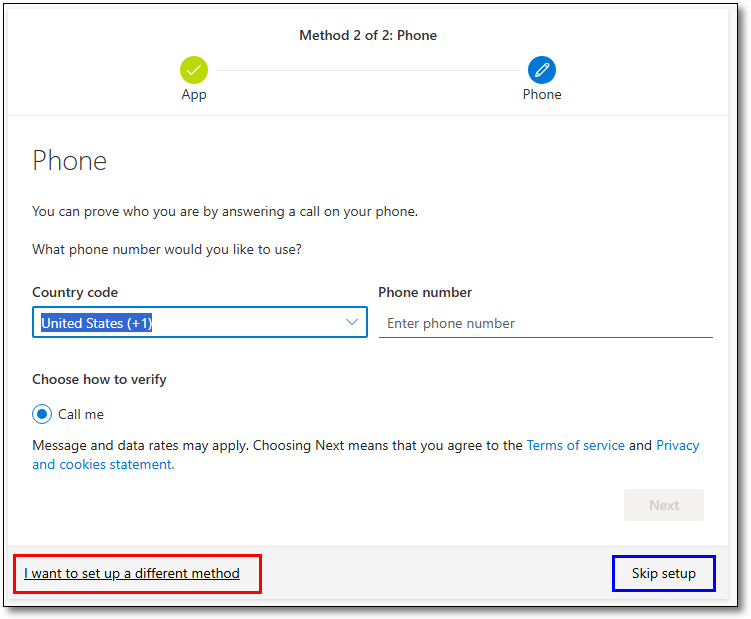
  1. After updating your password when logging in for the first time, or after having your authentication methods reset you will be prompted to add a second verification method
Sign in prompt for second verification method

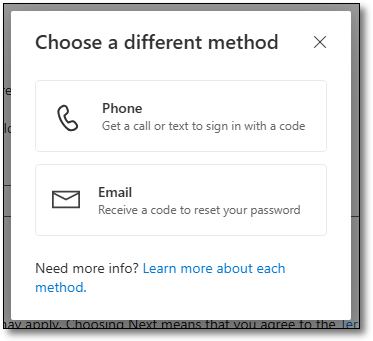
The default method is a phone call with automated prompts for you to follow. If you prefer to use a different method, select ‘I want to set up a different method’. From here you can choose either a phone call or text message with a sign in code, or Email. You can skip the setup of a second verification method, however you will be prompted to complete it every time you log in to the SEAD portal.

  1. To proceed with default method, enter your country code and phone number and select ‘Next’.
Default second verification method. Enter country code and phone number
Choosing a different verification method
  1. You will receive a phone call to your mobile device using the phone number entered. Answer the call and follow the prompts provided. Your browser will update with the status of the verification.
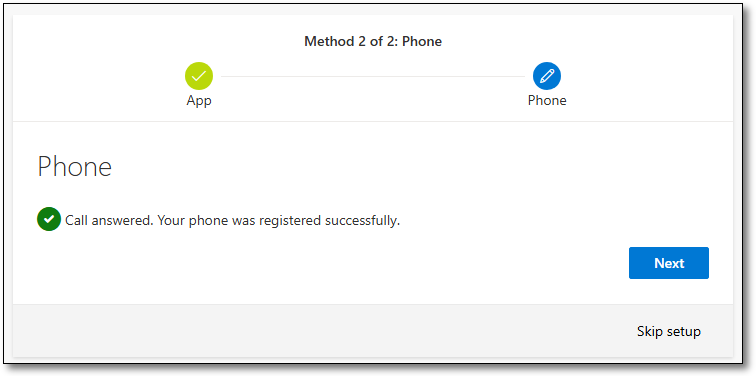
  2. After successfully verifying your mobile device your browser will update with 'Call answered. Your phone was registered successfully'. Click 'Next' to proceed.
Call answered and phone registered successfully
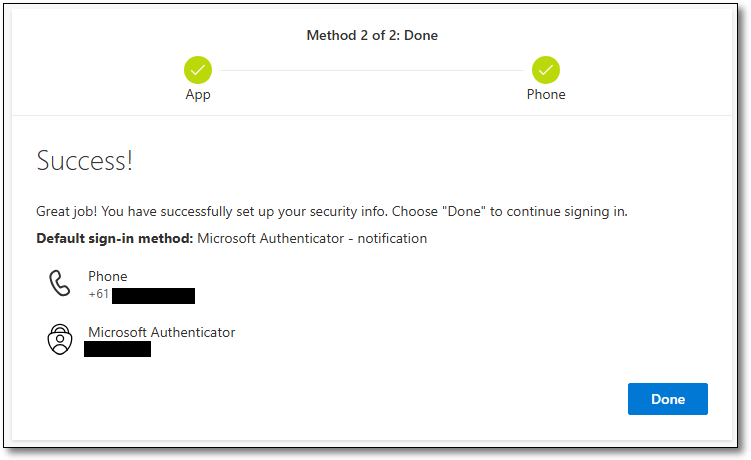
  1. You will then receive a 'success' page, confirming the details were successfully registered. Select ‘Done’ to proceed to the SEAD portal.
Second verification method 'Success' page

Returning users

  1. To access the SEAD portal, go to https://sead.abs.gov.au
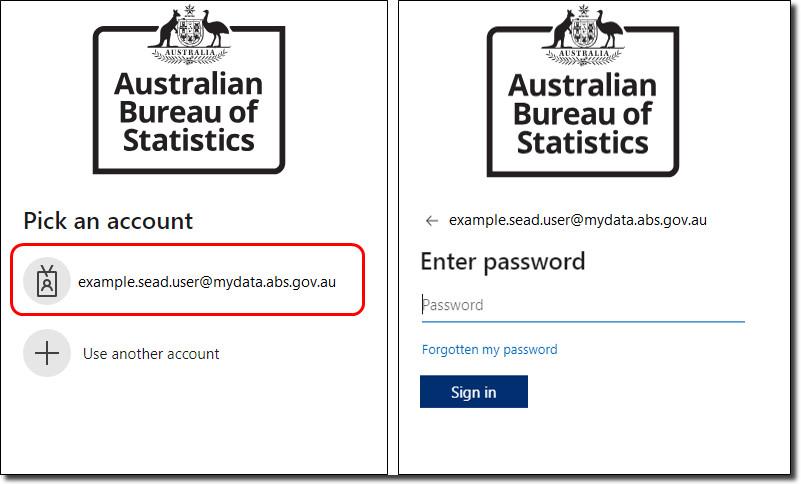
  2. For returning users, your account will already be available to select. All SEAD accounts use the @mydata.abs.gov.au domain format. Click on your account, then enter your password to sign in.
Account sign in for existing users
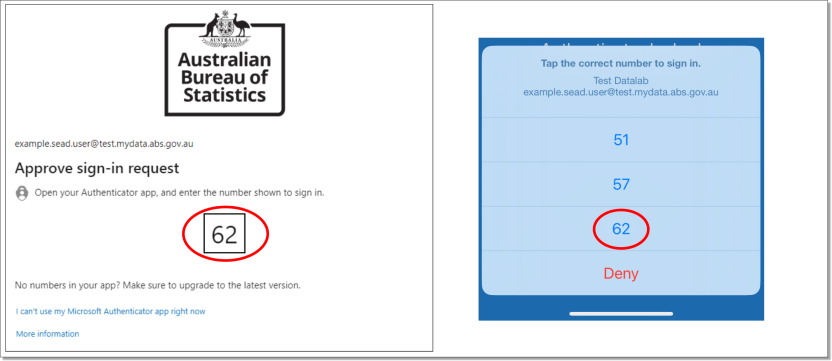
  1. Once you have entered your credentials and hit ‘Sign in’, you will receive a notification from the Microsoft Authenticator application on your phone asking you to perform a “number match”. Enter the numbers shown on your browser screen into the authenticator application to proceed.
Authenticator approval number match
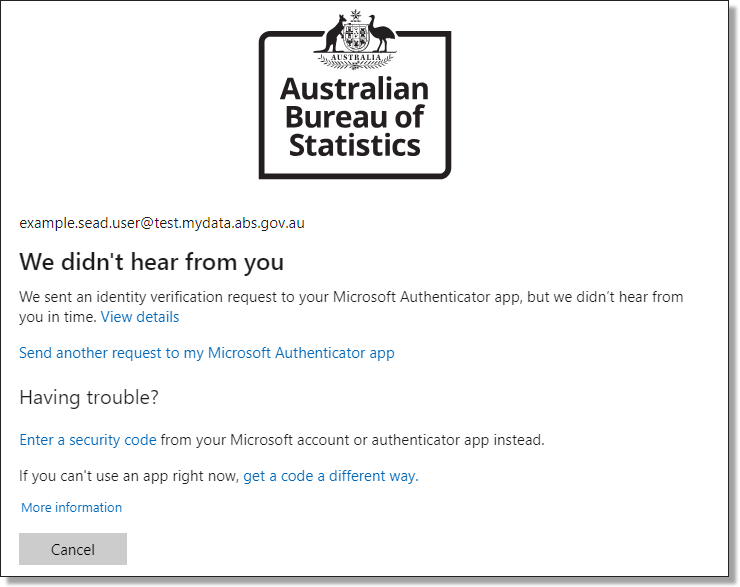
  1. If you do not approve within the time limit, click ‘Send another request to my Microsoft Authenticator app’. If the request expires, re-enter your SEAD email and password in the SEAD log in screen.
Authenticator 'We didn't hear from you' expiry message
  1. You can also change the way you approve the sign in request by selecting 'I can’t use my Microsoft Authenticator app right now'.
 'I can’t use my Microsoft Authenticator app right now'. button
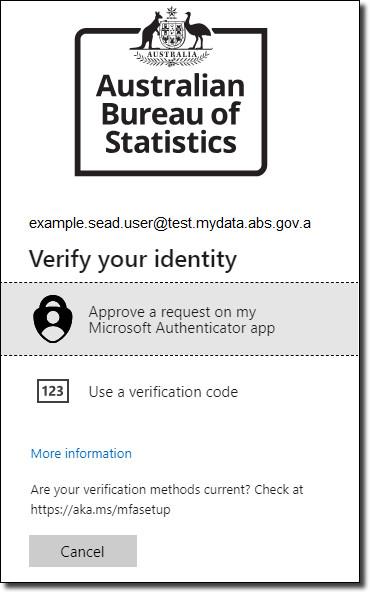
  1. You then have two options:
  • Approve a request on your phone app.
  • Use a verification code from your phone app.
Two options shown
  1. After you have authenticated your login in Microsoft Authenticator, you are logged into the SEAD portal.

Recommended browsers

The SEAD portal and workspace is presented in a web browser. The latest version of the following web browsers are recommended:

  • Chrome
  • Microsoft Edge
  • Firefox
  • Safari

Internet Explorer is not recommended.

Note: Mobile devices are not supported/enabled for SEAD. 

Forgotten your password

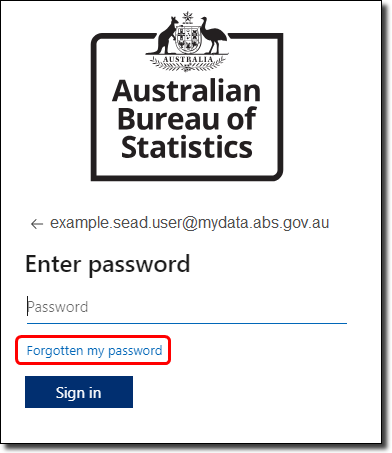
If you have forgotten your password, click the 'Forgotten my password' link on the username entry screen.

Forgotten my password

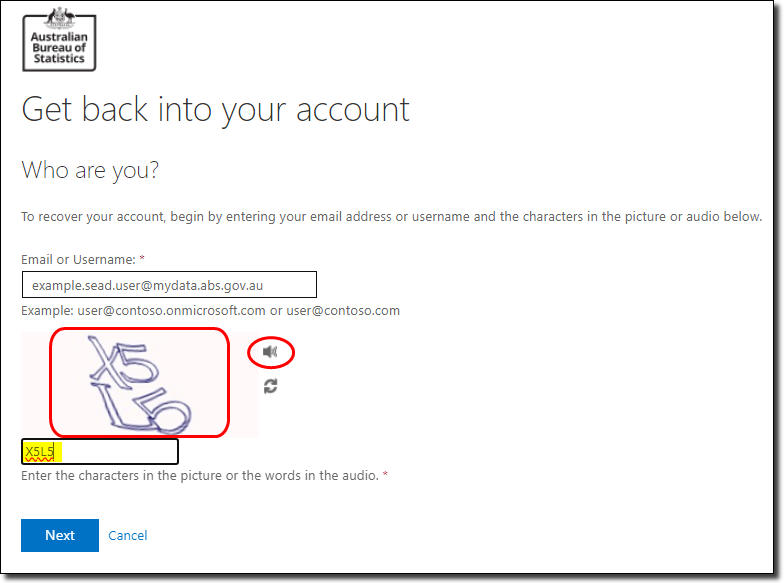
On the following screen, you will be asked to enter the characters in the picture. You have the option to hear the characters in the picture if you click on the speaker icon (circled). Your user ID is populated for you. 

Entering the characters in the picture

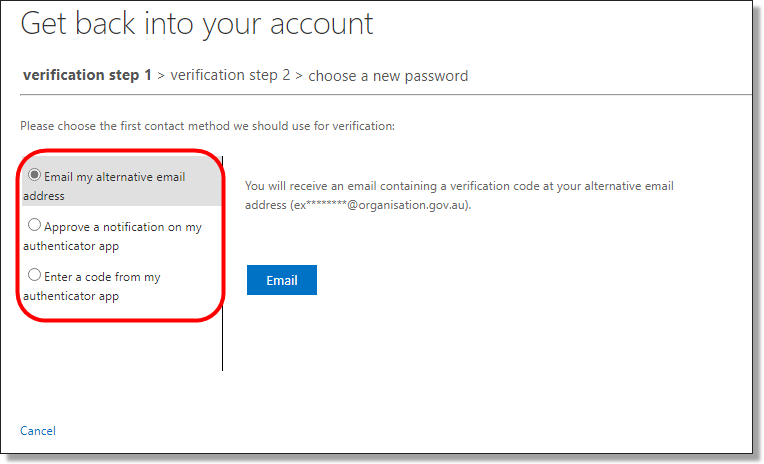
The next screen takes you to Step One of verifying your account. Choose from the options in the left-hand column.

Password reset options left hand column

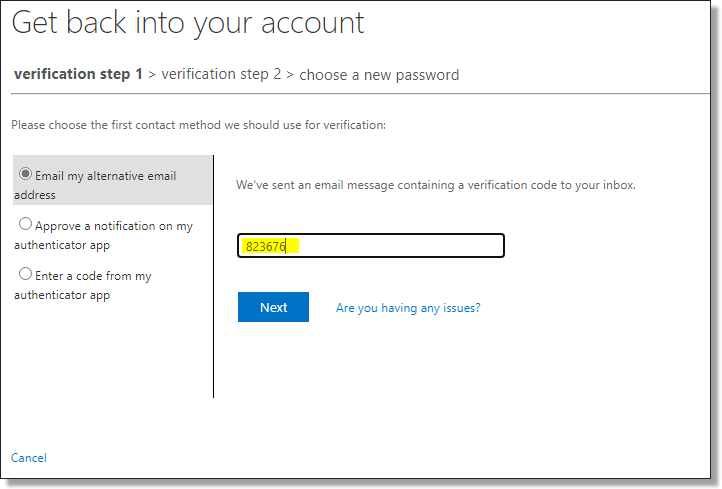
Enter the verification code you received via email, or using the codes via the Microsoft Authenticator app. 

Entering the code for the password reset

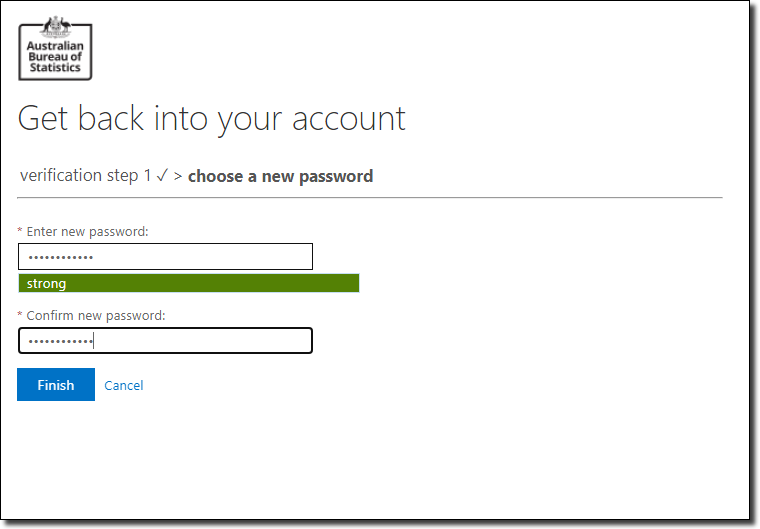
Enter your new password, ensuring it has a minimum of 8 characters and contains at least three of the following:

  • upper-case letters A – Z
  • lower-case letters a - z
  • numbers 
  • special characters @ # $ % ^ & * - _ ! + = [ ] { } | \ : ' , . ? / ` ~ " ( ) ;
Entering your new password

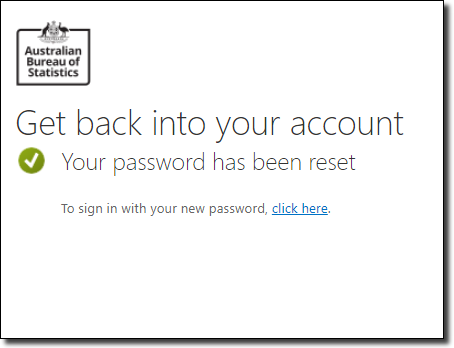
The following screen is displayed once your password has been reset. Select the ‘click here’ link to sign in with your new password.

Password successful screen

Navigating the SEAD portal

How to navigate the web portal, manage your project workspaces, and administer your account

Released
10/11/2023

SEAD web portal interface

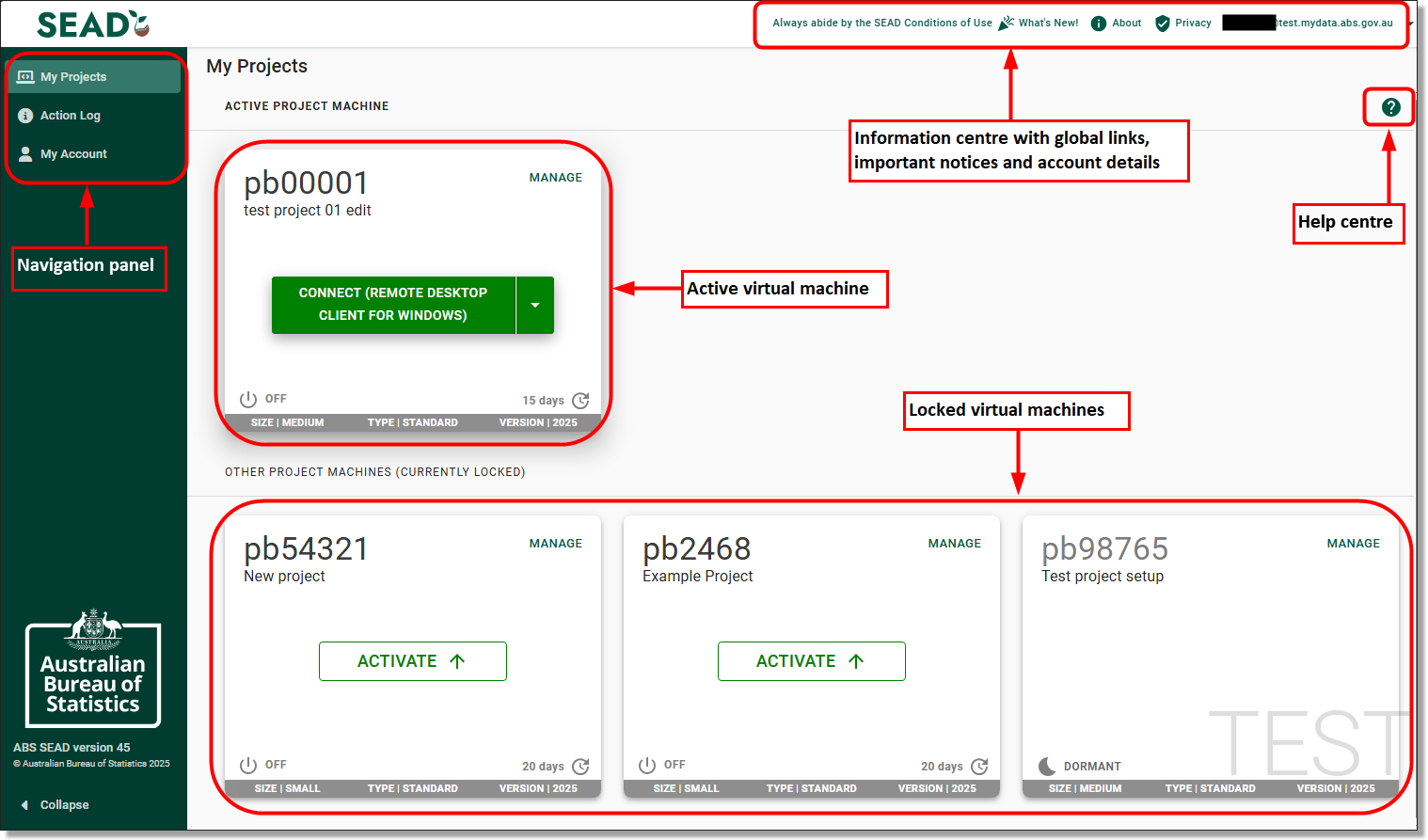
The SEAD portal is where you will find information about your SEAD Account, Projects and Virtual Machines (VMs). This interface allows you to self-manage functions of your account, like changing between VMs.

SEAD user portal interface

The 'Navigation Panel' allows users to access the My Projects page, which contains their active and locked VM's, the Action log and Account details.
The 'Information centre and account details' contains links to the SEAD conditions of Use, SEAD web page and Privacy Notice. The 'What's New' section contains system updates relevant to end users.
'Active virtual machine' shows the accessible VM for users. Only one VM can be active at a time.
'Locked virtual machines' is for users who have been added to multiple projects and allow users to change their active VM depending on which project they are wanting to access.
The 'Help centre' contains information on how to access the virtual machine itself.

The SEAD portal displays information across three tabs: 

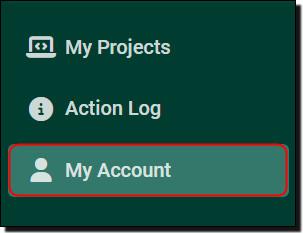
My Projects

From this tab you can activate, start and launch the VM associated with your project. 

My Account

Use this tab to view your personal contact information and basic account settings. 

Action Log 

Keeps a record of your portal actions. This can help you manage your sessions and provides useful information if you encounter problems with the system. It includes:

  • starting your VM
  • stopping your VM
  • switching between active VMs
  • restarting your VM
  • rebuilding your VM
Navigation panel

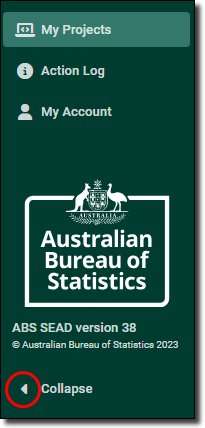
The left navigator menu contains shortcuts that can be used to navigate between pages. Click the arrow to collapse or expand the navigator menu.

Navigation panel

Global links

The links at the top right are available from all pages of the portal:

What’s New

This acts as a global information centre for the DataLab and SEAD, showcasing information about new features and updates. 

About

Directs you to the SEAD web content. 

Privacy 

Directs you to the SEAD privacy notice

User ID 

Displays your details, including your name, user name and user role. This is also where you log out of the SEAD portal. 

Always abide by the SEAD Conditions of Use

The SEAD conditions of use will help you understand your obligations and management responsibilities to handle microdata safely. It is important that this page is read carefully. 

Important messages banner

This banner appears at the top of your SEAD portal window when your SEAD administrators have an important message for your consideration or action.

Functions in my projects

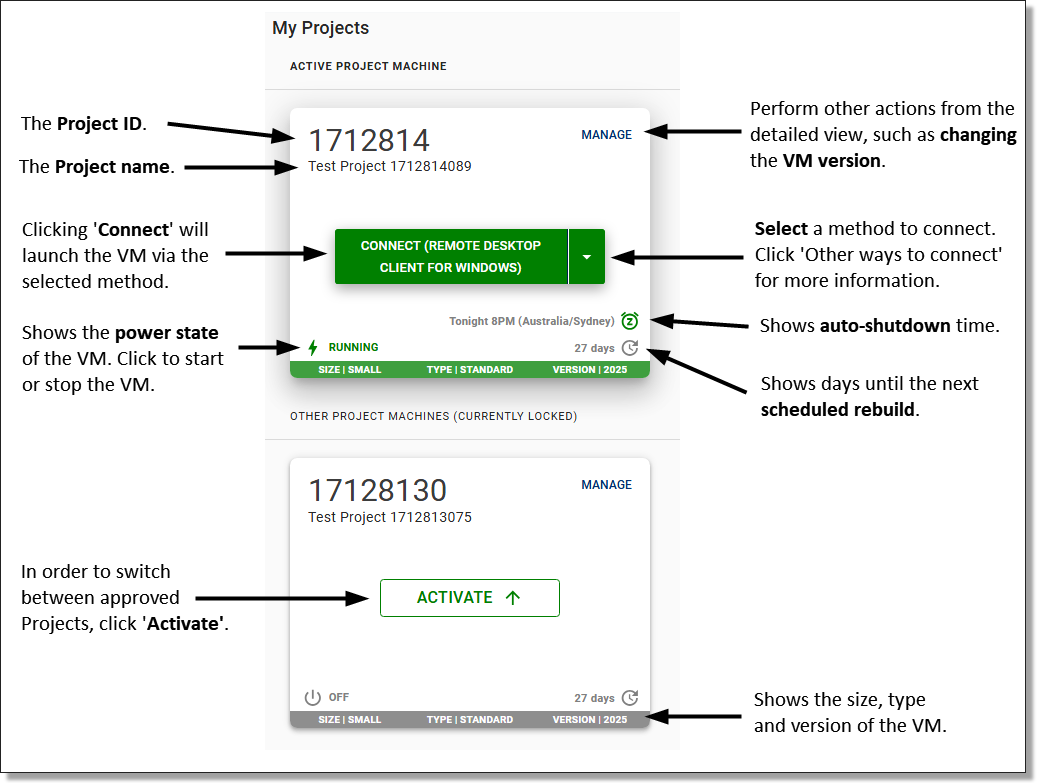
The 'My Projects' page of the SEAD user portal makes it easy to launch and switch between your project VMs. 

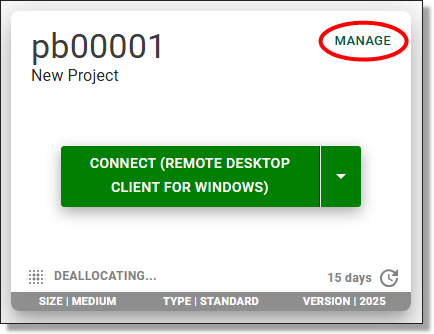
VM tile functions

You must now connect to your Virtual Machine (VM) using Azure Virtual Desktop (AVD).

In the 'Manage' menu of your VM tile, you will be able to switch your VM to the latest version.

Users may choose to access the VM by installing either the Windows App for Windows or MacOS, or the Remote Desktop Client (MSI). 

Virtual machine management options

In the 'Manage' menu you will be able to switch your VM version to a new version if there is one available.

Users require the Windows App for Windows or MacOS, or the Remote Desktop Client for Windows (MSI) to access their VM. Connecting via the Windows App web client or the Remote desktop web client are disabled and no longer available for connecting to your VM.

VM management options

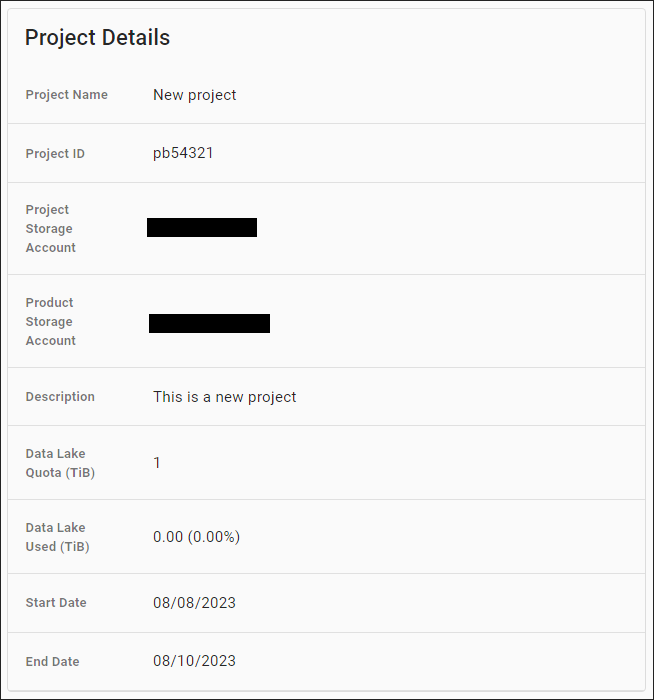
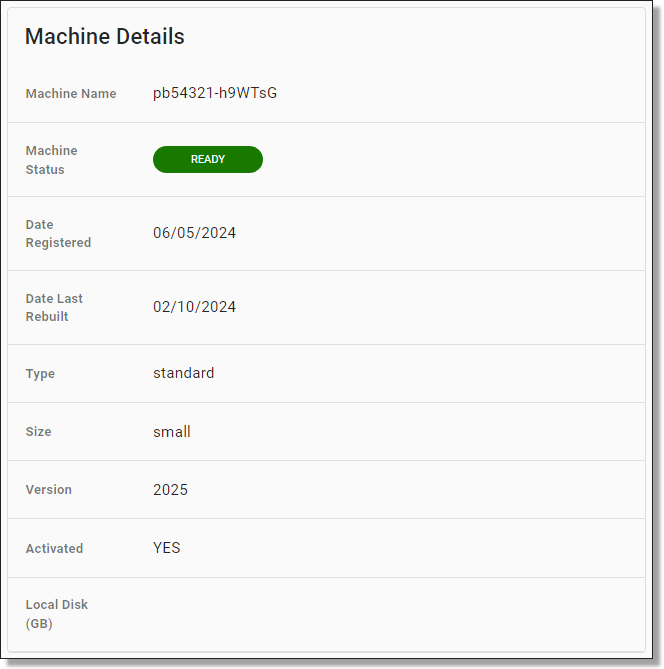
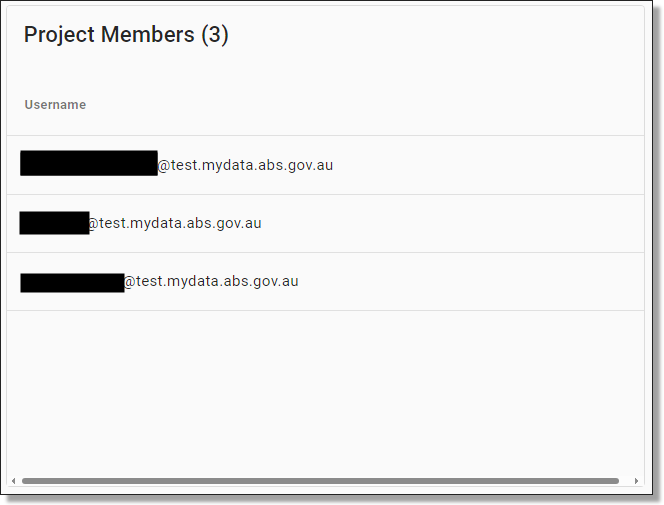
On the VM management page, you will be presented with details about your project, project members and machine. 

Project details
Machine details
Project members

The VM management page also showcases your VM power state which allows you to start, stop, or restart the VM. This can be helpful if swapping between VMs or having difficulties seeing your machine in the Azure Virtual Desktop workspace.

Power state

You can also view the scheduled shutdown for your VM. VMs are automatically shutdown every night at 8pm local time. If you have a program running that you expect to run past 8pm, you can choose to extend your session for up to 3 days by selecting 'Bypass shutdown'.

Bypass scheduled shutdown
Bypassing a shutdown

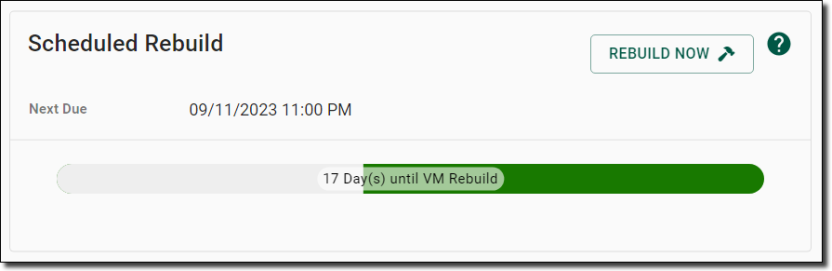
You can also view the date of your next scheduled rebuild. A date and numbered count down is displayed on the coloured bar, with time adjusted to your local area. The coloured bar changes, starting with green, moving to orange and finally red as you get closer to the rebuild date.

VMs are automatically destroyed and rebuilt every 30 days for security and maintenance purposes. You cannot extend this time, however, you can choose to rebuild before the scheduled time by selecting ‘Rebuild Now’. After rebuilding, the countdown resets to 30 days and allows you to bypass the nightly shutdown.

Note: If you try to bypass a shutdown when your machine is scheduled for a rebuild, the system will deny the action and will instead offer to ‘Rebuild Now’.

Scheduled rebuild

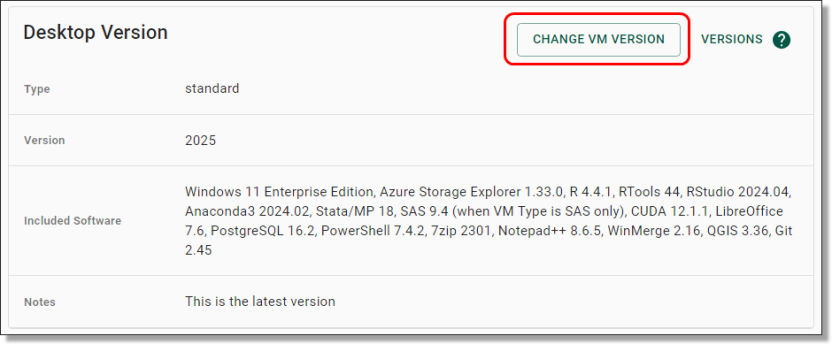
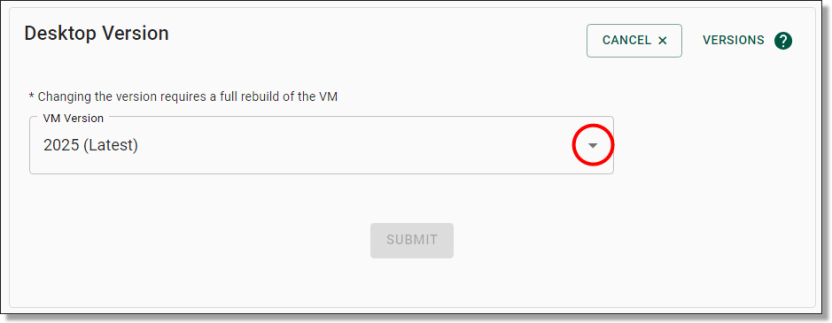
You can update your desktop version annually as new desktop versions become available. Generally a new VM version is provided once annually, with updated versions of software. Click on 'Change VM Version' to view or update your desktop version. 

Desktop version details
Updating the desktop version

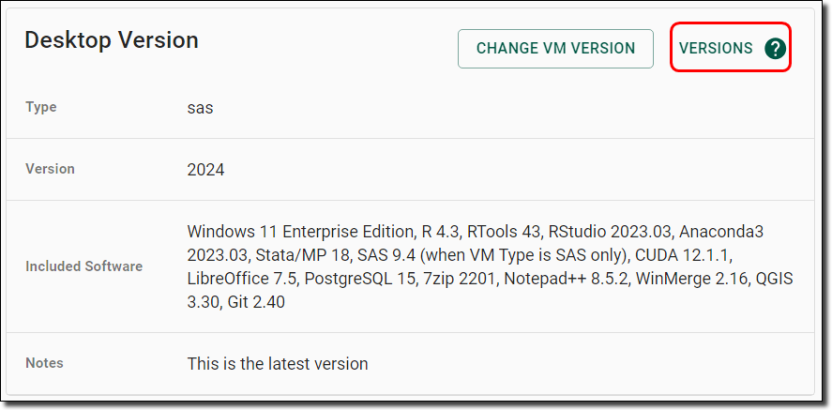
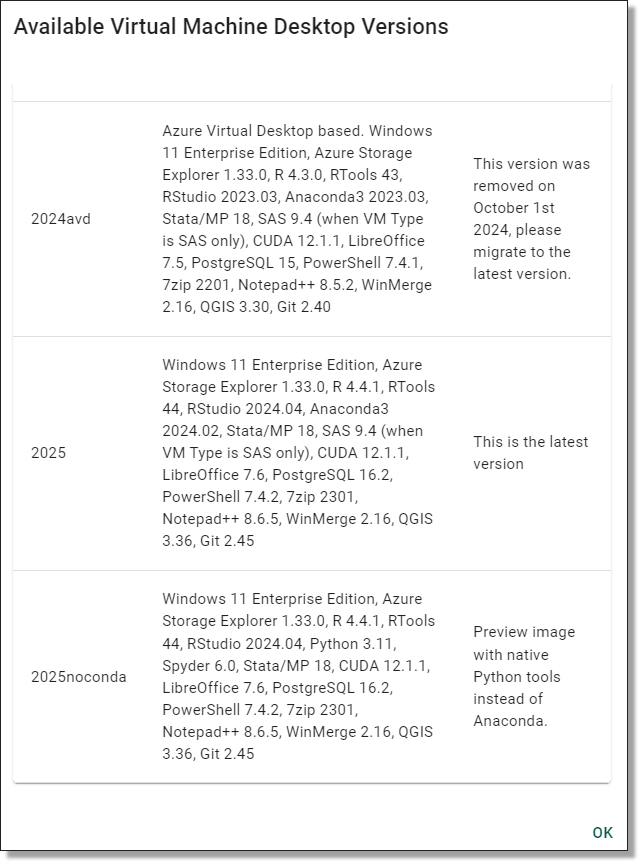
To compare the software of your current version to the latest version, click on 'Versions'. 

Versions button
Comparing available desktop versions

Functions in my account

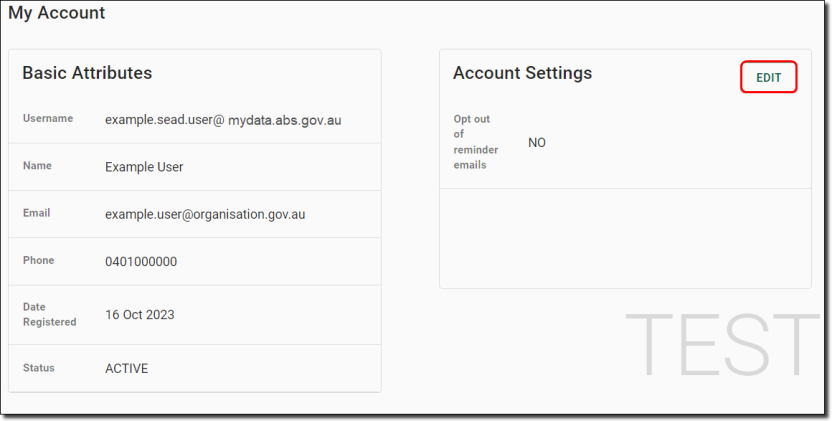
The 'My Account' page of the SEAD user portal allows you to view your basic user attributes, such as your name and email address. If your details require updating, contact your SEAD administrator.  

From this page, you can manage your account settings for receiving email reminders. These notifications inform you about your VM’s scheduled shutdown, which occurs at 8pm if you’ve used the VM that day. Additionally, you’ll receive a reminder before your 30-day VM rebuild. You can adjust this setting anytime by clicking 'Edit'. 


My account tab
My account

Accessing your project workspace

How to activate and launch your project workspace

Released
10/11/2023

Launch your project workspace

To enter your SEAD project workspace you need to:

  1. Activate your virtual machine
  2. Launch your virtual machine

Activate your virtual machine

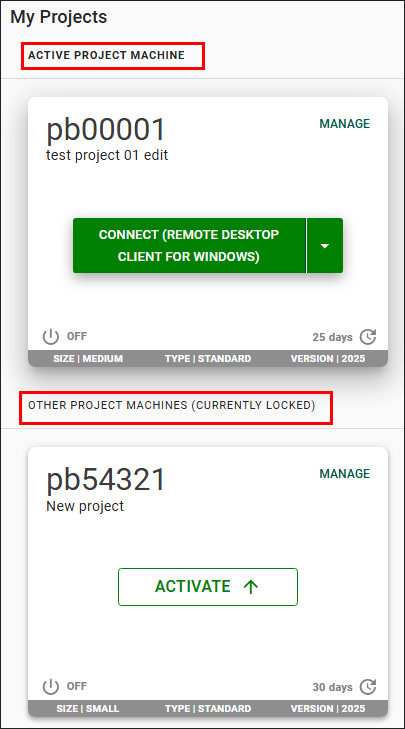
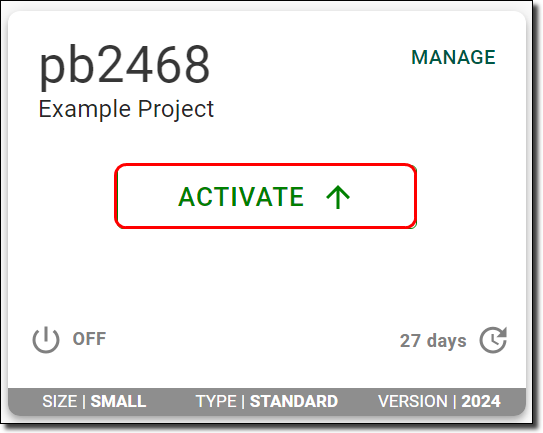
Each project Virtual Machine (VM) is displayed on individual tiles, with your “Active” VM appearing at the top above those that are “Locked”. For more information about your VMs, refer to Functions in my projects.

Active and other projects

Each project has a separate VM and you can only access one project VM at a time. If your machine is already available to launch, skip to Launch your virtual machine.

  • If not, click the ‘Activate' button as shown below and wait until the ‘Connect’ button appears.
  • If your machine shows a status other than ‘Connect’ or ‘Activate’ you must rebuild the VM first. See Virtual machine management options for more information.

Click on the ‘Activate’ button of the VM you want to launch.

Activate button

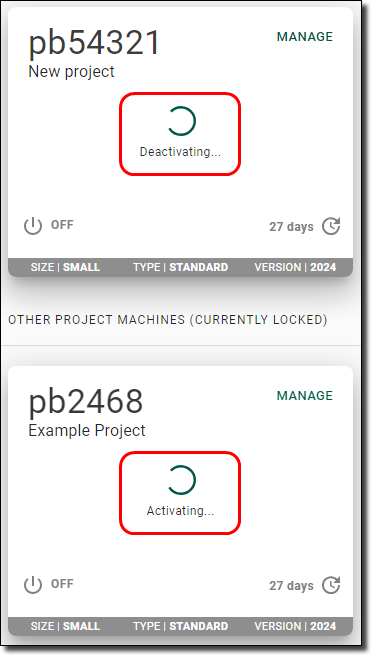
If you have a VM for another project that is currently active, this logs you out of your other session. If you have a program running in your workspace using another VM, this will stop the program. You can only run multiple VMs if you have requested to use offline local disk space.

VMs activating

Launch your virtual machine

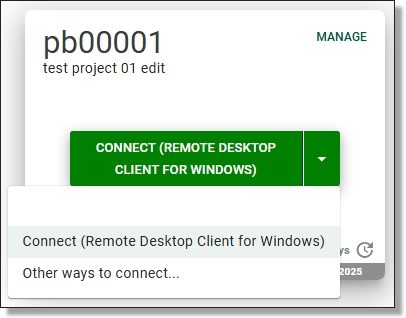
Before launching your VM, you can choose your preferred connection. You are required to install the Windows App (for Windows) or Remote Desktop client (Windows users only), or have your organisation do so to be able to connect to your VM. All browser-based applications, including Azure Virtual Desktop web client and the Windows App web client are disabled and no longer available for connecting to your virtual machine. 

Note: Temporary access to the web client is available for MacOS users, however we recommended using a Windows device if available. MacOS users can contact info@mydata.abs.gov.au for assistance.

Choosing preferred VM connection

Connect 'Remote Desktop Client for Windows'

If you are connecting to the 'Remote Desktop Client' version of AVD, contact your SEAD administrators to ensure that your IT department has enabled the correct networking addresses. 

If you intend to use the 'Remote Desktop client' on your organisation's workspace, your internal IT department will need to make it available to you. 

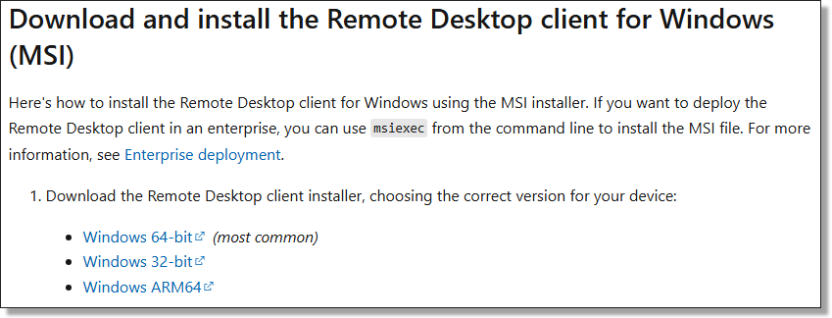
The latest version of 'Remote Desktop client (MSI)' for Windows, is available here. Ensure you download and install the correct version for your device.

Remote Desktop Client for Windows (MSI)

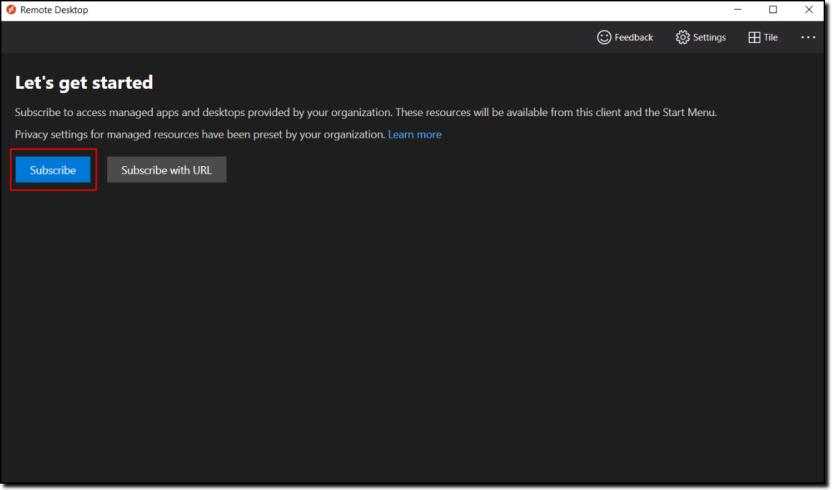
Once you have been provided access by your organisations IT department, or have downloaded, installed and opened the application, click ‘Subscribe’ as shown below. 

Subscribe button on the Remote Desktop Client

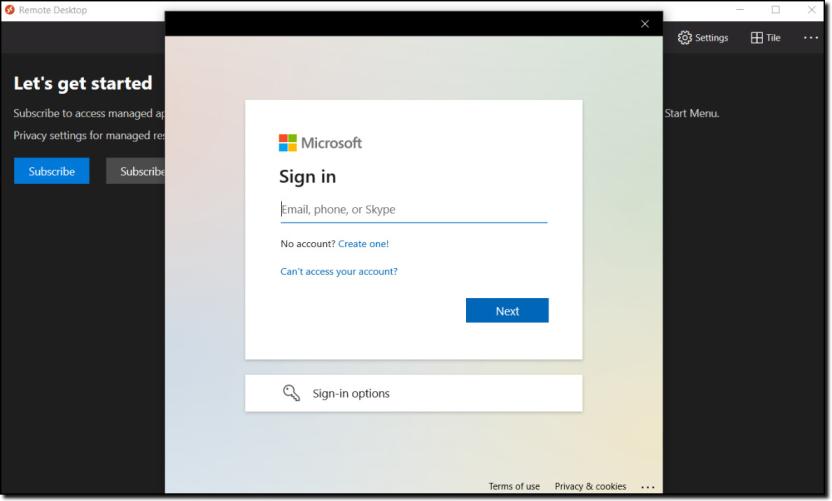
You will then be shown a new window that allows you to log into your SEAD account using your SEAD credentials. 

Sign in using your SEAD credentials

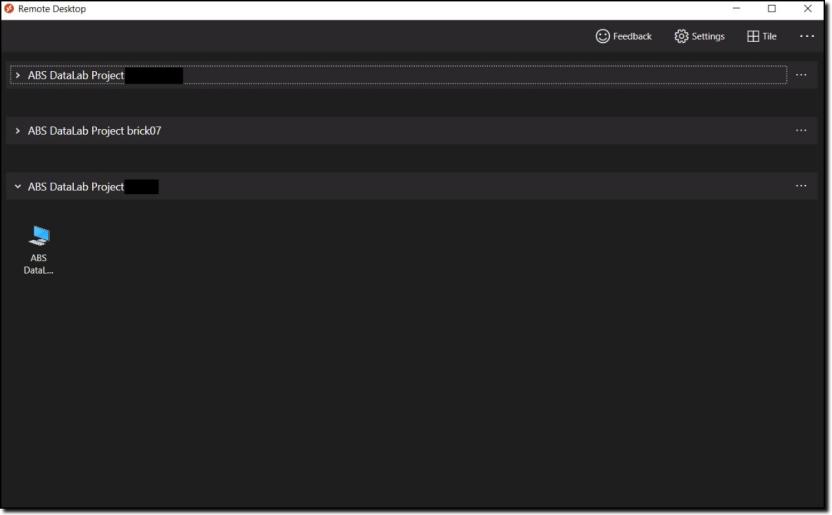
Upon a successful login, you will be shown all your available VMs. If you can’t see the VM that you want, it may be dormant and would require a rebuild. Rebuilds need to be completed through the SEAD web portal. 

If you have access to multiple projects you may be shown multiple tabs, one for each project as shown in the image below. 

Note: If you wish to use multi-display, right click on your VM icon, click ‘Settings’, and turn off ‘Use default settings’. You should now see options for how you would like to display your VM.

Available Virtual Machines

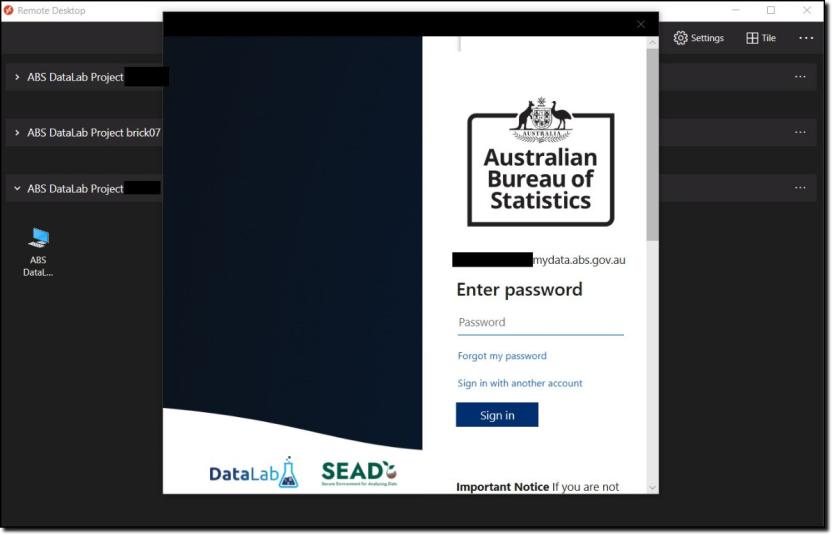
Click into one of the computer icons and you will be taken to a login screen to reconfirm your identity, before access is granted to enter your VM. This may not appear if you have recently entered your credentials, through a similar window. 

Enter Password

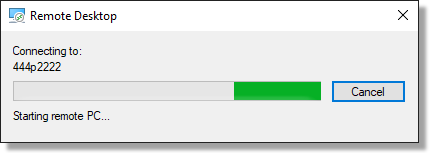
The below loading bar should briefly appear. 

Initiating Remote Desktop Connection

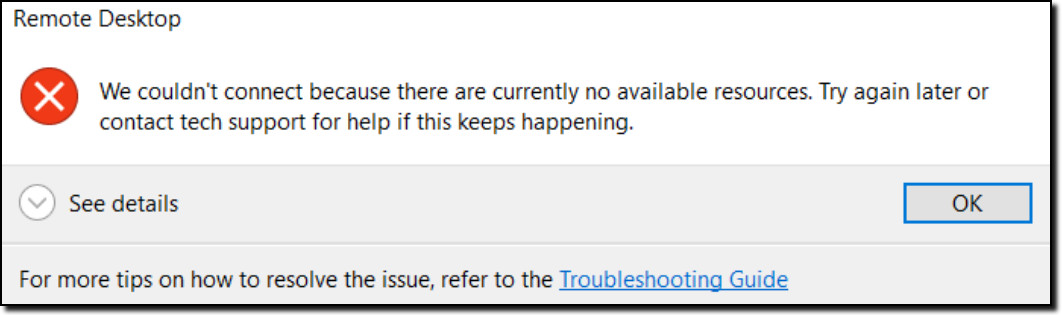
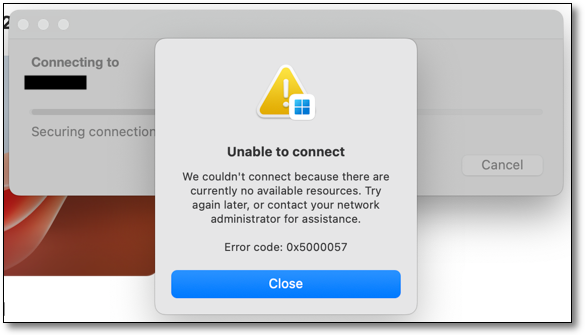
If, instead of the second login prompt, you receive a message as shown in the below image, then either your machine is not the active machine or it is not using the version ‘2025’ or similar. If your desktop session does not start, repeat  step 1 to Activate your virtual machine from the SEAD web portal, and check that the version at the bottom of your VM says ‘2025’ or similar. 

Remote desktop error message

Error message that reads:

"We couldn't connect because there are currently no available resources. Try again later or contact tech support for help if this keeps happening." 

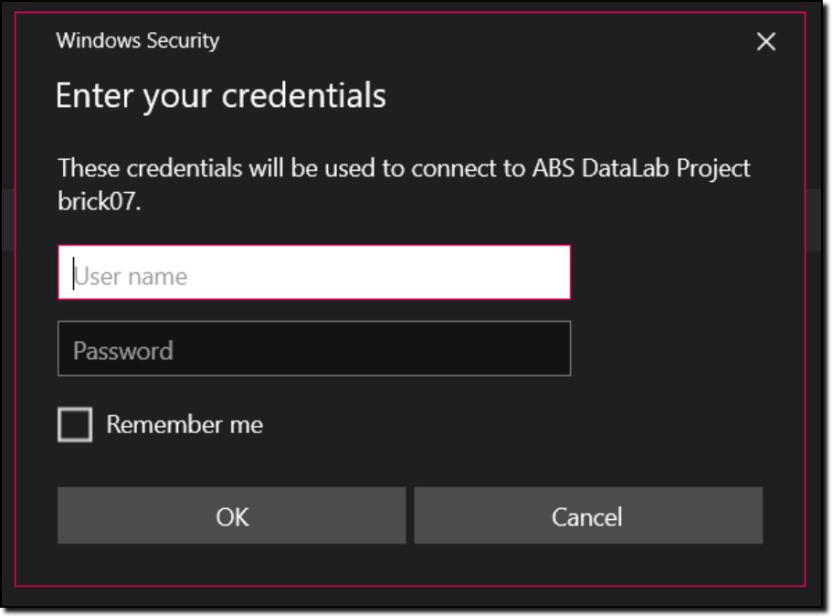
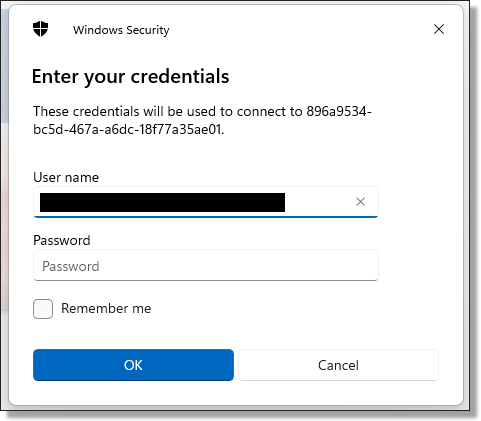
You will then be presented with another login screen for the VM itself. 

Enter your credentials

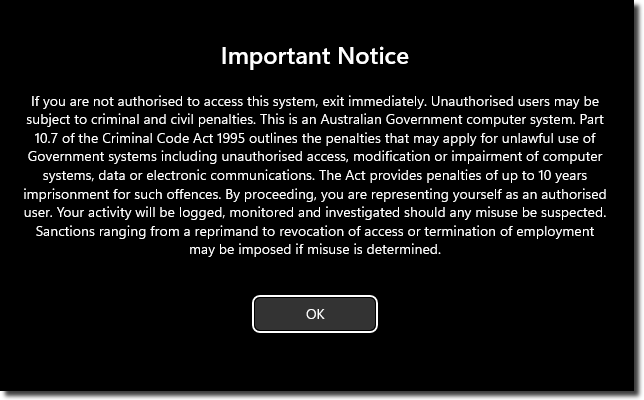
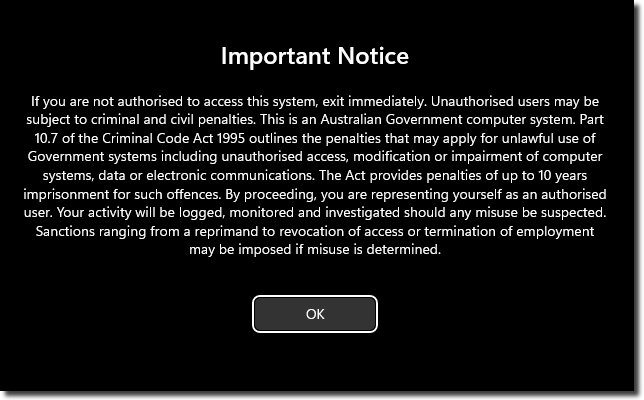
By logging in you agree to these conditions:

Important notice

Important Notice

If you are not authorised to access this system, exit immediately. Unauthorised users may be subject to criminal and civil penalties.

This is an Australian Government computer system. Part 10.7 of the Criminal Code Act 1995 outlines the penalties that may apply for unlawful use of Government systems including unauthorised access, modification or impairment of computer systems, data or electronic communications. The Act provides penalties of up to 10 years imprisonment for such offences. By proceeding, you are representing yourself as an authorised user and acknowledge you have read and agree to comply with the Responsible Use of ABS Microdata User Guide. Your activity will be logged, monitored and investigated should any misuse be suspected.

Sanctions ranging from a reprimand to revocation of access or termination of employment may be imposed if misuse is determined.

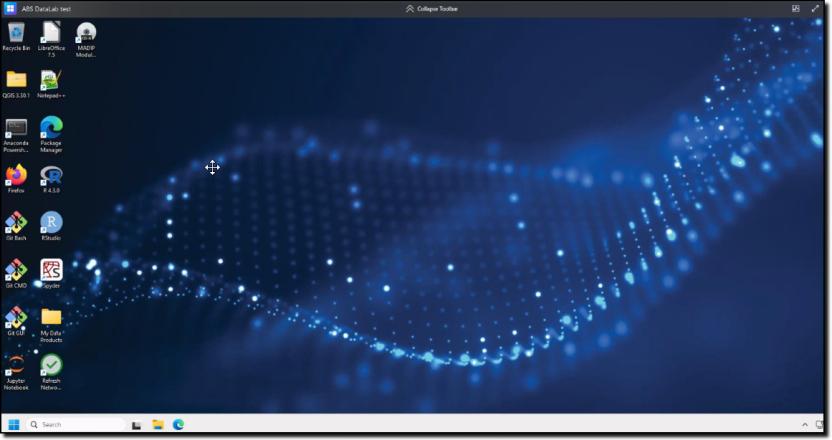
You will then have a new window open on your computer displaying your VM workspace. Note: you will also receive a pop up reminder that your activities within your SEAD VM are being monitored and recorded. 

Desktop homepage

For more information on navigating the workspace, refer to Navigating your project workspace.

Note: VMs continue to incur running costs if the VM has not been stopped, even when not in use. The ABS recommends users shut down their machine during periods of inactivity to avoid unintended charges. Disconnecting, or closing your machine window, is insufficient. VMs are required to be shut down completely as per the VM management options to avoid continued running costs.

Connect using 'Microsoft Windows App' for Windows

Download the Microsoft Windows App from the Microsoft Windows App Store.

Note: If you intend to use the Windows App on your organisation's workspace, you will need to contact your local IT department to make it available to you.

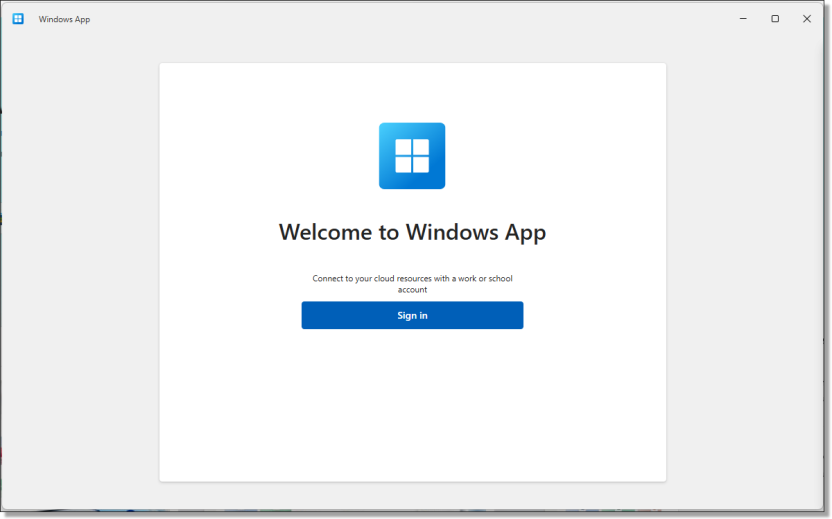
Once you have been provided access by your organisations IT department, or have downloaded, installed and opened the application, select sign in.

Windows App Sign-in

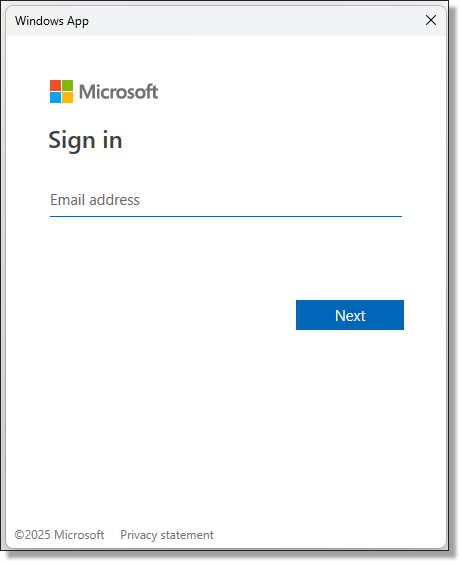
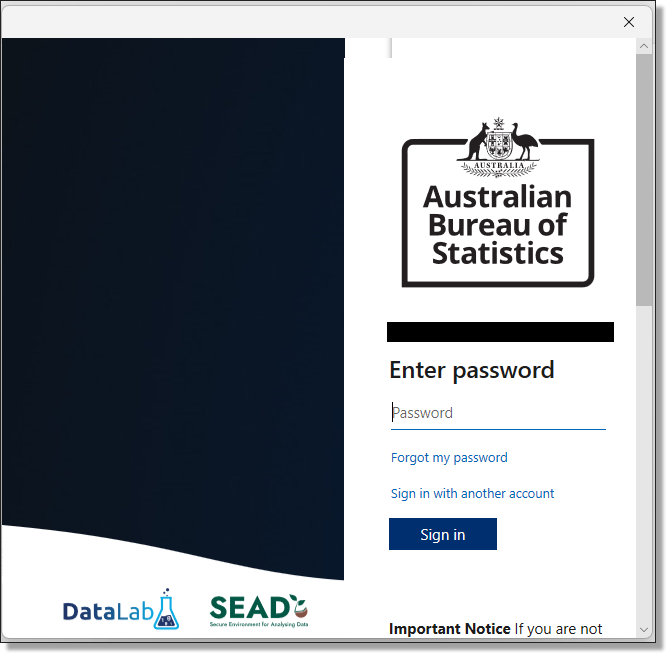
Sign in using your SEAD username. Once your Username has been entered, you will be navigated to the ABS SEAD branded log in screen to enter your password.

Windows App username Sign-in
Windows App password

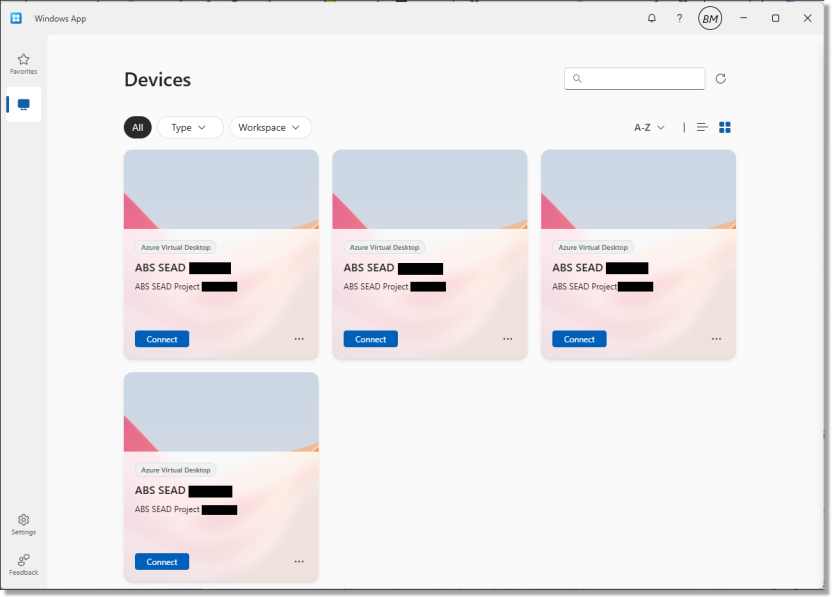
Once you've successfully logged in, you will be able to see all of your available VM's. If you can’t see the VM that you want, it may be dormant and would require a rebuild. You will be required to connect to the SEAD web portal to activate or rebuild your VM.

Available devices

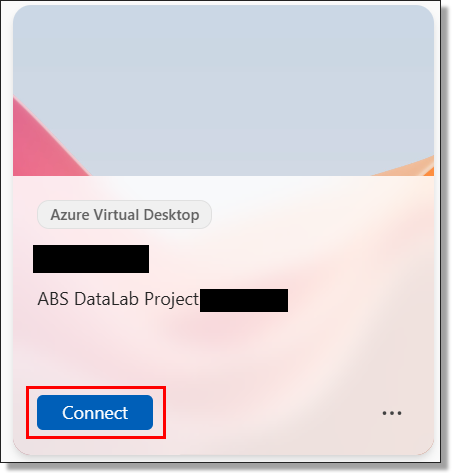
Select 'Connect' on the device tile you want to access, noting only the Active VM as displayed on the SEAD web portal will allow you to progress into your workspace.

Connect to VM

At this point, you may be required to enter your SEAD credentials again to launch the VM, if you have not logged in recently.

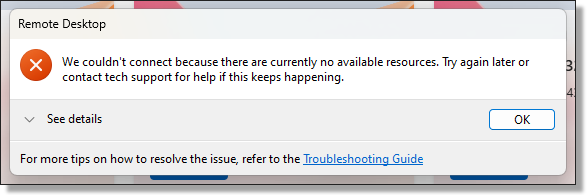
When attempting to connect to your VM you may encounter the following error. If so, please confirm from the SEAD web portal that the VM you are trying to launch is 'Active' and does not require a rebuild.

No available resources error message

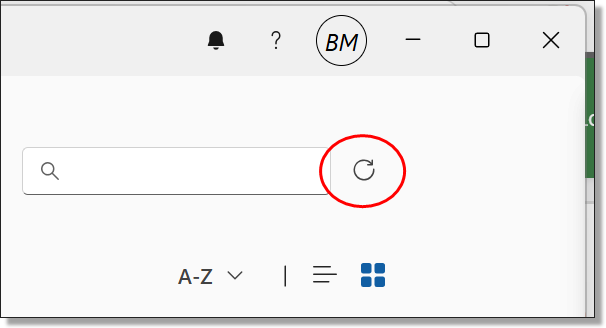
If changes have been made to the VM in the SEAD web portal, you may need to refresh the available resources in the Windows App for changes to take effect.

Refresh available resources

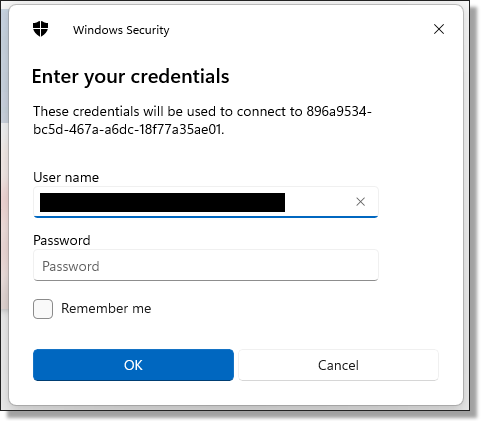
After successfully Connecting to the VM you will then be presented with another login screen for the VM itself. Again, you may be required to enter your SEAD credentials.

Virtual machine log in

By logging in you agree to these conditions outlined on the important notice:

Important notice

Important Notice

If you are not authorised to access this system, exit immediately. Unauthorised users may be subject to criminal and civil penalties.

This is an Australian Government computer system. Part 10.7 of the Criminal Code Act 1995 outlines the penalties that may apply for unlawful use of Government systems including unauthorised access, modification or impairment of computer systems, data or electronic communications. The Act provides penalties of up to 10 years imprisonment for such offences. By proceeding, you are representing yourself as an authorised user and acknowledge you have read and agree to comply with the Responsible Use of ABS Microdata User Guide. Your activity will be logged, monitored and investigated should any misuse be suspected.

Sanctions ranging from a reprimand to revocation of access or termination of employment may be imposed if misuse is determined.

You will then have a new window open on your computer displaying your VM workspace. Note: you will also receive a pop up reminder that your activities within your SEAD VM are being monitored and recorded. 

Desktop homepage

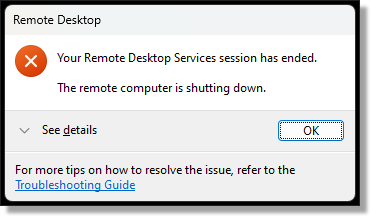
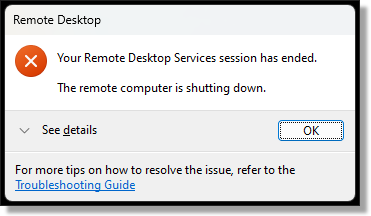
Upon shutting down your VM you will receive the following confirmation message. Ensure that you shut down your VM once your analysis is complete to avoid running costs.

Remote session has ended confirmation

Connect using MacOS

It is recommended that, where possible, users access SEAD using a Windows device. 

While we work towards making the Windows App for MacOS viable for accessing the SEAD, users will need to connect via the web client. Please contact sead.support@abs.gov.au for assistance. Windows users cannot access the web client as this method has been deprecated.

To access SEAD on a MacOS device, click the drop down arrows next to the ‘Connect’ button on your active virtual machine and select the ‘Connect (web client)’ option. You may need to revisit this setting upon each VM shutdown or rebuild.

Connect (web client) for MacOS

Select the 'Connect (web client)' button. Your virtual machine will launch in a new window on your browser.

Navigating your project workspace

Understand your file explorer, file shares, and learn how to safely disconnect from your workspace

Released
10/11/2023

SEAD file explorer

You can use your SEAD workspace in a similar way to using other secure networked systems, where you can securely see, use and share data files, analysis and output with the other members of your project team.

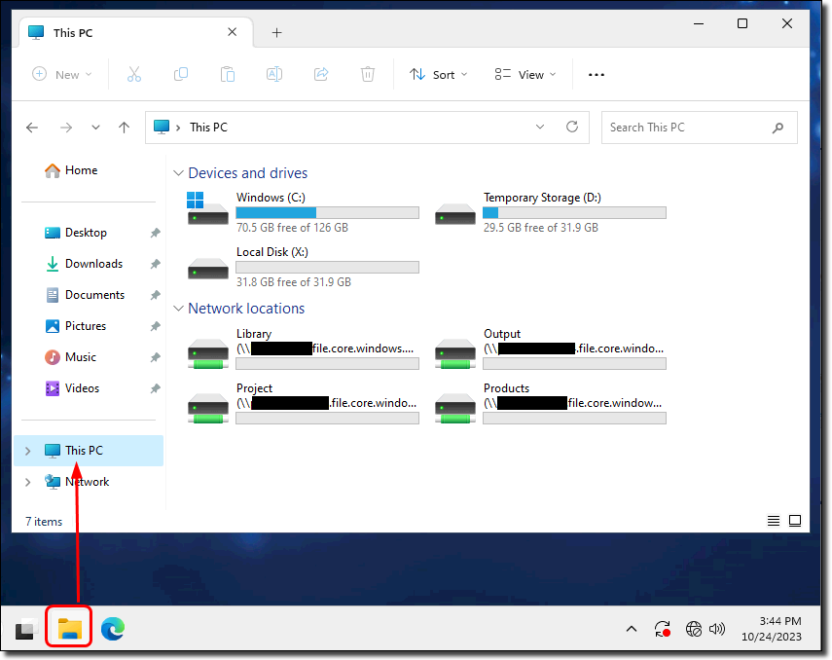
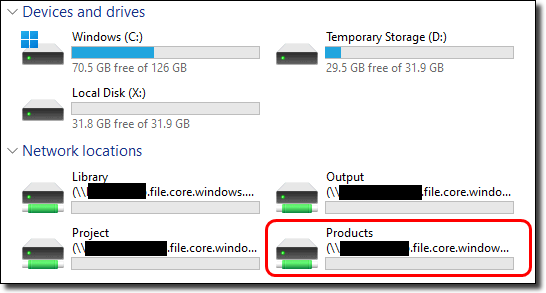
Open File Explorer and click on This PC to see the network drives you have access to. 

File explorer
Library

L: Drive: All researchers can see all files in the Library drive. This drive is managed by the ABS and contains support information, such as statistical language documentation, ANZSIC classification and general access guides for non-standard products. Files cannot be saved to this drive.

Output

O: Drive: Any output you want your SEAD administrators to clear should be saved to this drive. Only members of your team can see this drive. Information is backed up nightly and retained for 14 days. Information in this folder remains unaffected by a rebuild.

Project

P: Drive: A shared space for your team to work in and store all their project files, as well as set up and run Python and R scripts. Only members of your team can see this drive. Information is backed up nightly and retained for 14 days. Information in this folder remains unaffected by a rebuild. The default storage is 1TB. You will need to review and delete unnecessary files as your project files grow over time. If necessary, an increase to this storage can be requested via your administrators. There may be a cost for additional storage.

Products

R: Drive: Access data files that have been approved for your project. However, it is best to use the 'My Data Products' shortcut on your desktop as this shows you only the datasets you have been approved to access, rather than all dataset short names. Files cannot be saved to this drive.

LocalDisk 

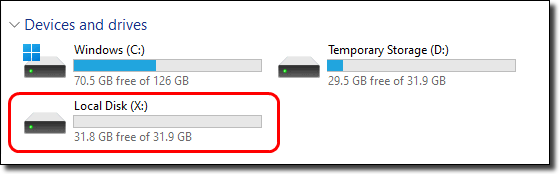
X: Drive: If you have been granted local disk space, this can be used to run jobs on offline virtual machines (desktops). You may want to request this option if you have multiple projects that you are actively involved in. This drive can also be used to run scripts and create new Python virtual environments. There may be a cost associated with attaching local disk space to your virtual machine (VM). The local disk will only be present if it has been allocated to your VM. To request local disk space contact your SEAD administrator. 

Drives C

C: Drive: can be utilised to run scripts and creating new Python virtual environments, not facilitated through either Jupyter Notebook, JupyterLab or Spyder. Noting the C drive is also destroyed with each 30 day rebuild. Avoid using this drive for saving files or file storage- there is limited space, no ability to increase the storage capacity, and files will not be retained or archived. If more storage is required a local disk can be requested for your VM. 

Drive D

D: Drive: can be utilised for running scripts and improved compute performance compared to Project and C drives. Noting the D drive is also destroyed with each shutdown (nightly or otherwise) or rebuild. Avoid using this drive for saving files or file storage, this is not backed up outside of your VM session and data cannot be recovered if lost.

​​​​​​Drive A 

Is not to be used. Information saved here is either destroyed with each nightly shutdown and 30 day rebuild, or has restricted access. Attempting to read or write from Drive A will invoke a group policy error due to access controls. If required to use local storage, please use the C drive or consult your project lead to request local disk space.
Notes:

Do not store files in folders outside of the Project and Output drives: Other members of your project cannot see files if you store them in other drives. Files stored outside of the Project and Output drives are destroyed every 30 days as part of SEAD security protocols and data cannot be recovered from if lost.

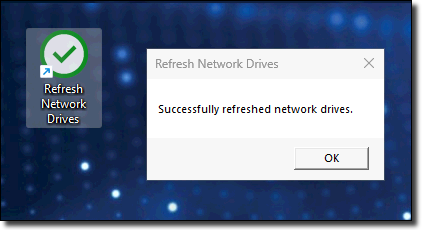
Refreshing your network drives: If your network drives do not appear in File Explorer, you can click the 'Refresh Network' shortcut on the desktop. A confirmation message appears when this has been successfully refreshed.

File refresh

Accessing your data files and products

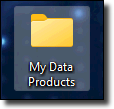
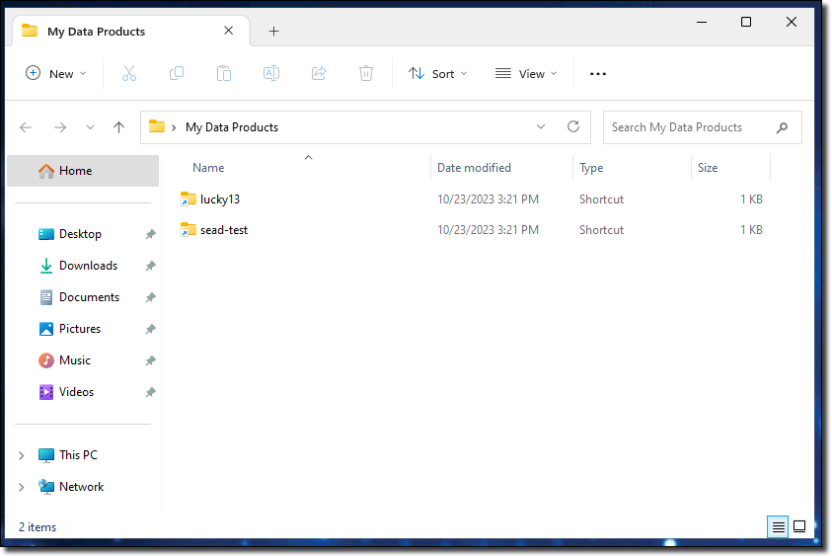
To access the data files for your project, use the 'My Data Products' shortcut on your desktop.

My data products folder

The My Data Products folder displays only the products approved for your project.

Products

Selecting the 'Products' drive shows you the short name of all data loaded to the SEADpod. However, if you try to open a file that is not approved for your project you are denied access and receive an error.

Products file from network drives
Products network error permission denied

NOTE: If you are using Azure Data Lake containers with Databricks, Azure Storage Explorer is available as an alternative to AzCopy to manage and transfer your files between your file share drives (output, project, etc) and blob storage. Refer to the 'Azure Storage Explorer User Guide' in the shared library drive.

NOTE: The Databricks project data lake storage does not currently have back up due to implementation restrictions, therefore we highly recommend regularly copying your files from the project data lake storage to your project file share storage (your P:/ drive).

Sign out or disconnect from your workspace

To close your session while keeping your analysis running, you have two options: sign out or disconnect from the VM. If you’ve enabled the ‘Bypass’ option in the VM management settings, your programs will continue running until 8PM. Otherwise, the shutdown will occur at a later date, still at 8PM.

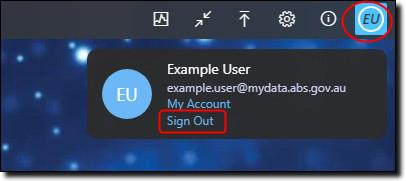
To sign out of your workspace, click the button with your initials located at the top right corner of the window, and then choose ‘Sign Out’.

Sign out

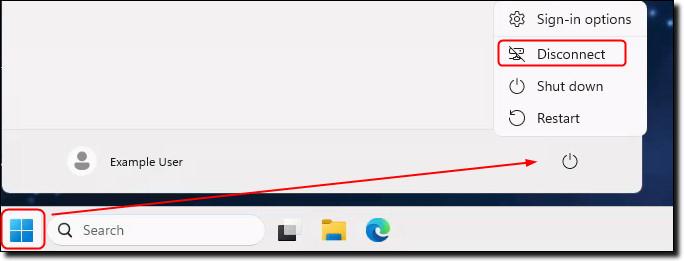
To disconnect from your session, click on the Start menu, then select the power symbol. An option labelled ‘Disconnect’ will appear. Click it to immediately disconnect from the session.

Disconnect button
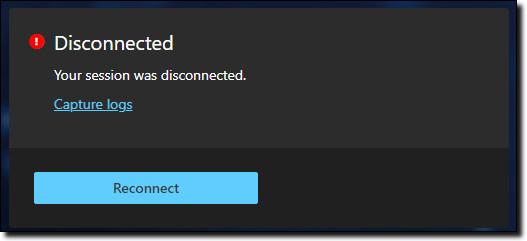
Disconnected

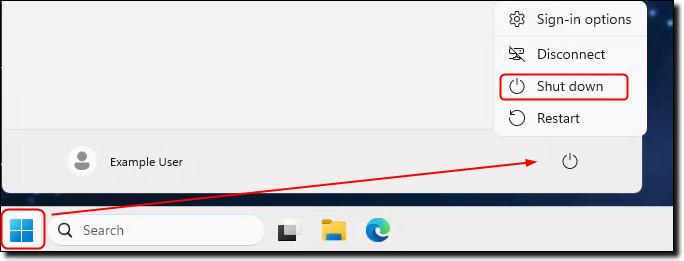
If you want to close your session and end all programs you have running, simply shut down your session. 

To shut down your session, click on the Start menu, then select the power symbol. An option labelled ‘Shut down’ will appear. Selecting this will immediately shut down your session. 

NOTE: Any unsaved work will be lost.


Shut down option

Restarting the VM can be used for basic troubleshooting if experiencing issues in the VM. This will restart the VM with any unsaved work being lost and any analysis currently being run will not continue.

How to run jobs offline

Explore how utilising local disk space can benefit analysts working across multiple projects

Released
10/11/2023

Running jobs offline using local disk space

If you are an analyst who works across multiple projects, you can request local disk space. This will enable your virtual machine (VM) to run jobs offline, noting the 30 day rebuild still applies.
Datasets are stored on a remote file share. Only the active machine has network access to this location. Your locked VMs do not. To run offline jobs, you need to request local disk space via your administrators to be attached to your machine. There may be a cost associated with this.

When running jobs offline, the inactive machine can continue to run your program as it still has access to the data since it is no longer using the remote file share. However, working like this does not allow your project team to see your analysis or output. You should always move your output back to your Project or Output drives where your project team can access and review the output.

To use local disk space:

  1. request access to a local disk for your project through your SEAD administrator
  2. copy the data products you need to the local disk
  3. Execute your script from the local disk and and start the job
  4. in your program, save your output to the local disk
  5. exit your VM and return to the SEAD portal to activate another machine
  6. after you have finished running your analysis offline (local disk) move your analysis and output back to your Project drive
Local disk space

Local disks can be used to execute processes, pending request to your administrator to attach the disk and provides local fast storage for more compute capacity. Please note the important functionality of this drive for intermediate compute and temporary storage purposes, rather than ongoing file storage.

Note: The X:\ drive is temporary storage and any data stored will be deleted on rebuild, deletion of the VM, or project closure whichever comes first. X:\ drives are not backed up outside of the VM, and data cannot be recovered from the drive if lost. Due to this, the ABS still recommends saving all data in the project drives.

Requesting code and packages

How to access, request or move code, code libraries and packages to your project

Released
10/11/2023

How to access code and packages

There are various recommended means for you to access, request or move code, code libraries and packages to your project in order to undertake your analysis in SEAD. You can access code through the following:

  • the ABS administered shared library (library drive) which holds a large volume of approved code from all primary software languages available (R, Python, STATA, SAS) and accompanying documentation
  • the Posit Package Manager (shortcut on the workspace desktop providing access to Python and R packages)
  • a request to your SEAD administrators for loading basic/simple self-written code in text format
  • a request to your SEAD administrators for loading from these recommended repositories:

Managing your R and Python packages

If you are working with a specific set of R and/or Python packages, you can now manage these using the Package Manager shortcut on your desktop.

Package Manager desktop icon

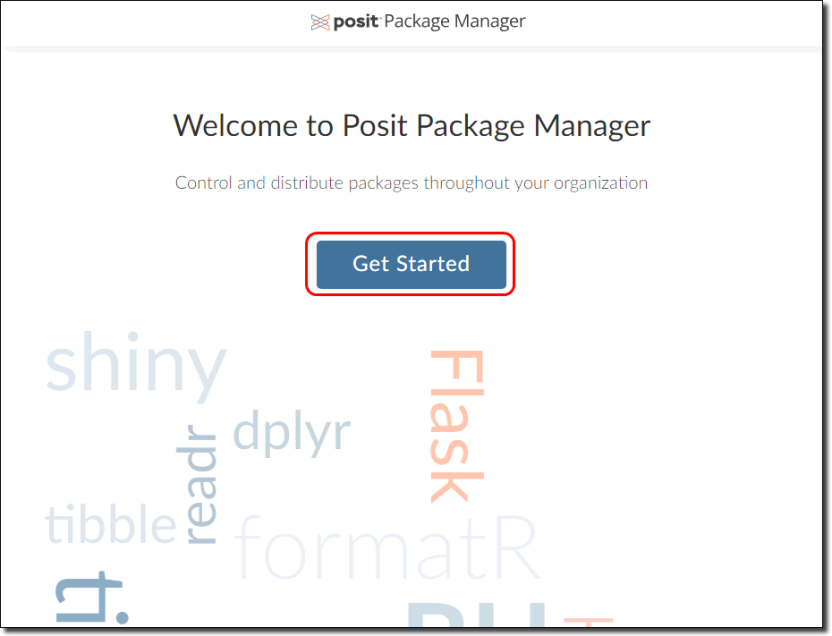
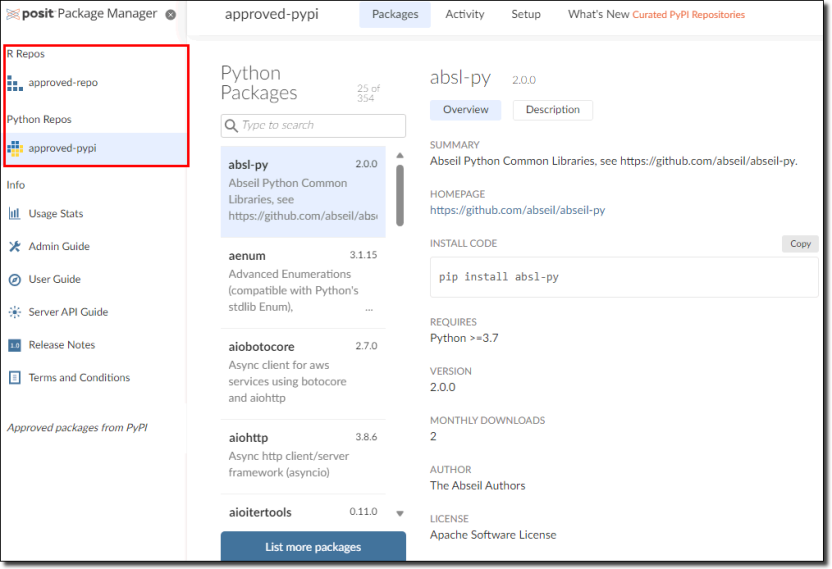
In the Package Manager, click 'Get Started' to navigate to the available packages. You can use this tool to search for packages (in the left column) and install the packages you want to use for your project. If the packages you need are not listed, you can request them using the Contact us page.

Package Manager page
Package Manager inside

Accessing earlier versions of R and Python Packages from Posit

The following describes how to access different, older, versions of packages from Posit depending on the language. If you require a new package, newer or older version of a package from CRAN for R or PyPi for Python, please submit a request for packages to your SEAD administrator in the first instance. Packages not from CRAN or PyPi will not be available through Posit and these will be subject to a separate security screening processing before they are approved for access in the DataLab if the process is successful. 

To access different package versions in R 

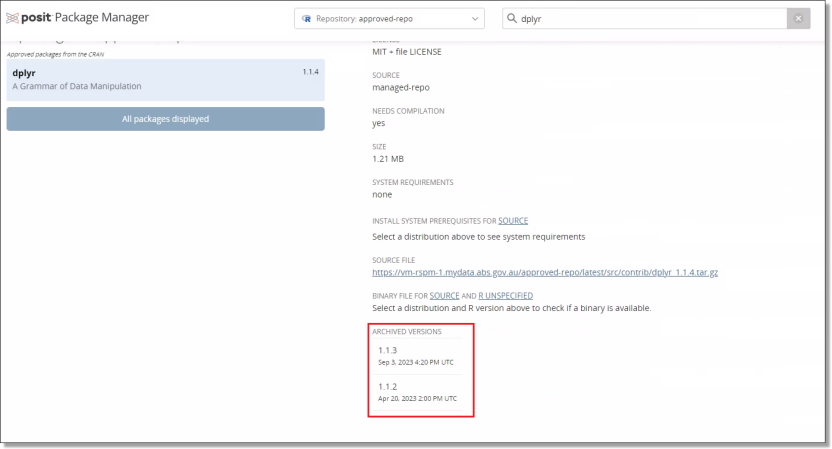
These files can be downloaded from Posit using your chosen R environment through the ‘devtools’ package e.g., ‘devtools::install_version(“your package”, version=“your package version”)’. You will be able to see the available package version for R at the bottom of the Posit page for that package. An example for the ‘dplyr’ package can be seen below.

R diplyr archived

To access different package versions in Python 

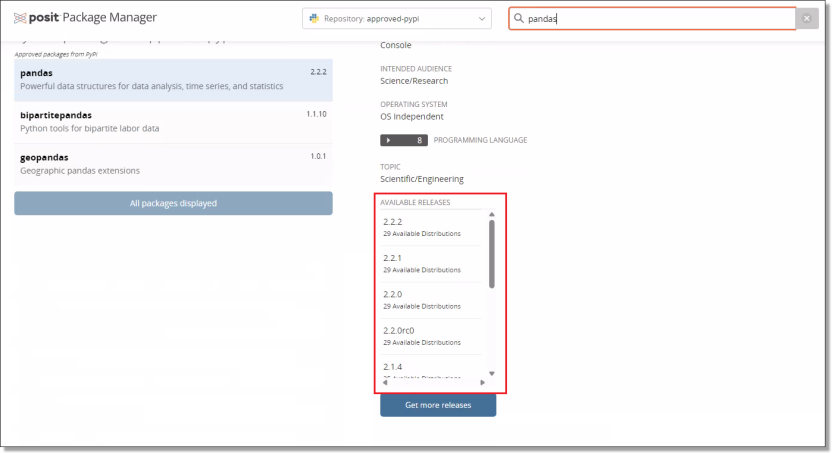
Accessing older python package versions can be done when installing the package through ‘pip’ e.g., ‘pip install pandas==2.1.0’. The available versions of each of the python packages can also be seen at the bottom of the relevant Posit page. An example for the ‘pandas’ package can be seen below. 

Python pandas archive

LabLink (BETA)

LabLink allows SEAD users to work collaboratively within their VMs

Released
10/11/2023

What is LabLink

LabLink is a new video conferencing tool developed by the ABS for SEAD, now available in its trial (BETA) phase to all users. It is designed to help researchers collaborate securely within their Virtual Machines (VMs), even when working from different physical locations. There are no additional costs involved for projects using LabLink.

LabLink has the following key features:

  • Secure Access: Only researchers approved on the same project can join LabLink meetings. External access (outside SEAD) is not permitted.
  • Audio and Video enabled: Researchers can communicate with other project users clearly and in real-time.
  • Screen sharing: Share your desktop or a selected window with other meeting users.
  • Familiar Interface: LabLink works similarly to popular tools like Microsoft Teams and Zoom. You can launch it from the desktop shortcut inside your VM.

Please note the following disabled features for data security:

  • Speech transcription
  • File sharing
  • Meeting recordings
  • Instant messaging

Using Lablink

Users can launch LabLink via the desktop icon or at meet.mydata.abs.gov.au in Microsoft Edge within their VM. Both options open the LabLink landing page to join and manage meetings. The page includes a “Help Info” button for common questions, and a LabLink User Guide is available in the Shared Library to support access and troubleshooting. Users will need to coordinate the details of their meetings outside of their VM as the sharing of meeting links has been disabled.

By using LabLink, end users agree to comply with the SEAD security policies and conditions of use.

LabLink will remain in BETA while we continue to improve its performance.  For feedback or support, contact: sead.support@abs.gov.au

Databricks

Databricks is available to SEAD users as a non-standard product

Released
10/11/2023

What is Databricks

Databricks is a cloud-based Big Data processing platform which provides users with an integrated environment to collaborate on projects and offers a range of tools for data exploration, visualisation and analysis. Within the Databricks environment, users can:

  • build pipelines for streaming data processing
  • build and run machine learning tools
  • create interactive dashboards
  • take advantage of scalable distributed computing capability

Users will also have access to the Databricks Academy training subscription (an online library of Databricks training guides), in addition to instruction materials on how to setup the Databricks workspace provided in the library drive. 

How to allocate a Databricks workspace to a project

To allocate a Databricks workspace to your project, you will need to submit a request to your SEAD administrator. Once your project is allocated a Databricks workspace, it can be accessed from within your Virtual Machine (VM) using the installed Edge or Firefox browsers.

Cost consumption

As Databricks uses separate compute power, projects requesting access to Databricks should consider if they need to continue to maintain their existing VM sizes. The option of scaling down the size of existing VMs provides users the opportunity to save on project costs. 

What are the cluster policy arrangements? 

Users can be provisioned with the following cluster policy options: 

InstanceServer PurposeMax Autoscale workersvCPU(s)RAM/Databricks Units
DS3 v2General Purpose5414GB0.75
D13 v2Memory optimised4856GB2
F16s v2Compute optimised41632GB3

Databricks cluster policies will restrict the type and number of workers you can provision for a cluster. If an existing policy does not fit your requirements, you can request a new policy via the ABS. All information regarding this can be found in the library drive.

To ensure the security and integrity of SEAD, partners will not have administrative access to the Databricks workspace and some usage restrictions may apply. Administration will be exclusively managed by the ABS. 

NOTE: The ABS provides information on appropriate Databricks cost management to end users within the shared library (L: Drive).

User troubleshooting

Basic troubleshooting for issues with logging in, virtual machines, errors and running out of space, code and software

Released
10/11/2023

Authentication

I’m having trouble with my multi-factor authentication

There are many different authentication applications, ensure the one you have downloaded is published by Microsoft (not Google or otherwise) as SEAD only supports Microsoft Authenticator.

Microsoft corporation ID on app

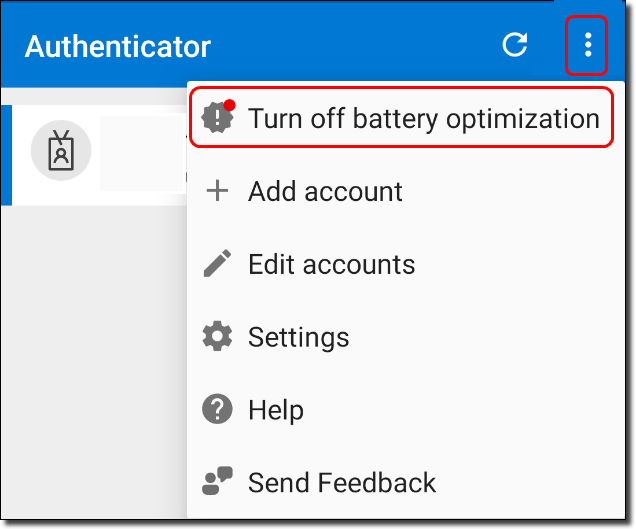
If you have verified you are utilising the correct application, but you are not receiving prompts to authenticate on your mobile device. You should check your battery optimisation is turned OFF by following these steps (applicable to Android phones only):

  • Open Microsoft Authenticator and refer to the top right-hand corner, if there is a red dot above the three white dots, press this and then select 'Allow' to turn the battery optimisation off. Then try logging in again on the SEAD landing page.
Turning off battery optimisation
If you receive the ‘error communicating with server’ message on your mobile device:
  • If your device is connected to the home Wi-Fi, turn your phone over to mobile data and try logging in again.
If switching to a new phone/tablet device:
  • The operating system of some mobile devices may not interact as expected with Microsoft Authenticator (namely the iOS 16, and some older versions of Android), in this case, try setup another phone or tablet device. In the case that you still have your old phone it may help if the old account is removed from the Microsoft Authenticator application on the previous device.

Other troubleshooting steps you can follow if you are having issues authenticating are:

  • Ensuring your phone is connected to the internet. You can also try to switch from WiFi to mobile data through your phone, to ensure a good connection to your PC/laptop.
  • From your phones settings menu, ensure push notification are enabled
  • Restarting your phone
  • Ensuring your have the latest Microsoft Authenticator app version installed
  • Clear your phones cache. On iPhone you will need to delete and reinstall the app. For Android navigate to the App storage settings, select 'Storage' and tap 'Clear cache'.
  • Ensure your phone is on the latest OS version

Logging in

I can't log in

  • Your account may have been disabled. Accounts inactive for 45 days are automatically disabled to maintain security. If your account has been disabled, you will need to contact your SEAD system administrator for assistance.
  • If you have entered your username or password using copy and paste, you may have accidentally included hidden characters or a space.
  • Your organisation firewall may be blocking access. Try accessing SEAD while disconnected from your organisation's network.
  • SEAD only supports use of the Microsoft Authenticator application.
  • If you have changed your mobile phone you may need to reset your Microsoft multi-factor authentication. Contact your SEAD administrator to action this.
  • If you need to reset your password this must be done via the 'Forgot my password' link in the initial SEAD sign in screen.
  • Clear your browser cache.
  • Try a different browser. ABS recommends use of either Google Chrome or Edge.

Has my organisation authenticated my access to SEAD

SEAD is enabled by cloud infrastructure, which may be blocked by some organisations’ firewall settings.

ABS cannot make changes to external organisations' infrastructure. If you are connecting to the 'Remote Desktop Client' version of AVD, contact your SEAD administrators to ensure that your IT department has enabled the correct networking addresses. 

If you intend to use the 'Remote Desktop client' on your organisation's workspace, your internal IT department will need to make it available to you. 

The latest version of 'Remote Desktop client (MSI)' for Windows, ensuring you select the 'MSI' version is available here and for Macintosh is available here

How long does my temporary password last

The temporary password issued to you by your SEAD administrator lasts for 90 days. 

If you have forgotten your temporary password, you can self-service a password reset by following these instructions

My password expired while my virtual machine was running

Your session will continue to run until a shutdown is required (either nightly shutdown or 30 day rebuild). However, you can still reset your password while your session is running.

Virtual machines

My virtual machine is not launching

  • You must activate, then launch the VM. Follow the process and wait for each step to complete before progressing.
  • Check your internet connection. If you have a weak or intermittent connection, this can affect launching your VM.
  • Try launching the VM outside of your organisation's online environment. Some institutions’ or government departments’ firewall or other security settings may be preventing access to the SEAD portal and/or launching of the VM. Attempting to connect outside your agency’s online environment may assist in forming the VM connection.
  • Restart your VM. As with restarting a computer, restarting your VM can sometimes resolve problems with launching your machine successfully. Wait 10 minutes to ensure the reboot of the machine is complete before attempting to launch again.
  • Rebuild your VM by navigating to your VM management options by pressing the 'Manage' button on the corner of your VM tile in the portal. 
  • If you are still having trouble, alert your SEAD administrator.

I want to use multiple monitors (multi-display) when accessing SEAD

To use multiple displays when using SEAD, on the Remote Desktop client (MSI) or the Windows App, you will need to adjust the display settings.

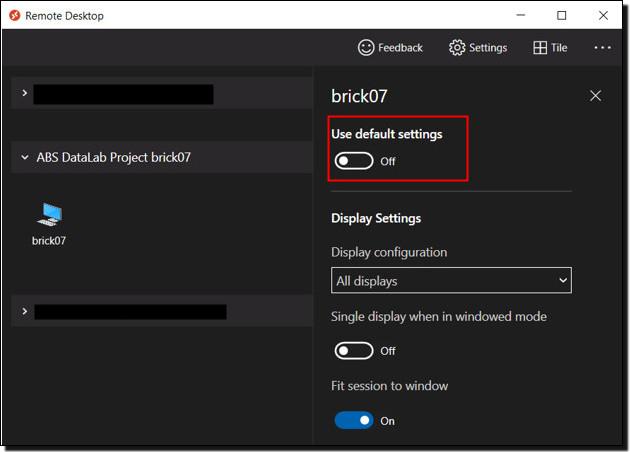
On the Remote Desktop client, right click on the machine you want to access and click ‘settings’, then turn off ‘Use default settings’ to see the display settings.

'Use default settings' option disabled

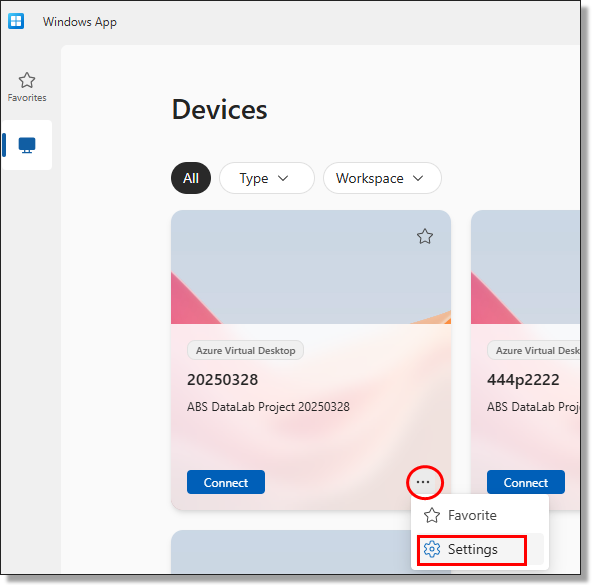
On the Windows App, right click on the machine you want to access and click 'more options', then turn off ‘Use default settings’ to see the display settings.

Modify Windows App display settings

I am having issues with my VM screen size or issues with scaling the screen resolution

When launching your VM through the web portal using the 'Connect' button, the VM window may open but with issues relating to the screen resolution. You can try launching your VM directly from the Remote Desktop Client or Windows App. Refer to Accessing your project workspace, then connect ‘Remote Desktop for Windows’ section.

If required, you can modify the display settings for the VM you’re wanting to launch. From the Remote Desktop Client or Windows App, open the display settings and turn ‘use default settings’ off. This will allow you to see what display settings are enabled. Ensure the ‘Fit session to window’ option is enabled.

Where do I save the work I have done on a virtual machine that is scheduled to be destroyed

Save your work to your Project or Output drives to ensure that your analysis is not lost, this also ensures other team members on your project have access to your work. Information saved outside of these drives is destroyed when your machine is rebuilt every 30 days.

I can't see my project's products

Try logging out of and stopping your VM, then begin the Start VM process again. If that does not work, rebuild your VM by navigating to your VM management options, refresh your session or clear your cache/browser history. If issues persist, contact your SEAD administrator.

I'm experiencing performance issues within my SEAD workspace

System performance issues can occur for many different reasons and every issue requires a unique approach to troubleshoot. Many issues can be resolved by attempting one of the following:

  • ensure you have a good internet connection
  • close and reopen the program you are using, and close any other programs or processes that may be consuming system memory
  • confirm your project drive has available space, if not attempt to free up space
  • refresh your network drives using the icon on the workspace desktop
  • attempt to shutdown or rebuild your VM

Errors and running out of space

One of my network drives in the analysis environment is missing

If you cannot see the Library, Project and Output network drives in File Explorer, go to the desktop and double-click the 'Refresh Network Drives' icon.

Refresh drives

I got an error while working with data in SAS/Stata/R/Python

Stata error example:

SAS memory error

"op. sys. refuses to provide memory: Stata's data-storage memory manager has already allocated 77792m bytes and it just attempted to allocate another 32m bytes. The operating system said no. Perhaps you are running another memory-consuming task and the command will work later when the task completes. Perhaps you are on a multiuser system that is especially busy and the command will work later when activity quiets down. Perhaps a system administrator has put a limit on what you can allocate; see help memory. Or perhaps that's all the memory your computer can allocate to Stata. Apart from Stata, only a bunch of files on adobe were open while the append was being run and am not using a multi-user system."

If you encounter the above image, this means you have exceeded the memory for your VM.

1. Use an alternative method/program to manipulate or process the dataset. Some processes/programs/methods for working with large datasets are more memory-intensive than others. Try some alternative method to see if it is less system intensive.

  • Most statistical software tools are able to filter data as it is imported. If your analysis only needs variables a, b and c from a dataset containing 30 variables, then selecting, filtering or importing only these variables uses less memory.
  • If you cannot do this in your software, consider creating a subsetted data file using another tool, such as Python, as the first step of preparing your data for analysis.
  • If you are unsure of alternative methods, we recommend discussing with other researchers in your project team who are more familiar with your chosen statistical software. The ABS does not provide advice or training on using the analytical tools provided to you in SEAD.

2. Contact your SEAD administrator to request a larger machine. Larger machines incur higher running costs. With user charging, your administrator may need to consult with your organisation to confirm incurring additional expenses for your project before applying for a larger machine.

Why am I getting an error when I attempt to unzip files using the 7zip tool in SEAD

If you are receiving an error when attempting to unzip a file using 7zip, this may be because the default is set to ‘7zG’ and not ‘7zFM’. To confirm whether this is the case, attempt the following steps:

  1. create a zipped file
  2. choose Open With -> another app
  3. from there go to “choose another app on your PC”
  4. select 7Zip
  5. select 7zFM
  6. hit apply and select always

I am running out of space in my Project drive

Clean up the drive contents, review and delete redundant files to free up space. Additional space can be requested of your organisations SEAD administrators.

Code and software

How do I edit the SAS configuration file

Users with SAS installed now have the ability to edit the SAS configuration file located at “C:\Program Files\SASHome\SASFoundation\9.4\nls\en\sasv9.cfg”. This file governs various software settings and parameters, enhancing customisation options. Noting any changes will need to be repeated following machine rebuilds, as the C drive is destroyed on rebuild. To modify the SAS config file, follow these steps:

  1. Access the file at the provided directory, using SAS or a text editor.
  2. Proceed to make the necessary changes, in order to tailor the configuration.
  3. Save the file (and a backup version on your P: drive, to reinstate following machine rebuilds), then test the software for desired outcomes. Exercise caution, as improper edits may lead to unexpected behaviour.

SEAD users can access a pre-written SAS configuration script that enhances SAS efficiency within SEAD. This includes the "VM_COMPLETE_SETUP.bat" script and supporting resources to streamline the setup process following machine rebuilds. Please refer to the resources located in the Shared Library Drive (L: Drive).

I am having trouble launching Jupyter Notebook or JupyterLab

When launching Jupyter Notebook or JuypterLab from Powershell or command prompt, these may be referencing the incorrect directory resulting in an error message. To overcome this, enter the following command into Powershell or the Command prompt:

  • To launch Jupyter Notebook, enter: 'python -m notebook'
  • To launch JupyterLab, enter: 'python -m Jupyterlab'

I have some code for one project that I want to use in another project - how do I arrange this

You can request input clearance for data, code or files to be loaded to your project, from either another project, or other sources that you hold. To do this contact your organisation's SEAD administrators.

What can I do if my code will run longer than 8pm tonight

You can extend your session to bypass the nightly shutdown, by one, two or three nights.

How can I optimise SAS within SEAD

SAS configuration inside SEAD is tied to the size of your VM. Alternatively, the addition of local disk space (see Running jobs offline using local disk space) can improve run times. Users can also work more on a local disk and then write to the Projects drive when finished, but beware of the costs involved with attaching a local disk space. A 1TB disk can cost between a minimum of $116 to $299 a month depending on usage transactions that would be cost recovered.
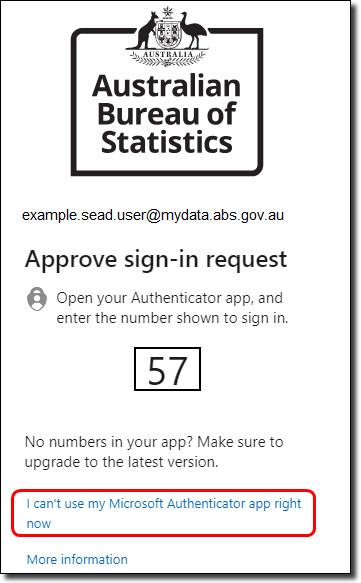
Can I enable larger data storage for the PostgreSQL data directory

Following recent enhancements, PostgreSQL's data directory relocation is now automated to X:\psql\data when a local disk is attached, facilitating expanded storage capacity for data. This feature streamlines the process of accommodating larger datasets. To enable local disc please contact your SEAD administrator. 

How do I see what R and/or Python packages I have available and how do I manage these

Use the Posit Package Manager shortcut on the SEAD virtual machine desktop to check the range of R packages available to you. See Requesting code and packages for more information.

Double clicking to open a PDF is not working

Due to a default setting in Microsoft, the system automatically uses Microsoft Edge to open any PDF file. You can open the PDF file by right-clicking on the file, selecting Open with > Adobe Reader. This launches the file using Adobe Acrobat Reader.

Frequently asked questions

Find answers to common questions about the SEAD service and how it operates

Released
10/11/2023

Managing access

Which organisations are eligible to access the SEAD service

SEADpods are exclusively available to government entities, encompassing federal, state, and local organisations.

Are there any limitations or restrictions on organisations interacting with the SEADpod

SEADpods are designed to be versatile, allowing interactions with various organisations as intended by the SEAD partner. However, certain restrictions may apply based on project specifications and security considerations as specified by the adopting agency.

Can an organisation partition their SEADpod to ensure users only have access to their authorised data

Yes, projects can be linked to only the products defined by the administrator, subsequently enabling access to data by a select group of users. Much like the model seen in the shared infrastructure of the DataLab. Noting, administrators however do have access to all data loaded to the environment.

Is there a time limit to how long a SEADpod can exist

No, there is no limit to how long a SEADpod can exist. The SEADpod will remain in use by the SEAD partner until an explicit termination date is provided.  

Are there access controls in place to containerise the SEAD environment and protect against data leakage

  • the SEAD environment resides on a private virtual network fronted by an Azure firewall
  • virtual machines (VMs) are blocked from accessing public internet and are segmented by individual workgroup levels
  • all data is encrypted in transit and at rest as we are using Azure hosted storage
  • Role Based Access Control (RBAC) is enforced
  • the SEAD environment is accessed remotely for secure desktop delivery
  • group policy disables clipboard / device redirection for preventing data theft via Remote Desktop Protocol
  • VMs are automatically patched and we destroy and rebuild all VMs every 30 days on a rolling window
  • basic user behaviour monitoring is enabled for auditing and reporting purposes. Session recording is not enabled by default
  • ABS utilises the Cloud Security Posture Management (CSPM) tool – InsightCloudSec, which provides information about potential misconfigurations, configuration drift and any security issues following deployment of resources
  • VMs are protected with Microsoft Defender for Endpoint Plan 2 (previously Microsoft Defender Advanced Threat Protection) which provides:
    • threat detection
    • antivirus / malware scanning
    • preventative protection / post breach detection
    • automated remediation and response
    • vulnerability management
    • other next-gen protections

Can SEAD users upload code and packages

Users are not able to load code or packages themselves, this responsibility sits with partner data administrators and the ABS. To ensure system security and integrity, SEAD partner administrators should refer to their SEAD Administrators Instruction Guide provided by the ABS for information on trusted sources. In addition, software is not to be provided, or attempted to be loaded to a SEADpod by partner administrators. Any request for new software must be submitted to the ABS, accompanied by a business justification.

Managing projects

What archiving protocols does SEAD have

Project and Output folders within each workspace are backed up every night and retained for 14 days. These backup snapshots are accessible to SEAD administrators.

Closed projects will also be archived 30 days after their closed date. Data from P: (Project) and O: (Output) file shares will be moved from the Project storage account to a dedicated archive storage account. The ability to restore a project will no longer be available after the 30 days grace period and requests to restore an archived project will incur a cost.

How do SEAD administrators manage data input and output

Data input and output is managed through Azure Storage Explorer by uploading and downloading files from Azure Files Storage Accounts. Azure Storage Accounts are configured with a firewall to restrict access to an administrator's nominated network.

Can users from other organisations engage with the same projects

SEAD facilitates collaborative engagement on shared projects. SEAD partner administrators have the capability to create user accounts and strategically assign them to specific projects. It is up to the SEAD partner to determine and manage data access policies.

Are there alternatives to Azure Storage Explorer

There are alternative options available, but this is up to the SEAD partner to manage. The choice depends on specific project requirements. 

Can our regular SEAD users upload data to a project drive in SEAD

Users cannot upload or download any data to/from SEAD, this is only done by the data administrator for security purposes.

Virtual machines

What are virtual machines

VMs are the virtual workspaces analysts use to undertake their work in SEAD. An analyst will have one VM for each project they are a member of and can only work in one of these (the ‘Active’ VM) at any given time. This is a security measure to prevent analysts from accessing data for multiple projects simultaneously. The VMs are also called ‘Desktops’ in Azure Virtual Desktop. Only SEAD administrators can increase/decrease or assign VMs to users.

How do I know which virtual machine size is most appropriate for a user or project

The appropriate VM size will depend on the size, complexity, and needs of the analysts working on a given project. Larger and more complex files and analytical tasks may require larger machines. We advise users to use small, medium or large machines in the first instances. There are cost implications on VM use. See Available features for more information about VM sizes and performance. Users have the ability to manage their VMs power state in SEAD.
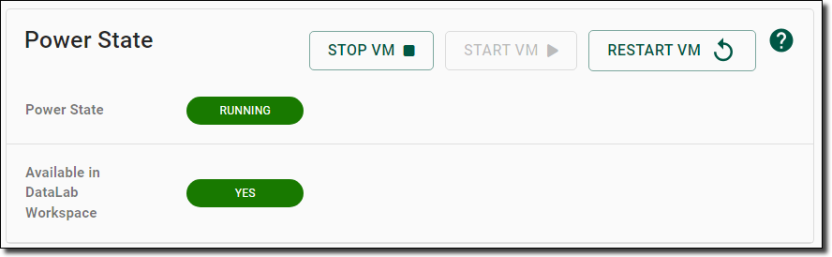
Are there virtual machines that offer GPU

Yes, VM GPU units are available at an additional cost.

Are virtual machines backed up

VM Project and Output drives are backed up every night and kept for 14 days. Files outside of these drives are not recoverable.

Is there a delay between assigning data to a project and users seeing it

Yes, it takes about 5 minutes to process the connection. You also need to log out of your VM to allow the system to refresh your session with the new data.
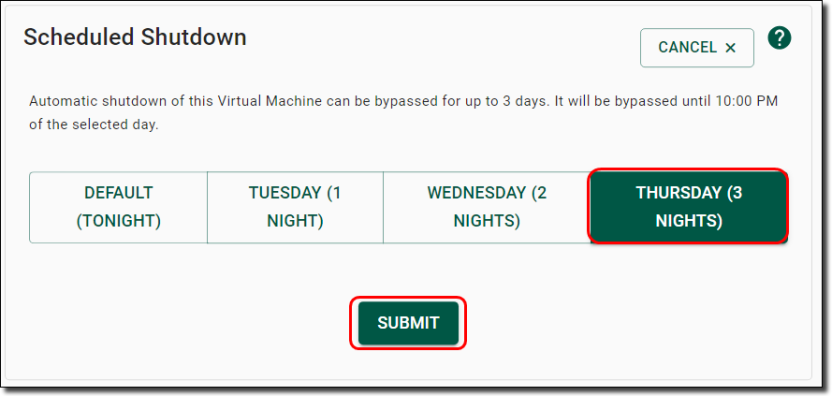
Why are virtual machines destroyed every 30 days

VMs are destroyed approximately every 30 days for security purposes. If the 30 day timing will interfere with the timing of your project, you can choose to destroy and rebuild earlier than 30 days at a time that suits you.

Do users receive any reminders regarding their virtual machine rebuild

Yes, users are reminded about a rebuild three days ahead of their rebuild and again 24 hours prior.

Storage

Is there a limit to the amount of data that can be stored in a SEADpod

No, there is no predetermined limit to the amount of data that can be stored in a SEADpod. By design, SEAD is a scalable environment. However, by default each project workspace is provisioned 1TB, which can be increased by administrators to 10TB of storage. Additional storage can be provided upon request to the ABS, to a maximum of 100TB per project imposed by the Azure platform. Cost management should be considered when thinking about storage applications.
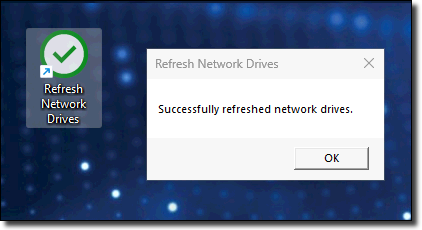
Does the cost of a SEADpod vary depending on how much storage is used

Yes, system usage charges will vary depending on the forecasted usage profile, including, but not limited to, storage, number of accounts, license use and VM use.

What is the cost comparison between the project drive and the product drive

The cost of storage in the product and project drives, and datalake containers are the same. However, the products are managed by a data administrator, whereas your project drives can be managed by members of your project. 

How much storage space does the product space occupy in SEAD, is it utilising our project space

The product storage is 100TB and is completely separate from your project drive capacity as it is accessible by all projects. However, the individual folders (products) inside the product drive are only available to each project once the project administrator has linked them to a specific project.

Is there a preferred choice between using the product space and the project space for data storage

Files cannot be saved to the product drive, whereas files can be saved to the project drive, which is not impacted by the 30-day rebuild, making it a safe place to store data. Do not save to the C drive, as this is wiped during the rebuild. Therefore, it is preferable to store data in the project drive when you are working on datasets/code and to use the ‘output’ drive when you need items extracted from the project by the relevant administrator. 

How does data get cleared from the product drive and who clears that data

Your SEAD data administrators clear data from the product drive by simply removing or deleting files. However, if you wish to egress files from your project, you will need to have them stored in either the output or project drive, where your data administrator can access them from outside SEAD through appropriate credentials using Azure Storage Explorer. 

Licensing

Do I incur usage charges for other software

Like DataLab, SEAD is already equipped with various software for SEAD partners to utilise at no additional cost, including R, Python, STATA, Winmerge, QGIS, and 7ZIP (for the full list of software, see Available features). However, new software or software that requires paid licensing will incur additional charges. For example, Databricks is available but will incur a cost. Other non-standard software tooling can be requested by SEAD partners for implementation in the system, and will be considered on a case by case basis. 

If a user with a SAS license no longer requires it can I reassign the license to another user

Yes, SEAD administrators have the ability to assign/move SAS licenses as required due to our concurrent SAS license pool arrangement. This means that if you pay for 20 concurrent licenses, the system will limit your users if over 20 try to use a SAS enabled machine at the same time. Since the licenses are pooled, up to 30, 40 or 50 users in your SEADpod can be assigned a SAS enabled machine at any given time, they just cannot be accessed concurrently. SEAD administrators can monitor this by exporting reports from the Virtual Machines page on the SEAD portal.

Trial

Can we trial SEAD before we go ahead with the purchase

Yes, once confirmation to proceed with the SEAD service is provided, we can facilitate a free 30-day trial period. See Applying for the SEAD service for further information about the application process. 

Contact us

Register your interest or general enquiries and support for existing SEAD partners

Released
10/11/2023

If you are a researcher using an existing SEADpod and want to enquire about data access, account management, including password or MFA resets, input or output clearance, training or general enquiries, please contact your organisation's SEAD administrators.

New SEAD environment query

To register interest or general enquiries in adopting a new SEAD environment:

✉ New SEAD environment query 

Email template to register interest or enquire about a new SEAD environment

Existing SEAD partner system support request

For existing SEAD partners to report technical issues or request general system support:

Existing SEAD partner system support request

Note:
  1. For SEAD users, please consult with your SEAD administrators before submitting a support request.
  2. Please consider carefully before attaching any potentially sensitive information, images, files or logs to emails. Do not attach any screen shots or copies of the data from within SEAD.
  3. ABS does not provide support with analysis, code errors or third-party analysis software.

Email template to report a system issue or request general support

Existing SEAD partner code or software request

For existing SEAD partners to request code, code packages or software be implemented in the system:

Existing SEAD partner code or software request

Note:
  1. Please consider carefully before attaching any potentially sensitive information, images, files or logs to emails. Do not attach any screen shots or copies of the data from within SEAD.
  2. ABS does not provide support with analysis, code errors or third-party analysis software.
  3. Any new software requests will be considered on a case-by-case basis.
  4. Code and package requests may take up to 3-5 business days to be actioned. Non-critical software requests may take some time to be processed. 

Email template for requesting code or software

All other queries

For all other enquiries, please contact the ABS via email at sead.support@abs.gov.au. This email account is monitored and we will respond to your query during standard business hours (AEST), Monday to Friday.